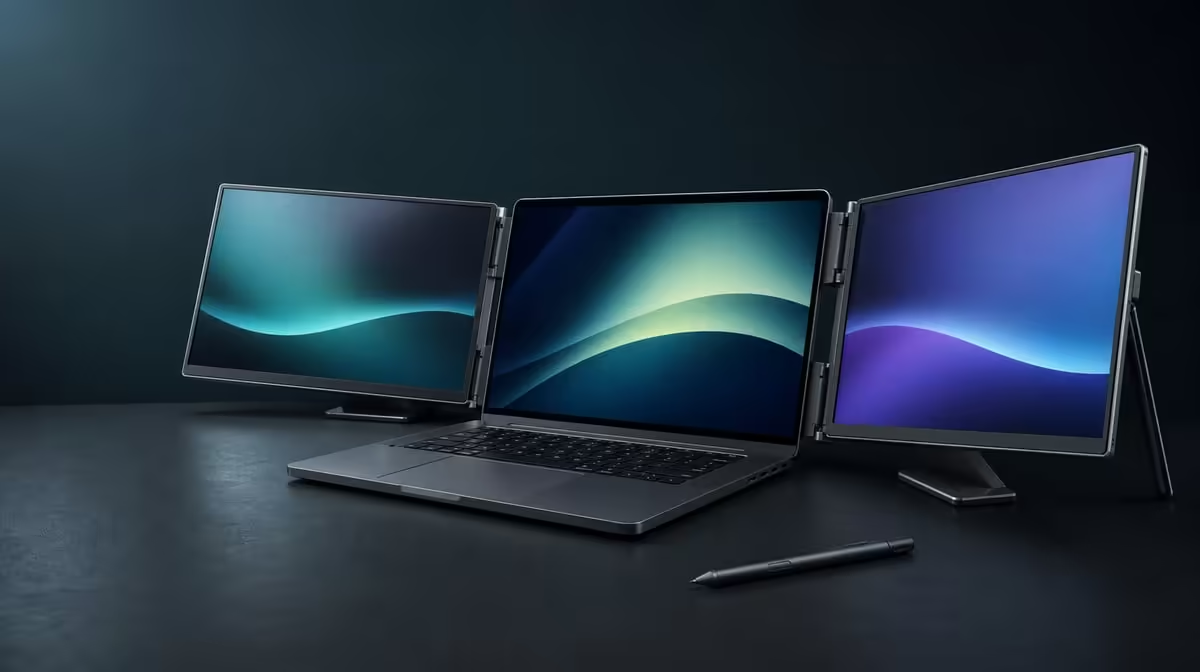
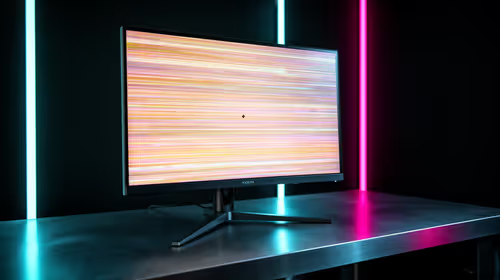
A dual touchscreen is a display system, input surface and physical workstation at once. Knowing what to look for in a dual touchscreen monitor means evaluating QHD detail, input mapping, software behaviour, colour scope, rotation and support beside the laptop as connected parts of one workflow.
Quick Answer
Look for native resolution, useful multi-touch capacity, pressure response in compatible apps, relevant colour coverage and a stable support system. At R11,999, the Delta Pro Touch combines two 16-inch 2560 x 1600 IPS panels, 10-point pressure-sensitive input, 100% sRGB, gravity-sensing rotation and an ergonomic stand.
🖥️ Start with two usable display surfaces
Confirm the laptop can drive the intended dual-screen arrangement, then set each Delta panel to native QHD. Arrange the screens to match their physical positions and choose scaling that keeps text, menus and touch targets readable.
Two high-resolution panels can show a detailed canvas on one and tools, reference or communication on the other. The value comes from reducing window switching without turning controls too small. Test the actual applications and source performance.
Evetech's portable-monitor category gives buyers a current comparison point for mobile laptop workspaces. Measure the complete laptop, monitor and cable setup on the surfaces where it will be used.
👆 Separate touch capacity and pressure behaviour
Ten-point control means the hardware can register up to ten contacts. Begin with accurate single taps on both screens, then add contacts in a compatible application. Software decides how many points and gestures it uses.
Pressure sensitivity is a different capability. Test it with a compatible tool inside a pressure-aware creative control. Look for repeatable variation rather than assuming a pressure-level number or bundled pen that is not established.
🎨 Match colour and response to the work
The Delta covers 100% sRGB, a useful gamut target for photo, video and design prepared for sRGB output. Full-gamut coverage is not calibration evidence, so creators still need a consistent reference and export process.
Its 25ms response figure should be noted by users sensitive to motion. The product is oriented towards detailed interactive and creative work rather than being positioned as a fast competitive-gaming screen.
Compare fixed alternatives through Evetech's PC-monitor range if mobility, rotation and direct dual-screen input would be used rarely.
🔄 Inspect rotation and support in person
Change one screen to a chosen position within its 180-degree span, pause for the gravity sensor and confirm image orientation, touch mapping, window layout and cable slack. Auto-rotation is useful when the full workspace recovers predictably.
Apply normal finger and pressure input at the chosen angle. The ergonomic stand should resist movement and keep both 16-inch screens in a comfortable relationship to the laptop.
Use the monitor best-seller list to compare the R11,999 Delta with current priorities, then check availability when buying.
Create a scorecard with daily, weekly, occasional and unused rows. QHD space, 10-point gestures, pressure work, sRGB, rotation and the stand should earn weight through use. Specialist features left idle should not carry the purchase.
Verify the laptop before scoring the panels
Connect the same laptop that will travel with the monitor and open its display controls. Both Delta images should appear independently at 2560 x 1600, while the built-in screen should remain available if the planned layout needs it. Move a labelled window across every boundary to expose a reversed arrangement.
Then check input delivery rather than assuming that visible pictures prove touch. Tap each panel separately and correct its assignment before trying gestures. This first session establishes whether the source, operating system and applications can use the hardware being priced.
Measure readable space, not maximum density
Place a representative timeline, document or data view on one panel and its tools or reference on the other. Increase interface scaling until small labels and controls can be read at the normal seating distance. Count the useful content left visible after that adjustment.
This method prevents QHD from being judged through an unrealistically tiny desktop. It also shows whether the laptop screen has a productive third role or simply increases head movement and cursor travel.
Inspect input at the panel edges
Centre taps are an easy test. Corners, narrow controls and long drags reveal more about alignment. Trace a slow line near every edge of the first screen, repeat on the second and watch for an unexpected jump into another display's coordinate space.
Once placement is sound, rotate one panel and run the edge sequence again. A buyer should know whether the intended laptop configuration preserves touch mapping when gravity sensing changes the picture orientation.
Build a creator-specific colour check
Prepare one familiar photograph, a gradient and a neutral reference that belong to the normal production process. View them on both Delta panels at comparable brightness and complete a small sRGB export. Keep any observations tied to that laptop, software and setting combination.
This is more useful than treating 100% coverage as a universal quality verdict. The gamut figure defines a colour space the panels can reproduce; consistency, calibration needs and delivery settings remain separate parts of responsible creative work.
Test support on the smallest regular desk
Set up the monitor, laptop and required connections on the most constrained surface used during a normal month. Adjust the stand for viewing, then perform taps, drags and a short pressure-aware exercise. Check whether either panel moves when contact reaches an outer corner.
Leave enough clearance for rotation and safe cable movement. A stand can feel secure in a large demonstration area yet become awkward when the laptop, charger and working hand compete for the same compact table.
Compare ownership effort as well as features
Disconnect through the normal routine, move the equipment and rebuild the saved workspace. Time how long it takes to recover resolution, screen order, touch assignment and application placement. Repeat after a laptop restart.
Add this recovery result to the scorecard beside price and daily function. The best dual touchscreen is not merely the one with the longest specification list; it is the system whose valuable features can be restored reliably wherever the laptop work actually happens.
Check motion with representative content
The Delta's stated response is 25ms, so open the movement that matters to the buyer rather than inferring performance from still images. Scroll the normal document, scrub a creative timeline or play a familiar clip using the same laptop settings planned for work.
Compare that observation with the real priority list. Someone buying for detailed layouts and touch may accept a different response profile from a competitive player. Keeping motion as its own score prevents QHD sharpness or sRGB coverage from answering the wrong question.
Frequently Asked Questions
Why compare touch points?
They indicate simultaneous contact capacity, while the application determines the gestures available.
Does pressure sensitivity confirm a pen?
No specific included pen or pressure-level count is established.
What does 100% sRGB add?
It provides a defined gamut target for sRGB-oriented creative work.
Is the 25ms response aimed at fast competitive play?
It is a stated response characteristic and should be weighed against motion needs.
Why inspect the stand?
Direct input pushes against the screens, making stability and angle practical requirements.
Ready to compare dual touchscreens as complete laptop workstations?
Review Evetech's portable monitors through resolution, app-level input, colour needs, rotation and support rather than port-count shorthand.