Tired of fumbling with old USB-A ports? Sick of the dongle graveyard growing on your desk? It’s time your high-end PC got a modern connection. A USB-C retrofit isn’t just a nice-to-have; it’s a simple, affordable upgrade that streamlines your setup for faster data, slicker charging, and no more guessing which way the plug goes. Let's get your rig sorted. 🔧
Why a USB-C Retrofit is a Smart Move
Before we get into the nuts and bolts, let’s talk about the why. Upgrading to USB-C isn't just about adding another port; it's about future-proofing your machine. You get access to blistering data transfer speeds, powerful charging capabilities for your phone or peripherals, and the sheer convenience of that reversible connector.
For a relatively small investment, you're adding a feature found on brand-new, top-tier motherboards. It’s one of the most cost-effective ways to modernise an older PC, ensuring all your essential PC components work together seamlessly for years to come.
Your Quick Guide to a Seamless USB-C Upgrade
Thinking about retrofitting USB-C to your case? It’s easier than you might think. The process generally boils down to identifying what your system can support and picking the right part for the job.
Step 1: Check Your Motherboard
The simplest method for a USB-C retrofit relies on an internal header on your motherboard. Pop open your case (with the power off, of course!) and look for a specific 20-pin connector, often labelled USB 3.1 Gen2, Type-E, or Key-A. It’s a small, rectangular plastic port.
No header? No stress. You can still perform a USB-C upgrade using a PCIe expansion card, which we'll cover next.
Pro Tip: Manual First!,
Before you buy anything, find your motherboard’s manual online. Search the PDF for
USB Type-C" or "Key-A connector". This 30-second check will tell you exactly what you have, saving you time and money.
Step 2: Choose Your Hardware ⚡
Once you know what your motherboard supports, you can choose your hardware.
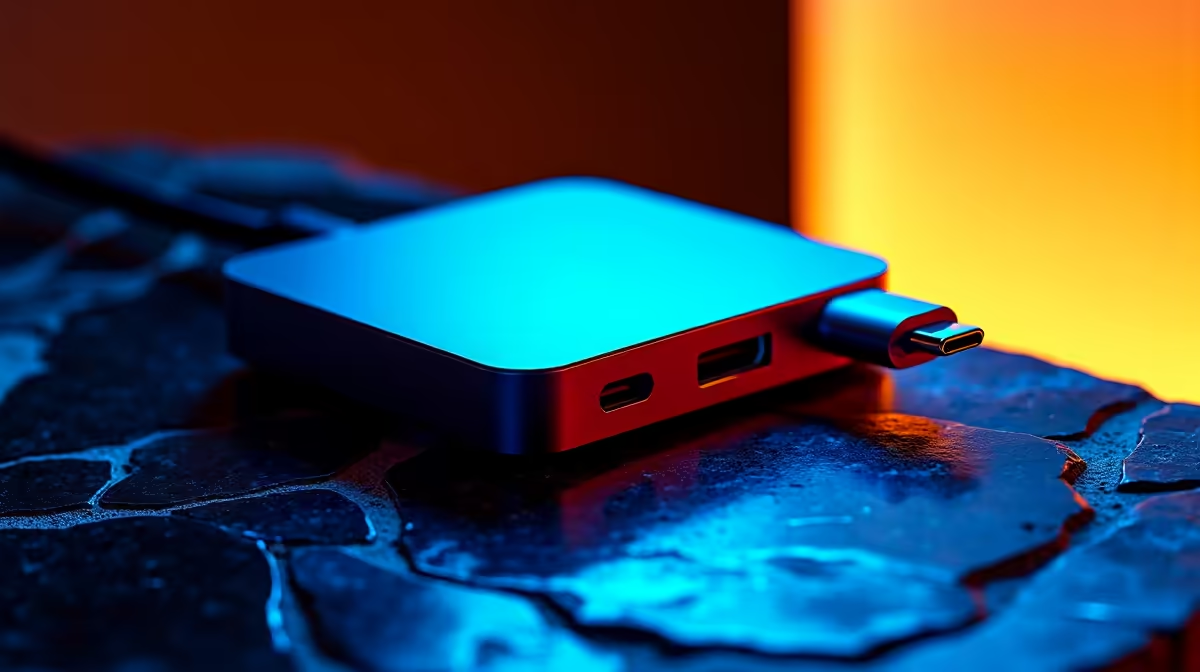
- For Motherboards WITH a Header: Your best bet is a front-panel cable or a simple I/O bracket. These connect directly to the internal header and provide a port on the front or back of your PC. You can find many affordable front-panel adapters under R500 that get the job done perfectly.
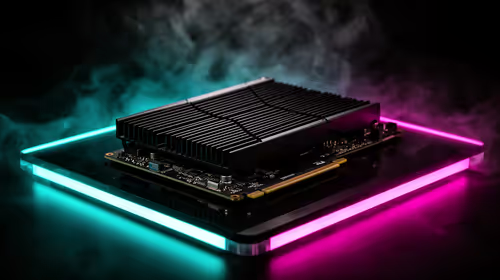
- For Motherboards WITHOUT a Header: A PCIe expansion card is your hero. This card slots into a spare PCIe lane on your motherboard and provides one or more external USB-C ports. They draw power and data directly from the PCIe bus, offering fantastic performance. More advanced models might require a SATA power connection.
Avoiding Common Upgrade Pitfalls
A successful USB-C retrofit is all about preparation. The most common mistake is buying a front-panel adapter without having the necessary internal motherboard header.
Another thing to watch for is speed. Ensure the card or adapter you buy supports the speeds you need (e.g., 10Gbps or 20Gbps). While budget options are great, sometimes it's worth investing in more powerful PCIe cards that can cost up to R2000 for maximum throughput, especially if you're transferring large files regularly. ✨
Ultimately, mastering the USB-C retrofit is about taking five minutes to check your system and choosing the right component for a clean, professional-looking, and highly functional upgrade. 🚀
Ready for a Modern Connection?
Stop juggling dongles and give your PC the port it deserves. Explore our wide range of upgrade options and find the perfect fit for your battle station. Shop all PC Components at Evetech for a faster, cleaner setup today.