The Raspberry Pi 5 does not have a normal HDMI port, and that surprises a lot of first-time owners staring at two tiny sockets on the board. Those are micro-HDMI ports, two of them, capable of driving dual 4K displays at 60Hz, and you cannot plug a standard monitor cable straight in. You need a micro-HDMI to HDMI cable or adapter, and choosing one rated for the right HDMI standard is what decides whether you get clean 4K or a flickering, lower-resolution mess.
Quick Answer
The Raspberry Pi 5 has two micro-HDMI ports supporting dual 4K at 60Hz, so you need a micro-HDMI to HDMI cable or adapter to connect a monitor. Choose one rated at least HDMI 2.0 (18Gbps) to get full 4K 60Hz; a cheaper, lower-rated cable can cap you at 4K 30Hz or cause signal dropouts. Direct cables are tidiest; short adapters work if you already own an HDMI lead.
Why the Pi 5 uses micro-HDMI
The Pi 5 keeps the same dual micro-HDMI design as the Pi 4, and the reason is space. A full-size HDMI port is physically large, and fitting two of them on a board this small alongside USB, Ethernet and the rest is impractical. Micro-HDMI lets the Pi offer two video outputs in the room available, which is how it drives two independent 4K displays at once, genuinely useful for a desktop replacement or a dual-screen dashboard.
The important consequence is that the connector on the Pi side is micro-HDMI, while your monitor or TV has standard full-size HDMI. So every Pi 5 display setup needs something to bridge that gap, and getting the right bridge is the whole question.
Cable or adapter: which to choose
There are two routes, and both work.
A direct micro-HDMI to HDMI cable is the cleanest option. One end is micro-HDMI for the Pi, the other is full-size HDMI for your screen, and there is nothing in between to come loose. This is the tidiest, most reliable choice and the one to pick if you are buying fresh.
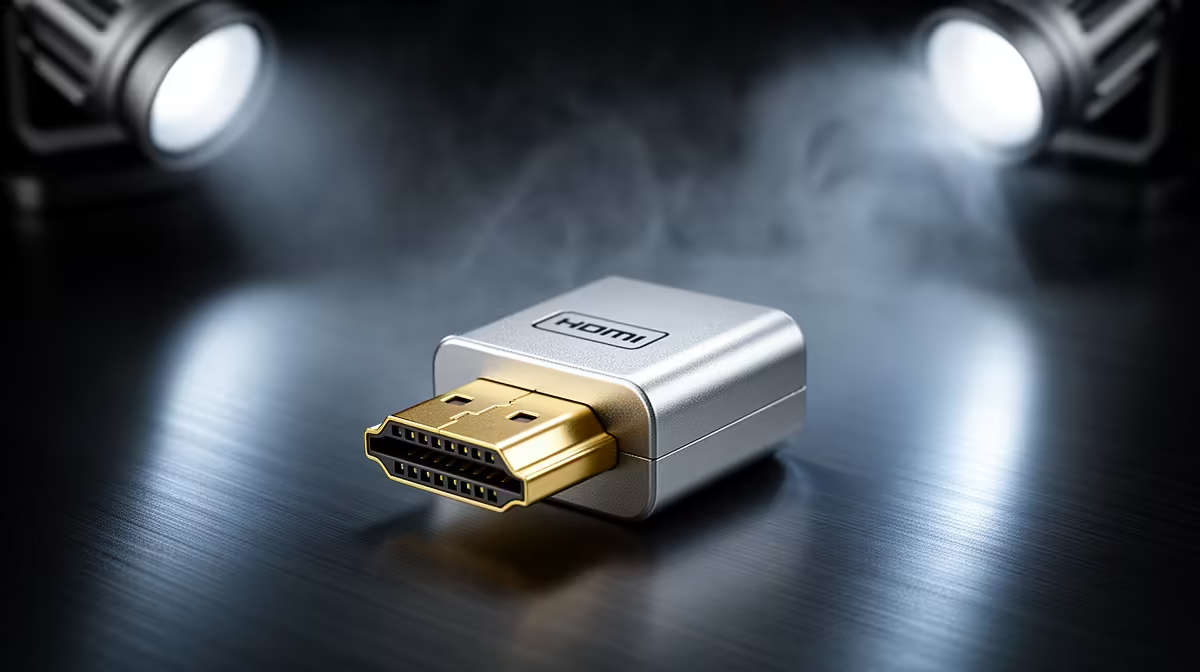
A micro-HDMI to HDMI adapter is a short dongle: micro-HDMI on one side, a full-size HDMI socket on the other, into which you plug a standard HDMI cable you already own. It saves buying a whole new cable and is handy if you have HDMI leads lying around, but it adds a connection point that can wobble, especially with a heavy cable hanging off it. For a fixed desk setup, an adapter is fine; for anything that gets moved, a direct cable is sturdier.
The spec that actually matters
Whichever route you take, the HDMI rating is the part that determines your resolution. To get the Pi 5's full 4K at 60Hz, the cable or adapter must support HDMI 2.0, which carries 18Gbps of bandwidth. A cheaper cable rated only for older HDMI standards may be limited to 4K at 30Hz, which looks noticeably less smooth, or it may produce intermittent signal dropouts and flicker. If you are running a 4K display, do not economise here; confirm the 4K 60Hz or HDMI 2.0 rating before buying.
Common mistakes to avoid
Two errors come up repeatedly. The first is buying a micro-HDMI to mini-HDMI cable by accident; micro and mini are different connectors, and the Pi 5 needs micro. Check the connector name, not just the picture. The second is assuming any HDMI cable will do for 4K; an unrated or older cable is exactly what causes the flickering and resolution-capping problems people then blame on the Pi.
If you only need basic desktop resolution rather than 4K, almost any micro-HDMI cable will work, so you can buy on length and build quality. It is specifically the high-resolution use case that demands the better-rated cable. For the wider context of where a Pi sits in a compact computing setup, the mini PCs range at Evetech shows the small-form machines a Pi often competes with or complements, and browsing the best-selling PCs at Evetech helps gauge what display outputs full desktops offer by comparison.
Cable length and build quality
Once the HDMI rating is settled, two practical factors decide which specific cable to buy. Length is the obvious one: measure the real distance from the Pi to your monitor and add a little slack, because a cable pulled taut strains the small micro-HDMI connector and can work loose. At the same time, avoid going far longer than you need, since very long HDMI runs can lose signal integrity, particularly at 4K where the bandwidth demand is highest. A cable in the one-to-two-metre range covers most desk setups comfortably.
Build quality matters more on the Pi than on a desktop because the micro-HDMI connector is delicate. A cable with a well-moulded, slim connector housing seats cleanly without fouling the second port or the USB-C power socket next to it, which on the cramped edge of a Pi 5 is a genuine consideration. Flimsy connectors that wobble in the socket are the usual cause of an intermittent picture, so a slightly sturdier cable is worth the small extra outlay.
Adapters and the dual-display case
If you are driving two monitors, plan both connections at once. Two slim adapters can crowd each other on the Pi's edge, so for a dual-screen build, two direct cables with compact connectors are usually the cleaner solution than two dongles competing for space. Confirm each cable is rated for 4K 60Hz if both screens are high resolution, since the Pi 5 can drive both at that level and an underrated cable on either output will hold that screen back. Label or route the two cables tidily so you can tell which feeds which display when you set the screen arrangement in software.
A quick buying checklist
Before you order, run through five points. Confirm the connector is micro-HDMI, not mini-HDMI. Confirm the rating is HDMI 2.0 or 4K 60Hz if you want full 4K. Choose a direct cable for reliability, or an adapter only if you already own a good HDMI lead. Pick a sensible length with a little slack but no excess. And favour a slim, well-built connector that seats cleanly on the Pi's crowded edge. Tick those off and the display side of your Pi 5 build will simply work the first time you power it on.
Frequently Asked Questions
Does the Raspberry Pi 5 have a normal HDMI port?
No. It has two micro-HDMI ports, not full-size HDMI, so a standard monitor cable will not fit directly. You need a micro-HDMI to HDMI cable or adapter to connect a display.
What HDMI rating do I need for 4K on the Pi 5?
For 4K at 60Hz you need a cable or adapter rated at HDMI 2.0, which carries 18Gbps. A lower-rated cable may limit you to 4K 30Hz or cause dropouts, so confirm the rating before buying for a 4K screen.
Can the Pi 5 drive two monitors?
Yes. The two micro-HDMI ports support dual 4K displays at 60Hz, so you can run two independent screens. You will need a suitable cable or adapter for each port.
Is a cable or an adapter better?
A direct micro-HDMI to HDMI cable is tidier and more reliable. An adapter that takes your existing HDMI cable is fine for a fixed setup but adds a connection point that can loosen if the setup is moved often.
Why is my Pi 5 display flickering?
Flicker or dropouts at high resolution usually point to an underrated HDMI cable. Swap to one rated HDMI 2.0 or 4K 60Hz, and check you have micro-HDMI rather than mini-HDMI, which is a different connector.
Setting up your Pi 5 with a 4K screen? Make sure your micro-HDMI to HDMI cable is rated HDMI 2.0 for clean 60Hz output, and see how compact computing fits your space in the mini PCs range at Evetech.