Best Monitor for the RX 6600 in 2026: 1080p on a Budget
Quick Answer
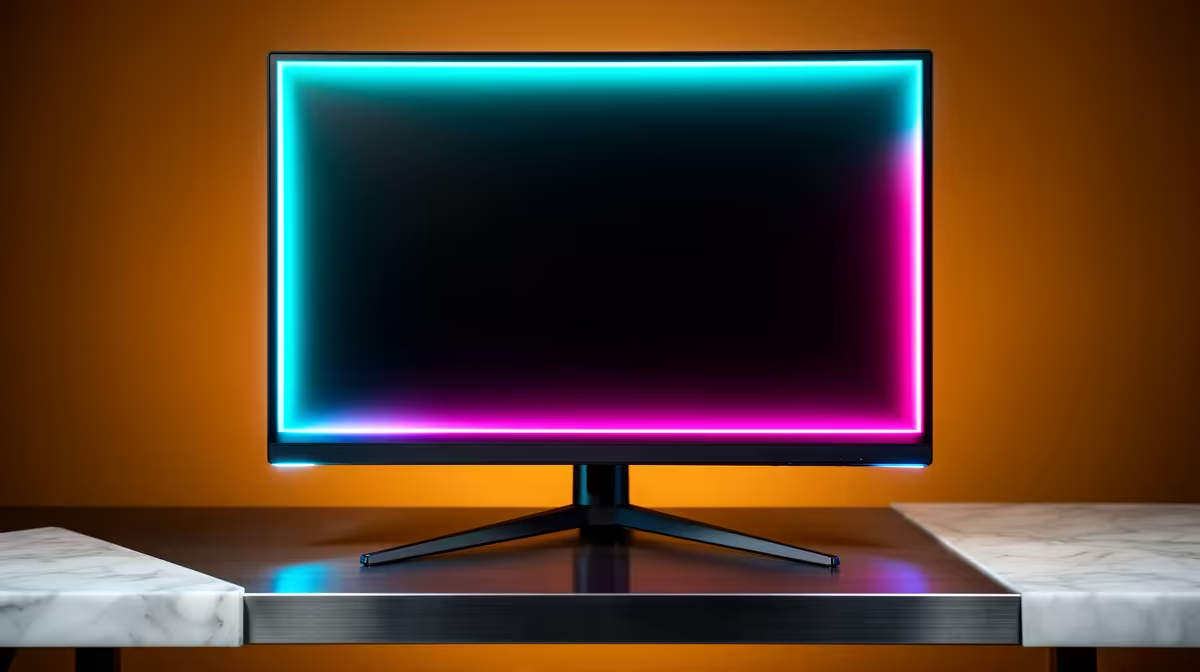
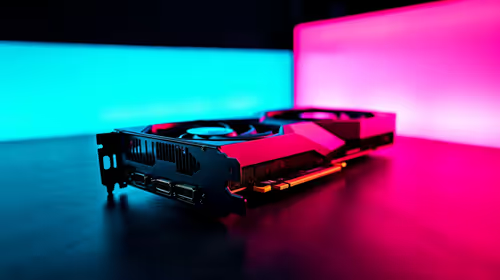
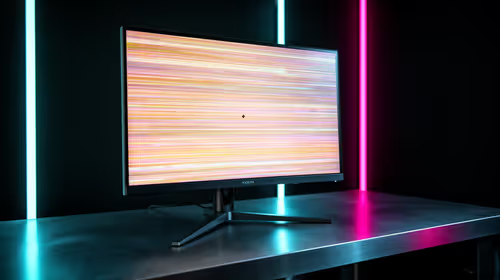
Keep an RX 6600 focused on 1080p. A 24-inch adaptive-sync screen at 120Hz to 165Hz gives you a clear upgrade from 60Hz while leaving room to tune current games around the card's 8GB of VRAM.
You do not need the highest refresh number on the shelf. A sound 144Hz IPS or well-tested VA monitor with a useful stand can make an older value build feel much better without pushing the GPU into a resolution it struggles to sustain.
Buy 1440p when sharper desktop work or a future graphics-card upgrade makes the extra cost worthwhile. It is a choice with trade-offs, not a forbidden pairing.
Give a Working Card a Better Window
An RX 6600 still serves a broad 1080p game library. Competitive titles and older releases can run at high frame rates, while demanding current games need sensible settings and game-specific upscaling.
A monitor upgrade changes every session. Moving from a basic 60Hz panel to adaptive sync and a higher refresh rate makes camera motion and mouse input feel more immediate even when the average frame rate does not reach the panel ceiling.
Keep the card if it delivers the experience you want. A new monitor does not require a new GPU on the same day.
The 24-Inch Advantage
At 24 inches, 1080p remains crisp enough for a normal desk and does not expose the softer pixel density you can see on a 27-inch screen nearby.
The smaller panel also leaves room for compact desks, speakers and a second work display. You can scan the whole image without sitting far back.
If you prefer 27 inches, view one at your intended distance. A larger image can matter more to you than fine text. Personal fit beats a rule repeated online.
Pick Refresh From the Frames You See
A 120Hz to 144Hz display is already a substantial move from 60Hz. The RX 6600 can fill that range in esports games and lighter titles with the right CPU.
At 165Hz, you gain a little ceiling and a wider current product choice. Pay for it when the monitor also has good response tuning and useful ergonomics.
A 240Hz panel makes sense for a narrow competitive build. If your games sit between 60 and 120fps, put the money into a better panel or future GPU fund.
Adaptive Sync Matters More Than a Perfect Number
Frame rate moves as scenes become heavier. FreeSync lets a compatible display follow the RX 6600 through its supported range, reducing tearing without the judder of a fixed mismatch.
Check the lower limit and low frame-rate compensation. A broad range helps when demanding games dip below 60fps.
Read tests for flicker and response behaviour. Some displays need different overdrive settings at high and low refresh, while a well-tuned model stays clean across both.
Choose a Panel for the Room
IPS works well in a bright room and on a shared desk because colour stays consistent from wider angles. Fast IPS choices also deliver clear motion at value prices.
VA offers stronger native contrast. Dark games and films look richer, but slow dark transitions on some panels can smear during camera movement.
Compare measured results for the exact monitor. Do not pay extra for a panel acronym while ignoring contrast, overshoot and brightness range.
Work With 8GB of VRAM
The RX 6600's 8GB memory is enough for many games at 1080p. Current high-resolution texture packs and ray tracing can push beyond the comfortable limit.
Use High rather than Ultra when image difference is small. Watch for frame-time spikes, texture pop-in and settings warnings. Those clues tell you more than an average frame-rate chart.
Upscaling can recover GPU headroom in games that support it. At 1080p, begin with the quality setting because lower internal resolutions can soften detail.
Ray tracing is a selective extra on this tier. Use a light effect when it improves the scene enough to justify the performance cost.
When 1440p Is a Fair Buy
A 27-inch 1440p panel gives you cleaner text and more workspace. It also prepares the desk for a later mid-range or high-end GPU.
The RX 6600 can run esports, indie titles and older games at native 1440p. Newer demanding releases may need medium settings, upscaling or a 60fps target.
Avoid feeding the panel 1080p unless you accept softer scaling. Native 1440p with a good upscaler can look better when the game supports it.
If the PC is used for study or office work every day and gaming at night, the desktop benefit can justify 1440p even before the GPU upgrade.
Skip Weak HDR Upsells
Budget monitors often accept an HDR signal without the local dimming or brightness needed for a convincing result. That mode can look washed out.
Judge the screen on SDR contrast, colour mode, response and ergonomics first. A strong SDR monitor is a better buy than weak HDR on the spec sheet.
Capable HDR displays cost more and bring their own choices around OLED care or mini-LED haloing. Treat that as a separate upgrade.
Protect the Budget Around the Panel
A stable stand is worth money. Height adjustment helps you place the display without books or an extra riser. VESA support keeps an arm option open.
Check the ports for your PC and any console or laptop. Confirm the input used for the full refresh and FreeSync range.
Keep a suitable cable in the calculation. Use the monitor's supplied or specified connection rather than an unknown old lead.
Warranty and pixel policy matter on a budget screen too. Read them before purchase and inspect the panel during the allowed return period.
Shop With an Upgrade Path
Open the current PC monitor range and filter mentally around 24-inch 1080p adaptive-sync models. Then look at monitor best sellers to compare popular sizes and refresh rates.
Shortlist one strong-value screen and one step-up model. The step-up should earn its extra cost through height adjustment, better response tuning, stronger contrast or a useful extra input.
Do not let a 5Hz or 15Hz difference settle the choice. You will notice panel quality and stand position every day.
Tune for a Stable Experience
Choose native 1080p and the correct refresh rate in the operating system. Enable FreeSync through both display and driver controls.
Test a middle overdrive mode at high and low frame rates. Back off when bright inverse trails appear. Set brightness to suit the room.
Use a frame cap for consistent frame times and lower GPU noise. Supported undervolting may reduce power, but stability-test it in several games and keep a known default profile.
FAQ
Does the RX 6600 still handle 1080p in 2026?
Yes, across a wide library. Demanding new releases may need tuned settings or upscaling.
Is 144Hz worth it?
Yes, especially when moving from 60Hz. Adaptive sync also improves games that run below the ceiling.
Should owners avoid 1440p?
No. Buy it for desktop clarity or an upgrade path, with realistic game settings on the current card.
What monitor size fits best?
Twenty-four inches keeps 1080p crisp at normal desk distance. Choose 27 inches when you sit further back or prefer a larger image.
Is the card still worth buying new?
That depends on its current price, the alternatives and the games you play. Compare current benchmarks and total build cost before deciding.
Give your RX 6600 a measured 1080p upgrade with adaptive sync, a usable stand and motion tuning that stays clean below maximum refresh.