


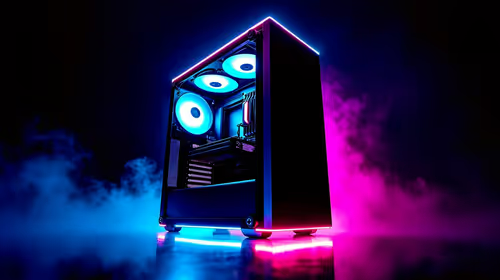
iRacing SA Gaming PC Build Guide
iRacing build planning should focus on the target resolution, settings and total system balance. Treat launch wording as time-sensitive, then verify requirements before choosing SA PC parts.
Read moreMonitors with USB-C hubs act as the ultimate productivity powerhouse for your desktop. Streamline your cable management, charge your laptop, and connect peripherals effortlessly with a single cable connection. 🖥️⚡ Upgrade your workflow today!
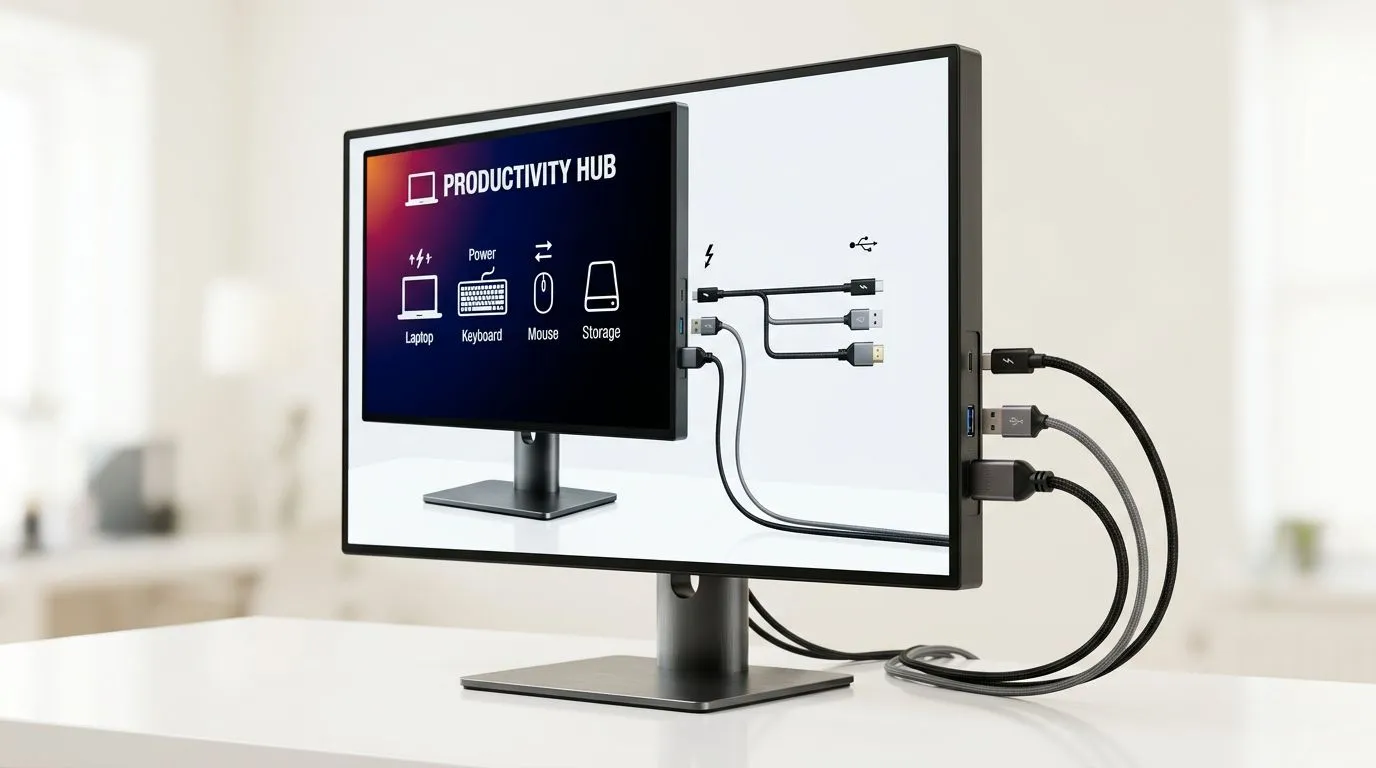
If your desk looks like a spaghetti junction of power bricks, display cables, and “where’s that USB thing?” moments… you’re not alone. In South African homes, space is at a premium, and electricity and budget planning matters even more.
That’s where Monitors with USB-C Hubs: Boost Your Productivity Setup come in. One cable can carry video, power (on supported monitors), and data. Suddenly, your keyboard, mouse, webcam, and even your headset dock feel… organised. ✨
Below, we’ll walk through what to look for, how to avoid compatibility headaches, and how to choose the right monitor for gaming, studying, and productivity.
Before you tap “buy”, check these specs. They decide whether you get real desk convenience or just an extra cable you still have to manage.
A USB-C hub typically adds one or more of these ports on the monitor:
Why it matters: the monitor’s ports should work through the USB-C connection. If you buy a monitor with limited hub features, you’ll still rely on your laptop’s ports.
Some USB-C monitors support Power Delivery (PD). That means your laptop can charge via the same USB-C cable that sends video and data.
What to do: match the monitor’s PD wattage to your laptop’s charging requirements. If your laptop needs more power than the monitor provides, it may run, but not charge properly.
For gaming monitors and high refresh rates, you want the USB-C video link to support what you plan to use (for example, 1080p/1440p, depending on your device).
If you’re buying for mixed use (editing + casual gaming), prioritise stable performance over chasing the highest numbers.
On Windows, use the PowerToys FancyZones utility to create custom snap layouts for your windows. It's a lifesaver for managing multiple apps on an ultrawide monitor, letting you organise your timeline, preview window, and asset folders perfectly for video editing.
Let’s make this practical. Here’s the “one-cable” layout most people aim for:
Even great setups stumble. If something doesn’t work:
If you’re unsure what monitors and cables you’re dealing with, it’s worth narrowing down your shortlist with Evetech’s monitor categories first.
Choosing the best monitor is easier when you filter by use case. Start with a shortlist, then check ports and USB-C support on the model you’re considering.
If you want to browse options quickly, you can explore:
USB-C hubs are great, but cables and mounting matter just as much. If your desk is tight, accessories can reduce clutter fast.
You can also browse monitor accessories here: https://www.evetech.co.za/PC-Components/buy-monitor-accessories-368.aspx
The best monitor isn’t the one with the fanciest spec sheet. It’s the one that fits how you work and play.
Look for:
Look for:
Look for:
Buying smart in SA also means budgeting carefully. If you’re comparing options, prioritise the features that reduce daily friction: USB-C hub ports, stable video connection, and charging support where you need it.
Ready to Find Your Perfect Match? The Mac vs Windows debate is complex, but for maximum power, choice, and value in South Africa, Windows is hard to beat. Explore our massive range of laptop specials and find the perfect machine to conquer your world.
A monitor with a built-in USB-C hub acts as a docking station, allowing you to connect peripherals and charge your laptop through a single USB-C cable.
Yes, many modern monitors support USB-C Power Delivery, which charges your laptop while simultaneously transmitting display data and peripheral signals.
USB-A ports on monitors are highly useful for connecting legacy peripherals like mechanical keyboards, gaming mice, or external drives directly to the screen.
Absolutely. By connecting all your devices to the monitor, you eliminate the need for a separate docking station and reduce desk clutter significantly.
Yes, monitors with USB-C connectivity often support daisy-chaining via DisplayPort or Thunderbolt, allowing for a multi-screen setup with fewer cables.
It is compatible with most modern laptops that support DisplayPort Alt Mode and Power Delivery over USB-C; check your laptop's port specifications.
iRacing build planning should focus on the target resolution, settings and total system balance. Treat launch wording as time-sensitive, then verify requirements before choosing SA PC parts.
Read more
Skyrim PC requirements should be mapped to resolution, settings and upgrade budget before choosing a tier. Verify current requirements, then balance GPU, CPU, RAM and SSD around SA pricing.
Read more
Skyrim PC builds is a cautious guide for game PC build planning. Compare game requirements, tier fit, resolution goals, RAM, storage, and GPU choice for SA buyers without assuming live prices, availability, or exact benchmark results.
Read more
Hades 2 PC builds is a cautious guide for game PC build planning. Compare game requirements, tier fit, resolution goals, RAM, storage, and GPU choice for SA buyers without assuming live prices, availability, or exact benchmark results.
Read more
Roblox PC builds is a cautious guide for game PC build planning. Compare game requirements, tier fit, resolution goals, RAM, storage, and GPU choice for SA buyers without assuming live prices, availability, or exact benchmark results.
Read more
Mortal Kombat 1 launch needs a balanced parts plan, not a random basket. Map the CPU, GPU, RAM, SSD, cooling, and monitor target to the budget so SA builders know where to spend first.
Read more
Wondering if a TKL wireless mechanical keyboard is worth it for everyday productivity? We break down latency, battery life, comfort, and workflow gains for real work. ⚡⌨️

Maximise battery life on a fanless 15-inch laptop using efficiency core architecture. Cut idle drain, tune power profiles, and improve thermals for longer runtime. 🔋⚙️

Learn how to reduce desk clutter with a TKL wireless keyboard using fewer cables, smart placement, and tidy essentials. Get a faster, calmer workspace with better ergonomics. ✅🧼

RGB keyboard lighting too distracting? Learn how to manage backlight modes, set brightness, and reduce distraction for focus and productivity 😌🖱️

Are themed gaming keyboards worth the extra cost? Compare build quality, switch options, features, and resale value to find the best fit for your setup 🎮⌨️

Full-Size vs Tenkeyless mechanical keyboards for gaming: find out if a smaller layout truly improves aim, speed, and comfort. We break down layout, desk space, latency-feel, and keybinds 🎮⌨️

Dedicated media rollers vs function key shortcuts: learn which setup gives you better workflow control, faster media access, and fewer mistakes. 🖱️🎧

Best Mechanical Switch Type for Gaming: Clicky vs Linear vs Tactile. Find your feel, speed, and noise balance with practical guidance for FPS, MOBA, and productivity 😄🎮

Direct mouse answer: Mouse not keeping up with your work? Everything that matters about dual-mode 2.4GHz + BT 5.0: DPI behaviour, channel switching, battery curves and per-app button mapping. Covers when 2.4GHz USB wins (low-latency desk) and when BT 5.0 wins (laptop, d

Plain wireless mouse guide: Mouse not keeping up with your work? Everything that matters about wireless productivity mouse: DPI behaviour, channel switching, battery curves and per-app button mapping. Includes DPI tuning tips, channel switch shortcuts, and ZAR-aware fea

Real productivity numbers: Set up your wireless mouse in this order: everything that matters about wireless productivity mouse: DPI behaviour, channel switching, battery curves and per-app button mapping. Includes DPI tuning tips, channel switch shortcuts, and ZAR-aware

Pen not feeling like paper? Stylus lag and skipping usually trace to old drivers, dirty nibs, or display refresh mismatches, not the pen itself. Covers pressure curve tuning, tilt thresholds, nib swap timing, and SA pricing brackets.