


iRacing SA Gaming PC Build Guide
iRacing build planning should focus on the target resolution, settings and total system balance. Treat launch wording as time-sensitive, then verify requirements before choosing SA PC parts.
Read moreOur OLED monitor heat solutions guide helps you tackle high temperatures and prevent burn-in. 🔥 Learn simple tricks and advanced mods to protect your investment, from custom heatsinks to optimizing settings, ensuring your high-refresh gaming display runs cool and performs flawlessly. 🛡️
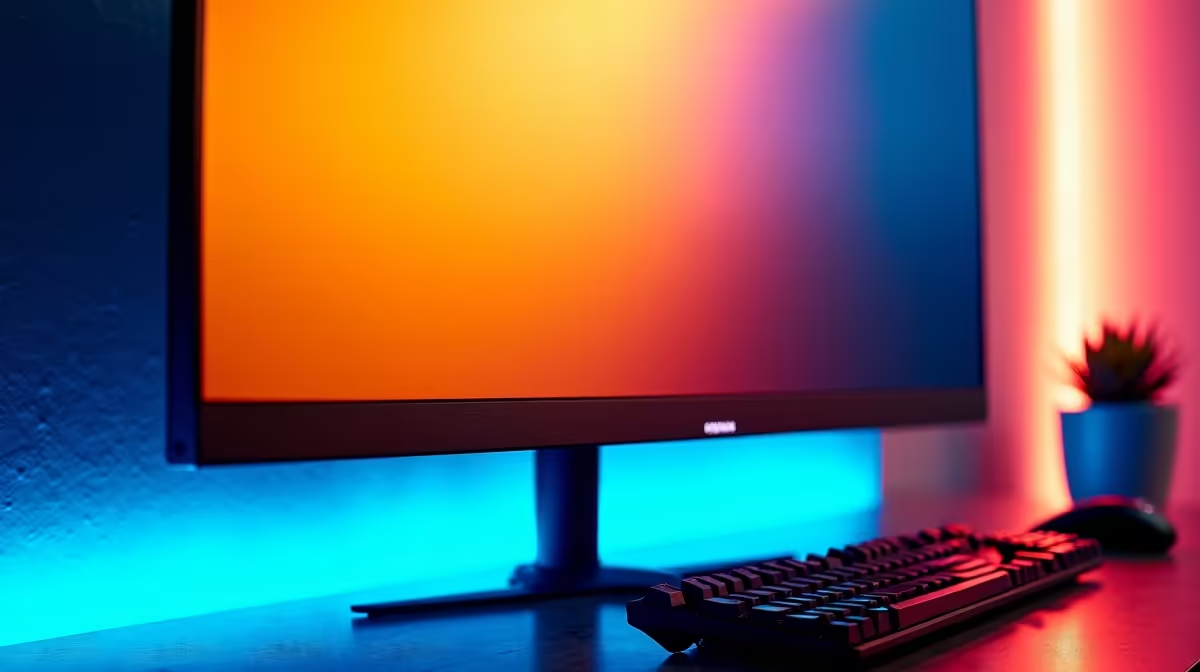
So, you’ve finally done it. You’ve brought home a beautiful OLED monitor, and the inky blacks and vibrant colours are blowing your mind. Games like Cyberpunk 2077 or Alan Wake 2 look absolutely incredible. But a little thought keeps nagging at you… the fear of heat and the dreaded burn-in. Don't stress. While older OLEDs had their issues, modern displays are far more resilient. Understanding a few key OLED monitor heat solutions will keep your investment pristine for years.
Unlike traditional LCD monitors that use a single backlight to illuminate all their pixels, an OLED (Organic Light-Emitting Diode) display is different. Each individual pixel creates its own light. Think of it as millions of tiny, individual light bulbs. When a pixel is on, it's consuming power and, you guessed it, generating a small amount of heat.
While one pixel is nothing, millions of them shining brightly to display that glorious 4K HDR image add up. This is the primary source of warmth you might feel. It's a normal part of how the technology works and a key reason why managing your OLED display's heat is important for its long-term health.
Let's clear this up: "burn-in" is a bit of a scary, permanent-sounding term. What's usually happening is uneven pixel wear. The organic compounds in each pixel have a finite lifespan. If you leave a static image on-screen for hundreds of hours (like a game's health bar or a Windows taskbar), those specific pixels are working harder and aging faster than the others.
Heat acts as an accelerant in this process. A warmer pixel degrades faster. So, the core of preventing burn-in is twofold: avoid static images for extreme lengths of time and implement simple strategies to keep your OLED cool. It’s less about a catastrophic failure and more about smart maintenance. Many of today's best PC monitor deals feature OLEDs with fantastic built-in protections.
Keeping your display in top shape doesn't require a degree in engineering. It's about forming good habits and using the tools at your disposal.
This is your first line of defence.
a dynamic wallpaper app like Wallpaper Engine from Steam. It keeps the pixels on your screen constantly but subtly changing, preventing any single image from 'sticking'. It's a great way to protect your screen while also personalising your setup. You can find more ways to customise your rig with our range of [monitor accessories](https: www.evetech.co.za PC-Components buy-monitor-accessories-368.aspx).
Your room's setup can play a surprisingly big role in your monitor's health.
Most modern gaming monitors come with a suite of OLED Care or Screen Protection tools. Dive into your OSD (On-Screen Display) menu and look for features like:
The fear of burn-in shouldn't stop you from enjoying the best image quality available. Modern OLEDs, especially the stunning 5K and 4K monitors, are packed with technology to prevent it. Many now include sophisticated heatsinks to actively manage temperature.
Of course, OLED isn't the only game in town. High-refresh-rate IPS and VA panels offer incredible performance, and you can find a massive variety among our general PC monitors. Whether you're after the total immersion of curved monitors or the convenience of portable monitors for a multi-screen setup, the right choice depends on your specific needs and budget. The key is to buy from a reputable source that can guide you.
Ready for Pixel-Perfect Visuals? OLED technology offers an unbeatable visual experience, and with the right care, it's a worthy investment for any serious gamer. Whether you're ready for an OLED upgrade or exploring other options, we've got the screen for your rig. Explore our massive range of gaming gear and find the perfect display to dominate your world.
Yes, high-refresh OLED gaming monitors can generate significant heat, especially during intense gaming sessions. This heat is a byproduct of the pixels working hard to produce vibrant images.
Heat is a major contributing factor to OLED burn-in. Prolonged high temperatures can accelerate the degradation of the panel's organic compounds, making static images 'stick' more easily.
You can lower the temperature by ensuring proper ventilation, reducing screen brightness, and using built-in features like Pixel Shift. Advanced users might consider adding a fan.
Yes, adding a custom heatsink is one of the most effective ways to dissipate heat. This mod can significantly lower panel temperatures and reduce the risk of long-term burn-in.
The best solutions range from simple fixes like improving room airflow to technical mods like installing a small, quiet fan or a custom heatsink on the monitor's rear panel.
While newer QD-OLED panels have improved heat management, they can still get warm. Following OLED care and maintenance tips is wise to ensure longevity and peak performance.
iRacing build planning should focus on the target resolution, settings and total system balance. Treat launch wording as time-sensitive, then verify requirements before choosing SA PC parts.
Read more
Skyrim PC requirements should be mapped to resolution, settings and upgrade budget before choosing a tier. Verify current requirements, then balance GPU, CPU, RAM and SSD around SA pricing.
Read more
Skyrim PC builds is a cautious guide for game PC build planning. Compare game requirements, tier fit, resolution goals, RAM, storage, and GPU choice for SA buyers without assuming live prices, availability, or exact benchmark results.
Read more
Hades 2 PC builds is a cautious guide for game PC build planning. Compare game requirements, tier fit, resolution goals, RAM, storage, and GPU choice for SA buyers without assuming live prices, availability, or exact benchmark results.
Read more
Roblox PC builds is a cautious guide for game PC build planning. Compare game requirements, tier fit, resolution goals, RAM, storage, and GPU choice for SA buyers without assuming live prices, availability, or exact benchmark results.
Read more
Mortal Kombat 1 launch needs a balanced parts plan, not a random basket. Map the CPU, GPU, RAM, SSD, cooling, and monitor target to the budget so SA builders know where to spend first.
Read more
Wondering if a TKL wireless mechanical keyboard is worth it for everyday productivity? We break down latency, battery life, comfort, and workflow gains for real work. ⚡⌨️

Maximise battery life on a fanless 15-inch laptop using efficiency core architecture. Cut idle drain, tune power profiles, and improve thermals for longer runtime. 🔋⚙️

Learn how to reduce desk clutter with a TKL wireless keyboard using fewer cables, smart placement, and tidy essentials. Get a faster, calmer workspace with better ergonomics. ✅🧼

RGB keyboard lighting too distracting? Learn how to manage backlight modes, set brightness, and reduce distraction for focus and productivity 😌🖱️

Are themed gaming keyboards worth the extra cost? Compare build quality, switch options, features, and resale value to find the best fit for your setup 🎮⌨️

Full-Size vs Tenkeyless mechanical keyboards for gaming: find out if a smaller layout truly improves aim, speed, and comfort. We break down layout, desk space, latency-feel, and keybinds 🎮⌨️

Dedicated media rollers vs function key shortcuts: learn which setup gives you better workflow control, faster media access, and fewer mistakes. 🖱️🎧

Best Mechanical Switch Type for Gaming: Clicky vs Linear vs Tactile. Find your feel, speed, and noise balance with practical guidance for FPS, MOBA, and productivity 😄🎮

Direct mouse answer: Mouse not keeping up with your work? Everything that matters about dual-mode 2.4GHz + BT 5.0: DPI behaviour, channel switching, battery curves and per-app button mapping. Covers when 2.4GHz USB wins (low-latency desk) and when BT 5.0 wins (laptop, d

Plain wireless mouse guide: Mouse not keeping up with your work? Everything that matters about wireless productivity mouse: DPI behaviour, channel switching, battery curves and per-app button mapping. Includes DPI tuning tips, channel switch shortcuts, and ZAR-aware fea

Real productivity numbers: Set up your wireless mouse in this order: everything that matters about wireless productivity mouse: DPI behaviour, channel switching, battery curves and per-app button mapping. Includes DPI tuning tips, channel switch shortcuts, and ZAR-aware

Pen not feeling like paper? Stylus lag and skipping usually trace to old drivers, dirty nibs, or display refresh mismatches, not the pen itself. Covers pressure curve tuning, tilt thresholds, nib swap timing, and SA pricing brackets.