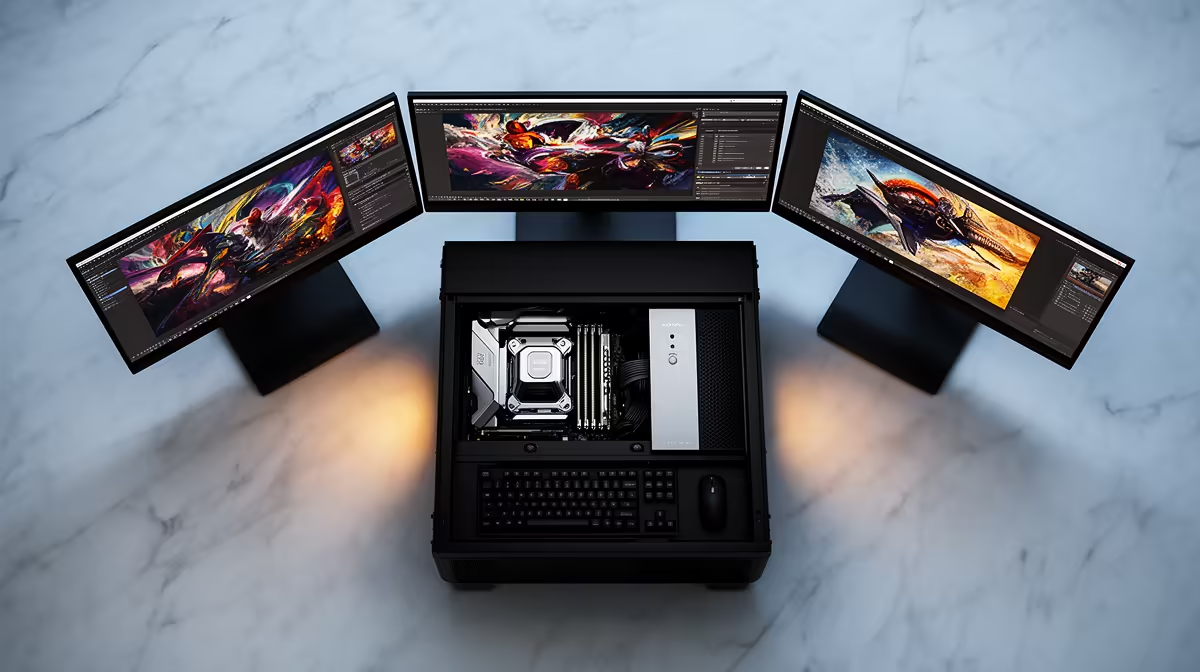
Spend big on a graphics card for a Photoshop machine and most of that money sits idle. A photo and graphic design PC rewards something else entirely: high per-core clock speed and generous RAM. Photoshop, Lightroom, and Illustrator are built around responsiveness, the snap of a brush, the instant a filter applies, the speed of an export, and that snappiness comes from per-core clock speed far more than from raw GPU muscle.
Quick Answer
For Photoshop, Lightroom, and Illustrator, prioritise a CPU with a high single-core clock over a high core count, and pair it with at least 32GB RAM, moving to 64GB for heavy catalogues or layered work. A mid-range chip with a fast boost clock genuinely outperforms a slower many-core processor for everyday editing. The GPU matters far less here than it does for video or 3D, so spend the budget on CPU clock speed, RAM, and a fast NVMe SSD.
Why single-core speed rules these apps
Adobe has optimised Photoshop and Lightroom around high single-thread performance rather than throwing every task across dozens of cores. The reason is how you actually use them: most interactive operations, brush strokes, filter previews, content-aware fills, happen one at a time and depend on how fast a single core can crunch them. A processor with a blistering boost clock will often beat a 16-core workstation chip in day-to-day editing, because the extra cores sit unused while the active core does the work.
What this means for CPU choice
You do not need the most cores; you need the fastest cores. A modern eight-core chip with a boost clock pushing past 5.5GHz handles Lightroom and Photoshop running together without strain. Intel's Core Ultra line tends to lead in Lightroom Classic, while AMD's Ryzen chips often top Photoshop charts, but at the high end the gap is only around ten percent, so either path is sound. Spend on clock speed and recent architecture rather than chasing a core count the software will not use.
Where extra cores do help
There are exceptions worth knowing. Batch exports in Lightroom, panorama and HDR merges, and some filters spread across multiple cores, so a chip that pairs a high clock with a healthy core count gives you the best of both. The point is not to ignore cores entirely, but to refuse to sacrifice clock speed to get them.
RAM is the second pillar
After CPU clock speed, memory is what keeps a design workflow fluid. 32GB is the sensible 2026 standard for photo and graphic work, enough to keep Photoshop, Lightroom, and a browser open together without the system leaning on the slow page file. For photographers handling large catalogues, high-resolution files, deep layer stacks, or many apps at once, 64GB is the safer amount and removes page-file slowdowns from almost every workflow. RAM is one of the cheapest ways to keep these apps responsive, so it is rarely the place to economise.
The GPU question and where storage fits
Here is where a design build diverges most from a video or 3D rig. Photoshop and Lightroom use the GPU to accelerate certain features and the canvas, but they do not lean on it the way Resolve or Blender do, so a mid-range card with around 16GB of VRAM is plenty and a flagship gaming GPU is largely wasted money. Illustrator is even lighter on the graphics card. If your work strays into heavy 3D effects, large neural filters, or video, a stronger card starts to matter, and the graphics card range at Evetech covers options from sensible design cards up to heavier workstation silicon.
Storage is the third pillar and an easy win. An NVMe SSD dramatically cuts the time to open large images, load Lightroom catalogues, and scratch-disk through edits. Put your operating system, Adobe apps, and active catalogue on fast NVMe storage, and keep a separate large drive for your photo library. The difference in load times alone changes how the whole machine feels.
Choosing a complete system rather than building part by part? The top-selling PCs at Evetech show what current well-configured machines cost, giving you a concrete reference point when pricing out your own design build.
Where Illustrator differs from the photo apps
Illustrator deserves its own note, because it behaves a little differently from Photoshop and Lightroom. As a vector application it leans heavily on single-thread CPU performance for redrawing complex artwork, panning, and zooming around dense files, so the fast-clock priority holds firmly. What changes is that Illustrator is even lighter on the graphics card than the photo apps, and it does not benefit from large amounts of VRAM the way a 3D or video tool would. The practical upshot is that a designer who lives mostly in Illustrator can comfortably put a smaller share of the budget toward the GPU and a larger share toward CPU speed and a fast SSD for opening big artboards quickly.
Multi-app workflows
Most working designers do not sit in one app at a time. Lightroom for culling, Photoshop for retouching, and Illustrator for layout often run together, with a browser and email alongside. That concurrency is exactly why RAM headroom matters: each open application holds its own working set, and 64GB keeps all of them resident without the system leaning on the slow page file. If your day involves several Creative Cloud apps at once rather than one in isolation, treat 64GB as the sensible target rather than a luxury.
A spending order that respects the software
Put CPU clock speed first, then 32GB or ideally 64GB of RAM, then a fast NVMe SSD, and only then a mid-range GPU. That order mirrors how Photoshop, Lightroom, and Illustrator actually use hardware, and it stops you overspending on a graphics card your creative apps will barely touch. Build this way and the machine feels instant where it counts, on every brush stroke, every slider, and every export.
Frequently Asked Questions
Does Photoshop need a powerful graphics card?
Not particularly. Photoshop uses the GPU to accelerate the canvas and some features, but it is far more dependent on CPU clock speed and RAM. A mid-range card with around 16GB of VRAM is ample, and a flagship gaming GPU is mostly wasted budget for pure photo work.
Is single-core or multi-core speed more important for Lightroom?
Single-core speed matters most for interactive editing, since most operations run one at a time and depend on per-core performance. Multi-core speed helps specific tasks like batch exports and panorama merges, so a high clock with a decent core count is the ideal balance.
How much RAM do I need for graphic design?
32GB is the 2026 standard and handles most Photoshop, Lightroom, and Illustrator work comfortably. For large catalogues, high-resolution files, deep layer stacks, or running many apps at once, step up to 64GB to avoid page-file slowdowns.
Should I choose Intel or AMD for a design PC?
Both are excellent at the top end, with only around a ten percent gap. Intel's Core Ultra chips tend to lead in Lightroom Classic, while AMD Ryzen often tops Photoshop charts. Pick a recent chip with a high boost clock from either and you will be well served.
Will an NVMe SSD really make a difference for photo editing?
Yes, a noticeable one. NVMe drives speed up opening large images, loading catalogues, and scratch-disk operations. Putting your OS, apps, and active catalogue on fast NVMe storage changes how responsive the whole workflow feels.
Building a machine that feels instant in every brush stroke and export? Spec it around CPU speed and RAM, and round it out with the right card from the graphics options at Evetech without overspending on power your design apps never use.