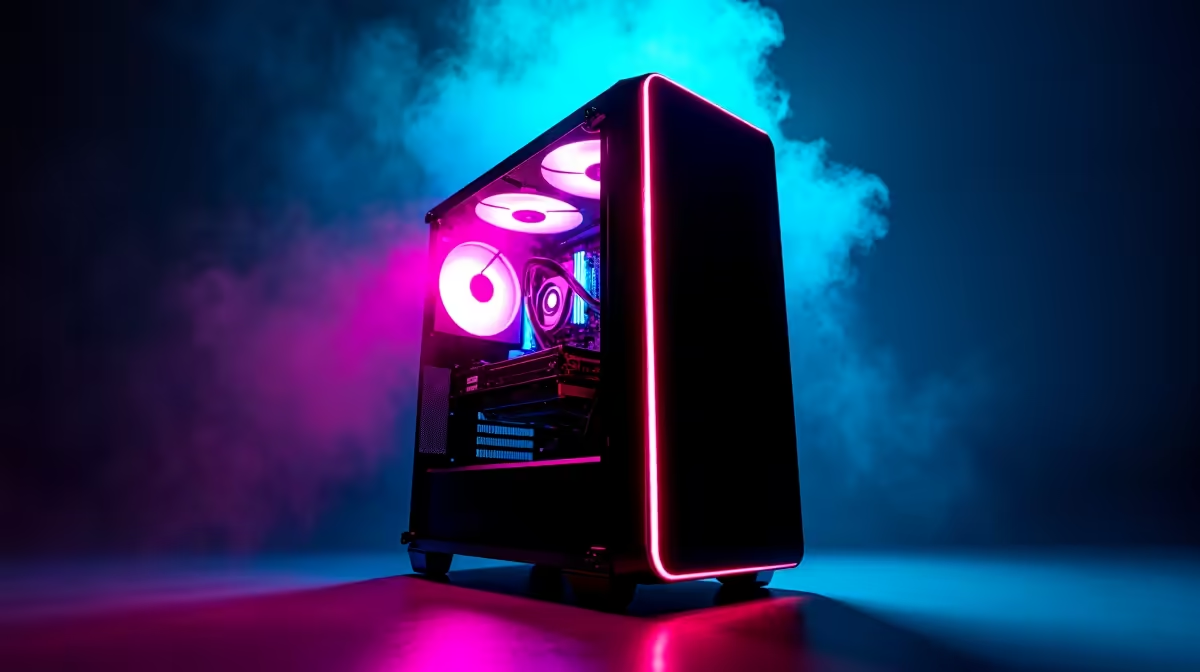
So, you’ve built your magnificent new rig, or maybe you’ve just unboxed a beast from Evetech. The components are seated, the cables are managed… now for the moment of truth. Learning how to power on a PC for the first time is a rite of passage. It’s that heart-in-your-throat mix of pure excitement and a tiny bit of "please work" anxiety. This guide ensures that when you press that button, it’s all thrill, no spill. 🚀
The Pre-Flight Check Before You Power On a PC
Before you hit the launch button, a quick 60-second check can save you a world of confusion. Think of it as your pre-game ritual. First, ensure the main power cable is firmly plugged into both your power supply unit (PSU) at the back of the case and the wall socket.
Next, find the little switch on your PSU itself, usually right next to where the cable plugs in. Make sure it’s flipped to the 'I' (On) position, not 'O' (Off). It’s a simple mistake many first-timers make! Finally, make sure your essential peripherals are connected so you're ready for action—got your mouse, keyboard, and maybe your favourite TWS earbuds ready to go?
The Main Event: The First Boot ⚡
This is it. Locate the power button on the front or top of your PC case. It’s almost always the biggest one, often marked with the universal power symbol (a circle with a vertical line).
Take a deep breath and press it.
You should immediately see and hear signs of life. Case fans will start spinning, motherboard and component lights will flicker on in a glorious display of colour, and you might hear a single, short beep. This beep, often coming from your motherboard, is the "All-Clear" signal, confirming a successful Power-On Self-Test (POST). If you've connected a set of crisp 2.1 speakers, that boot sound is pure satisfaction.
No Power? Quick Checks 🔧
If nothing happens, don't panic! 99% of the time, it's a simple fix. Double-check the PSU switch at the back is ON. Confirm the wall socket is working. Lastly, if you built the PC yourself, ensure the tiny front-panel power switch connector is properly seated on the motherboard pins.
First Boot Success: What's Next?
Congratulations! You've managed to successfully power on a PC. Your monitor should now flicker to life, displaying the manufacturer's logo (like ASUS, MSI, or Gigabyte) followed by a screen prompting you to enter the BIOS or UEFI. This is your PC's command centre.
From here, you'll install your operating system, like Windows 11, and begin loading up your favourite games and applications. This is also the perfect moment to ensure your audio gear is ready for pairing, because what's a gaming victory without immersive sound? Having a quality wireless headset makes all the difference for hearing those critical in-game cues.