


iRacing SA Gaming PC Build Guide
iRacing build planning should focus on the target resolution, settings and total system balance. Treat launch wording as time-sensitive, then verify requirements before choosing SA PC parts.
Read moreRunning out of space on your SSD? Use smart storage management to reclaim gigabytes fast, prevent clutter, and keep performance steady 📦⚙️ Learn proven fixes for Windows and macOS.
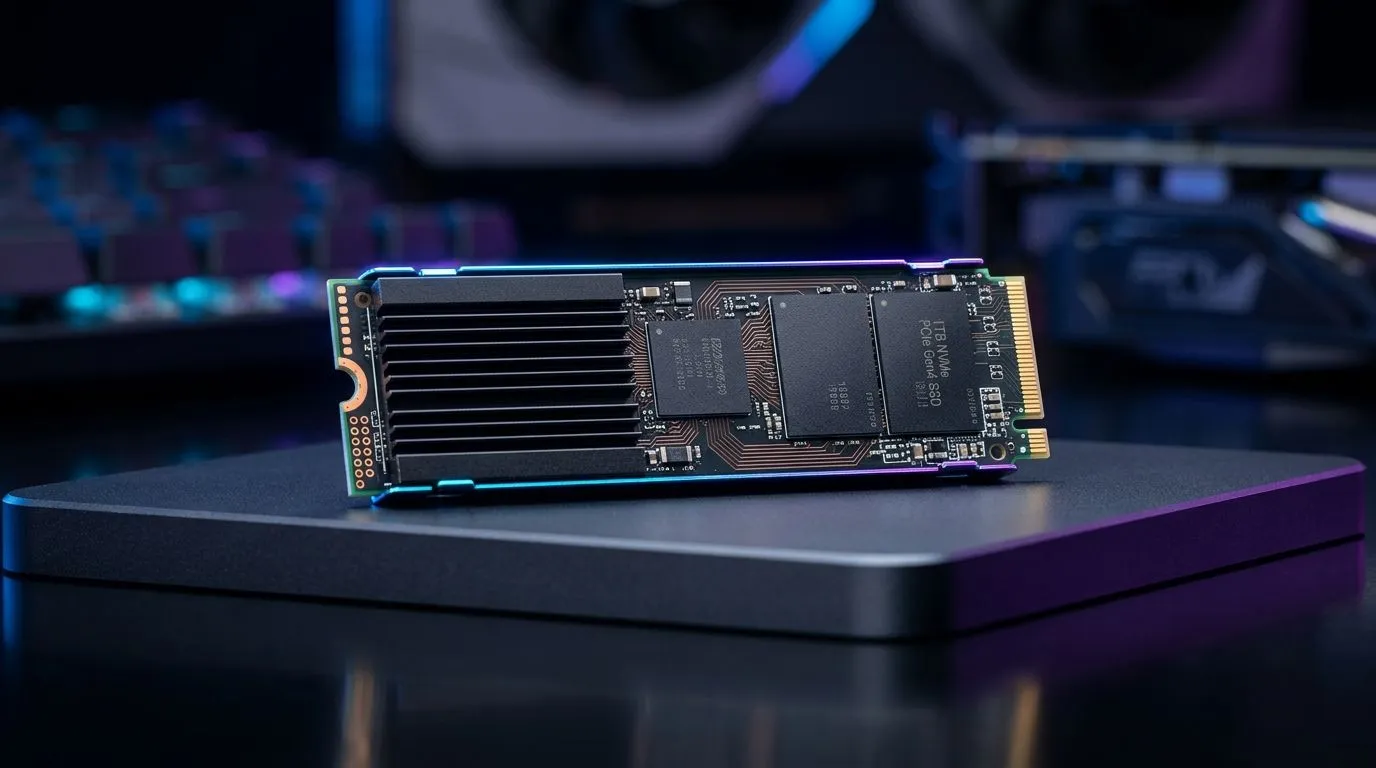
Nothing’s more frustrating than getting the warning: “Your SSD is almost full.” Especially for South African gamers and content creators, storage space can vanish fast with installs, patches, and media. If your SSD is running out of space, don’t panic — managing your storage effectively can free up gigabytes and keep your system snappy. Let’s dive into practical ways to fix your SSD space woes and keep your rig ready for the latest games.
Your SSD can fill quickly due to various hidden factors. Game installs alone can consume 50GB or more each. Temporary files, cache, and even Windows update leftovers gobble space. Beyond gaming, bulky photo or video editing projects add up. Did you know Windows Visual Studio caches or hibernation files can also sneakily occupy tens of gigabytes?
Regular checks help catch these before they severely impact performance or available space. Evetech’s range of solid state drives, featuring brands like ADATA SSDs, are reliable but still need proper storage habits.
Start by searching for large files and uninstalling apps you no longer use. Built-in tools in Windows 10/11 under Settings > Storage give a clear breakdown. Removing old game installs or reinstalling with selective components can save tens of gigabytes.
System files accumulate junk regularly. Use Disk Cleanup or third-party tools to remove cache and update leftovers. For example, Windows Update cleanup can instantly regain multiple GBs.
If you’ve hit the ceiling on your M.2 2280 SSD, consider adding extra capacity. Evetech stocks high-speed M.2 2280 drives that slot perfectly into most modern gaming PCs — check them out here. For archival storage, shifting old files to trusty external drives is smart.
Deleting the pagefile or hibernation file can free space—but only if you’re sure your system won't need it for crash recovery or sleep modes.
Cloud backups help, but syncing large folders can also fill local SSD space unknowingly. Set folder sync preferences carefully to avoid surprises.
Games and applications are getting bigger and faster. Investing in Gen 5 NVMe SSDs means not only more space but faster load times. Take a look at the latest models available through Evetech’s collection of Gen 5 NVMe SSDs to future-proof your build.
If your SSD keeps running out of space despite management, it’s definitely time to upgrade. Look for the best balance of capacity, speed, and price for South African budgets. Popular brands like Kingston offer reliable performance that suits gaming rigs and creative workflows.
With internet fibre still improving in many areas, local gamers often download hefty game titles and patches overnight. An optimised SSD means quicker installs, faster load screens, and less waiting. Storage management is not only about space — it’s about maintaining peak performance every day.
By regularly monitoring your drive, clearing unnecessary files, and upgrading when needed, your rig stays responsive. Plus, proactive SSD care prolongs the lifespan of your drive, protecting your investment.
Upgrade Your Storage Today Don’t let a full SSD slow you down. Shop now at Evetech for high-performance SSDs tailored to South African gamers and keep your system running smoothly.
Start with Windows storage cleanup (temporary files, recycle bin) and identify large apps. Then move games/apps to another drive or use cloud storage.
Use Storage Sense, clear temp files, review Downloads, and remove unused apps. Avoid deleting unknown system files or messing with Windows folders.
Uninstall duplicates, clear launcher caches, and move game libraries to another drive. Check that saved game files remain where you expect them.
Delete first, then optimize. Smart SSD storage management includes keeping 10–20% free space and ensuring system features like TRIM run normally.
Use built-in storage usage views (Windows Settings or macOS Storage). Sort by size and focus on large folders like Downloads, caches, and media.
Usually yes if you use the OS’s move/installation options. For best results, re-install large apps using the correct target drive.
Check SSD health and SMART data. If performance drops while usage is high, confirm drive health, then consider upgrading or increasing capacity.
Storage Sense automates cleanup tasks like temp files. Manual cleanup gives more control for large folders and specific storage management decisions.
iRacing build planning should focus on the target resolution, settings and total system balance. Treat launch wording as time-sensitive, then verify requirements before choosing SA PC parts.
Read more
Skyrim PC requirements should be mapped to resolution, settings and upgrade budget before choosing a tier. Verify current requirements, then balance GPU, CPU, RAM and SSD around SA pricing.
Read more
Skyrim PC builds is a cautious guide for game PC build planning. Compare game requirements, tier fit, resolution goals, RAM, storage, and GPU choice for SA buyers without assuming live prices, availability, or exact benchmark results.
Read more
Hades 2 PC builds is a cautious guide for game PC build planning. Compare game requirements, tier fit, resolution goals, RAM, storage, and GPU choice for SA buyers without assuming live prices, availability, or exact benchmark results.
Read more
Roblox PC builds is a cautious guide for game PC build planning. Compare game requirements, tier fit, resolution goals, RAM, storage, and GPU choice for SA buyers without assuming live prices, availability, or exact benchmark results.
Read more
Mortal Kombat 1 launch needs a balanced parts plan, not a random basket. Map the CPU, GPU, RAM, SSD, cooling, and monitor target to the budget so SA builders know where to spend first.
Read more
Wondering if a TKL wireless mechanical keyboard is worth it for everyday productivity? We break down latency, battery life, comfort, and workflow gains for real work. ⚡⌨️

Maximise battery life on a fanless 15-inch laptop using efficiency core architecture. Cut idle drain, tune power profiles, and improve thermals for longer runtime. 🔋⚙️

Learn how to reduce desk clutter with a TKL wireless keyboard using fewer cables, smart placement, and tidy essentials. Get a faster, calmer workspace with better ergonomics. ✅🧼

RGB keyboard lighting too distracting? Learn how to manage backlight modes, set brightness, and reduce distraction for focus and productivity 😌🖱️

Are themed gaming keyboards worth the extra cost? Compare build quality, switch options, features, and resale value to find the best fit for your setup 🎮⌨️

Full-Size vs Tenkeyless mechanical keyboards for gaming: find out if a smaller layout truly improves aim, speed, and comfort. We break down layout, desk space, latency-feel, and keybinds 🎮⌨️

Dedicated media rollers vs function key shortcuts: learn which setup gives you better workflow control, faster media access, and fewer mistakes. 🖱️🎧

Best Mechanical Switch Type for Gaming: Clicky vs Linear vs Tactile. Find your feel, speed, and noise balance with practical guidance for FPS, MOBA, and productivity 😄🎮

Direct mouse answer: Mouse not keeping up with your work? Everything that matters about dual-mode 2.4GHz + BT 5.0: DPI behaviour, channel switching, battery curves and per-app button mapping. Covers when 2.4GHz USB wins (low-latency desk) and when BT 5.0 wins (laptop, d

Plain wireless mouse guide: Mouse not keeping up with your work? Everything that matters about wireless productivity mouse: DPI behaviour, channel switching, battery curves and per-app button mapping. Includes DPI tuning tips, channel switch shortcuts, and ZAR-aware fea

Real productivity numbers: Set up your wireless mouse in this order: everything that matters about wireless productivity mouse: DPI behaviour, channel switching, battery curves and per-app button mapping. Includes DPI tuning tips, channel switch shortcuts, and ZAR-aware

Pen not feeling like paper? Stylus lag and skipping usually trace to old drivers, dirty nibs, or display refresh mismatches, not the pen itself. Covers pressure curve tuning, tilt thresholds, nib swap timing, and SA pricing brackets.