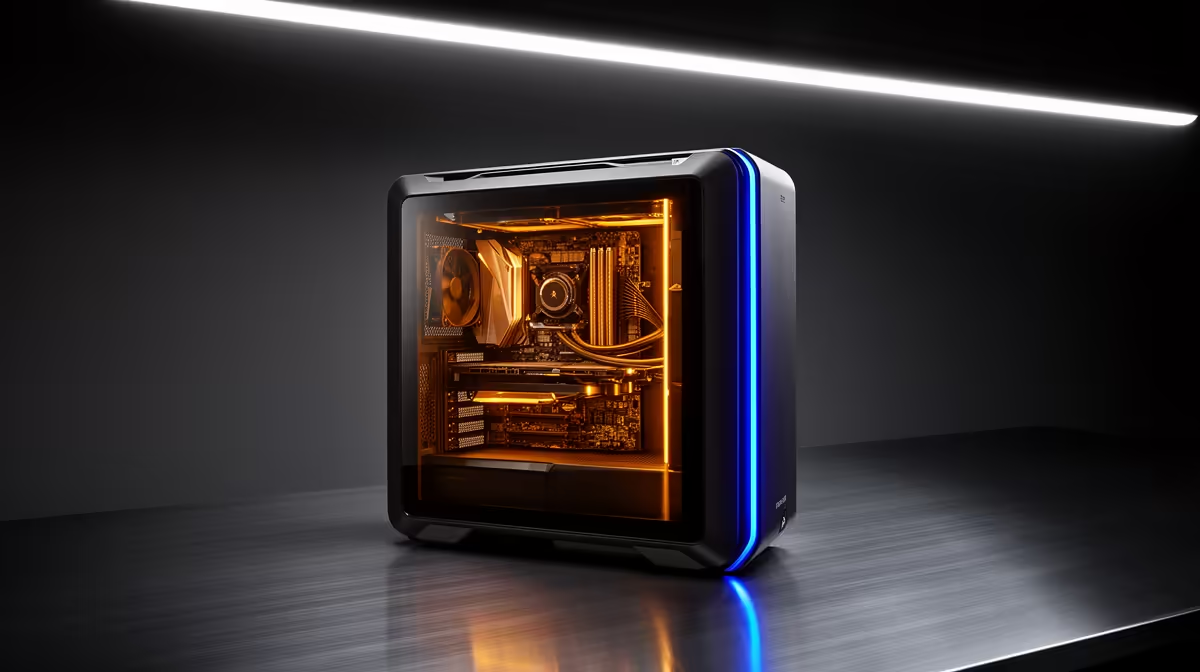
CAD work punishes the wrong PC in ways gaming never does. A rotating assembly stutters, a rebuild crawls, and a complex mate set drops your frame rate to a slideshow. SolidWorks system requirements are not about raw benchmark scores; they reward a specific shape of machine, one built around fast single-thread performance, generous memory and a professionally certified graphics driver. Get those three right and the software feels effortless. Get them wrong and no amount of money fixes the lag.
Quick Answer
SolidWorks needs at least 16GB of RAM for everyday parts and small assemblies, 32GB or more for large sub-assemblies, a CPU with high single-core clock speed (think a high-clocking Ryzen or Core chip), and a GPU with a certified OpenGL or DirectX driver. SSD storage is effectively mandatory. A balanced workstation for serious SolidWorks use in South Africa typically lands in the R25,000 to R45,000 range depending on assembly size.
Why the CPU Matters More Than Core Count
SolidWorks leans heavily on a single processing thread for the work you do most: opening files, rebuilding features, dragging mates and rotating the model. That means a chip with a high boost clock beats a chip with many slower cores for the majority of tasks. A processor that hits high single-core speeds will rebuild a feature tree noticeably faster than a higher-core-count chip that runs at a lower clock.
Where extra cores still help
Cores are not wasted. Photo-realistic rendering, simulation studies, flow analysis and file conversion all scale across multiple threads. So the ideal SolidWorks CPU is a hybrid pick: strong single-core speed first, with enough cores to keep rendering and simulation reasonable. If your work is pure modelling, prioritise clock speed. If you run frequent simulations, weight the core count higher.
RAM: The Number That Decides Your Assembly Ceiling
Memory is the hard wall in SolidWorks. A single part or a small assembly is comfortable on 16GB. Once you load assemblies with hundreds of components, or work with large imported geometry, the software hungers for memory and starts paging to disk, which is where the painful slowdowns begin.
- 16GB: fine for parts and assemblies up to a few hundred components.
- 32GB: the practical recommendation for most professional users and large sub-assemblies.
- 64GB and up: for very large assemblies, complex simulation, or running SolidWorks alongside other heavy applications.
Buying enough RAM up front is cheaper than discovering mid-project that your machine cannot hold the model.
The GPU Question: Certification Over Gaming Power
This is where SolidWorks differs most from a gaming build. The software runs on certified OpenGL and DirectX drivers, and a professional workstation GPU ships with drivers validated specifically for CAD applications. A gaming card can run SolidWorks, and many people use one successfully, but you may meet visual glitches or display errors that a certified driver avoids. For mission-critical CAD work, a certified GPU removes a whole category of frustrating, hard-to-diagnose graphics bugs.
You do not need the most expensive card on the shelf. A mid-tier professional GPU with enough video memory handles the vast majority of SolidWorks projects comfortably. The graphics card matters for smooth viewport navigation, not for the rebuild speed, which the CPU owns.
Storage and Display: The Easy Wins
An NVMe SSD is the single cheapest upgrade that makes SolidWorks feel faster. Large assembly files open in seconds instead of minutes, and the operating system stays responsive while the software loads geometry. A mechanical hard drive will bottleneck even a powerful CPU and plenty of RAM.
For the display, SolidWorks engineers benefit from a high-resolution monitor with accurate colour, since you spend hours staring at fine geometry and dimension text. A 27-inch QHD or 4K panel gives you the screen real estate to keep the feature tree, the model and a property manager all visible at once.
If you are also experimenting with 3D printing your designs, the 3D printers available at Evetech pair naturally with a SolidWorks workstation, turning a finished model into a physical prototype on the same desk.
Building the Right Machine for Your Workload
There is no single correct SolidWorks PC, only the right machine for your specific assemblies. A part-time user designing brackets and enclosures is well served by a high-clock consumer CPU, 32GB of RAM and a mid-range GPU. A full-time engineer handling thousand-component assemblies and regular simulation should weight the spend toward more RAM, more cores and a certified professional graphics card.
The mistake to avoid is over-spending on the GPU while under-spending on RAM and CPU clock speed, which is exactly backwards from a gaming build. Spend on memory and single-core speed first. When you are sourcing the supporting peripherals for a workstation, the keyboards, mice and storage in the accessories best-sellers at Evetech round out a productive CAD setup without inflating the core build cost.
Frequently Asked Questions
How much RAM does SolidWorks really need?
16GB is the practical minimum for parts and small assemblies, but 32GB is the recommended amount for most professional users. Large sub-assemblies and simulation work benefit from 64GB so the software never pages model data to disk.
Do I need a professional workstation GPU for SolidWorks?
A certified workstation GPU gives you drivers validated for CAD and avoids graphics glitches, which matters for professional, deadline-driven work. A gaming card can run SolidWorks, but you may meet occasional display errors that a certified driver prevents.
Is single-core or multi-core speed more important for SolidWorks?
Single-core speed matters most because modelling, rebuilds and viewport navigation rely on one main thread. Extra cores help with rendering and simulation, so a balanced chip with a high boost clock and a reasonable core count is ideal.
Will an SSD make SolidWorks faster?
Yes. An NVMe SSD dramatically cuts file open and save times for large assemblies and keeps the whole system responsive. It is one of the most cost-effective upgrades for any CAD machine.
Can a gaming PC run SolidWorks?
A capable gaming PC with enough RAM and a fast CPU runs SolidWorks well for most tasks. The main caveats are the unverified GPU driver and a tendency to under-spec RAM, so check those two areas before assuming a gaming build is enough.
Building a CAD machine? Talk to Evetech about a SolidWorks workstation tuned for high single-core speed, 32GB or more of RAM and a certified GPU, configured for the assemblies you actually work on.