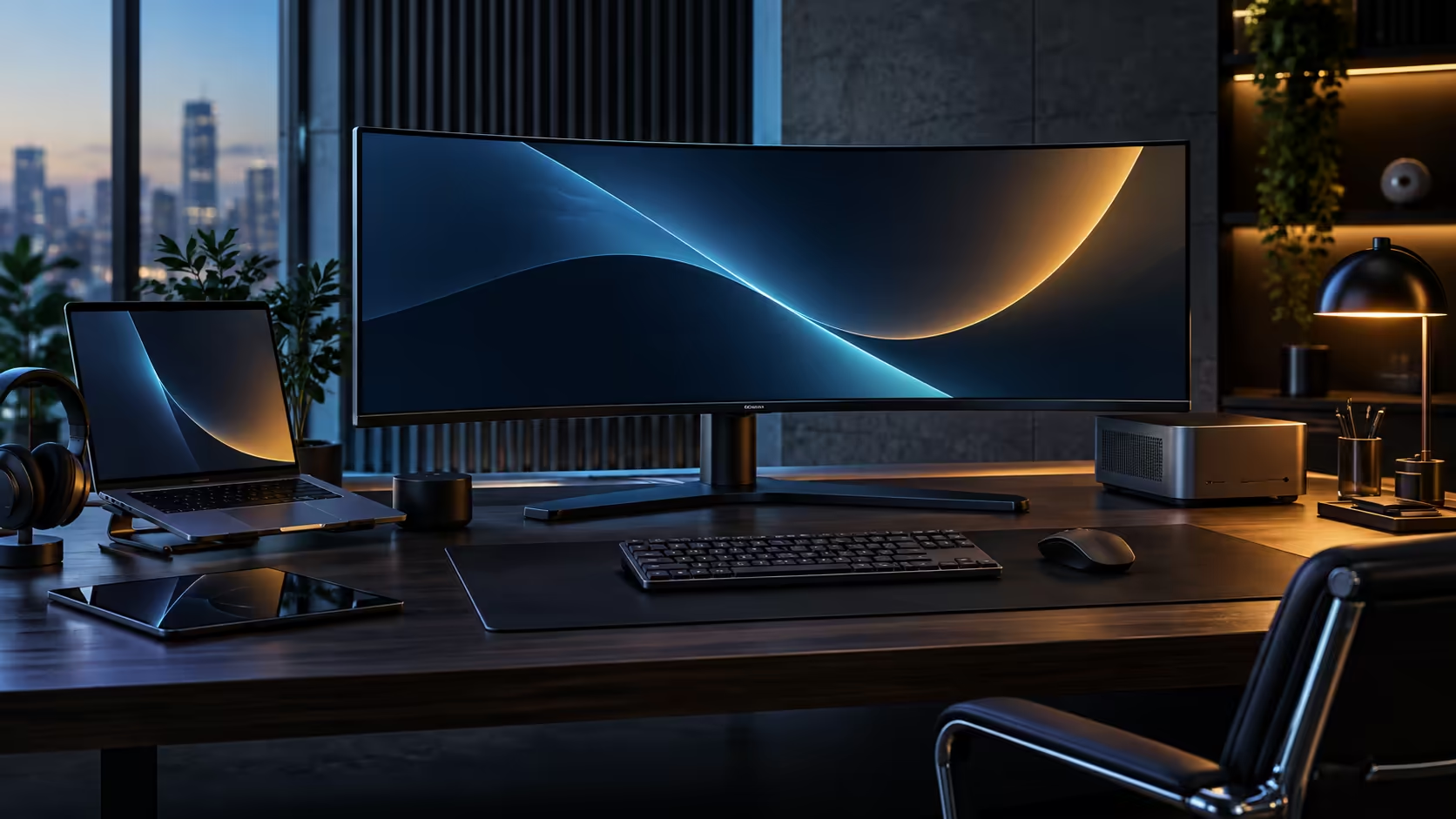
Running two computers on one desk creates a specific, repetitive annoyance: leaning sideways to reach a second keyboard, or unplugging a mouse from one tower to plug it into another. A smart KVM monitor solves that by owning the keyboard and mouse itself and handing them to whichever machine is on screen, and it is worth understanding both what it fixes and what it still leaves for you to work around.
Quick Answer
A built-in KVM lets one keyboard and mouse control two computers connected to the CU34E4CW, switching automatically when you change the video input. It does not move files between the two machines or share a clipboard between them, so a network share or a USB drive still handles that part. At R7,999 the feature comes bundled with the monitor rather than as a separate switch box.
😤 The everyday mess a KVM actually removes
The problems worth naming are the small, repeated ones rather than anything dramatic.
Two keyboards and two mice on one desk means constantly checking which set belongs to which machine, and the habit of leaning across to reach the other one mid-task. A dedicated hardware KVM switch solves this too, but it is a separate box with its own cables and its own place to sit, which is exactly what a monitor with the switch built in removes. Cable clutter drops as a direct result: instead of four peripheral cables running to two separate computers, one keyboard and one mouse run to the CU34E4CW's four USB-A ports, and the monitor's own circuitry sends that connection wherever it needs to go internally.
The switch itself is close to instant. Changing the video input on the CU34E4CW hands the keyboard and mouse to the new machine within a second or two, without any software running on either PC.
The same switching generally extends to whatever else is plugged into the panel's four USB-A ports, not just the keyboard and mouse. A drawing tablet, a USB headset, or a wired webcam connected through the monitor rather than directly into a computer typically follows the same active-input logic, meaning a two-computer creative setup can hand over an entire peripheral stack in one action rather than juggling each device's own cable separately. Confirm this on the specific model you own, since not every KVM implementation treats every USB port identically, and some reserve one or two ports for a fixed device regardless of which computer is active.
🖥️ Setting it up so both machines behave correctly
A KVM built into a monitor needs both computers wired correctly to work, and most setup problems trace back to a missed cable rather than a faulty switch.
Each computer needs its own video cable to the monitor and its own USB cable feeding the KVM's upstream connection, since the video and the USB control are separate links even though they switch together. The monitor's on-screen menu holds a KVM or USB Selection setting, usually confirming it follows the active video input automatically rather than staying fixed. Once both machines are wired correctly, triggering the switch, whether from the on-screen menu, a shortcut key or a dedicated button on the panel, moves both the picture and the keyboard and mouse together in one action.
If the picture changes on switching but the keyboard and mouse do not respond on the new input, the USB cable from that specific computer is the first thing to check rather than the KVM setting itself, since a missing USB link is by far the most common cause of a "half-switched" desk.
🚫 What a monitor-based KVM will not do for you
Knowing the limits before you rearrange a desk around this feature saves a frustrating discovery later.
A KVM has no concept of moving a file anywhere. Switching your keyboard to the other machine simply hands you control of it, without touching anything that was sitting on the first computer, so a network drive or a USB stick still does the actual carrying between them. The same applies to clipboard content: text copied on one PC does not magically appear when you paste on the other after switching, and that specific convenience needs its own separate clipboard-sync software if it matters to your workflow.
Audio routing is the other detail worth checking rather than assuming. This panel's built-in pair of 5W speakers switch sides right along with the picture on some monitors, while other monitors stubbornly stay pointed at one computer no matter which is displayed, and there is no fixed rule across KVM monitors generally, only whatever that particular model's menu decides.
For the peripherals a two-computer desk relies on, the office mice range and keyboard and mouse combos both carry wired options that avoid adding a wireless dongle to an already busy set of USB ports. The office monitor range is where the CU34E4CW itself sits alongside other docking options.
Frequently Asked Questions
Can a monitor's built-in KVM control a Mac and a Windows PC together?
Yes. The KVM only routes USB keyboard and mouse signals based on the active video input, so it works the same regardless of which operating system is on either machine.
Does switching the KVM move files between the two computers?
No. Moving your keyboard to the other machine hands you control of it, not a channel for data. Reach for a network share, a cloud folder, or a memory stick when content needs to cross from one PC to the other.
Why does my mouse stop responding after switching inputs?
Nine times out of ten, that one machine's USB uplink to the panel has come loose or was never plugged in. Every computer the switch is meant to control needs its own working USB connection to the monitor, not just a video one.
Is a separate KVM switch box better than one built into a monitor?
Not generally, if you are already buying a monitor with the feature included. A separate box adds cost and another device on the desk without adding capability for most two-computer setups.
Does a KVM monitor need drivers installed on either computer?
No. It presents as a standard USB keyboard and mouse connection to whichever computer is active, requiring no special software on either side.
Ready to stop juggling two keyboards on one desk?
Wire both computers with a video and a USB cable each, then let the monitor's KVM handle the switching.