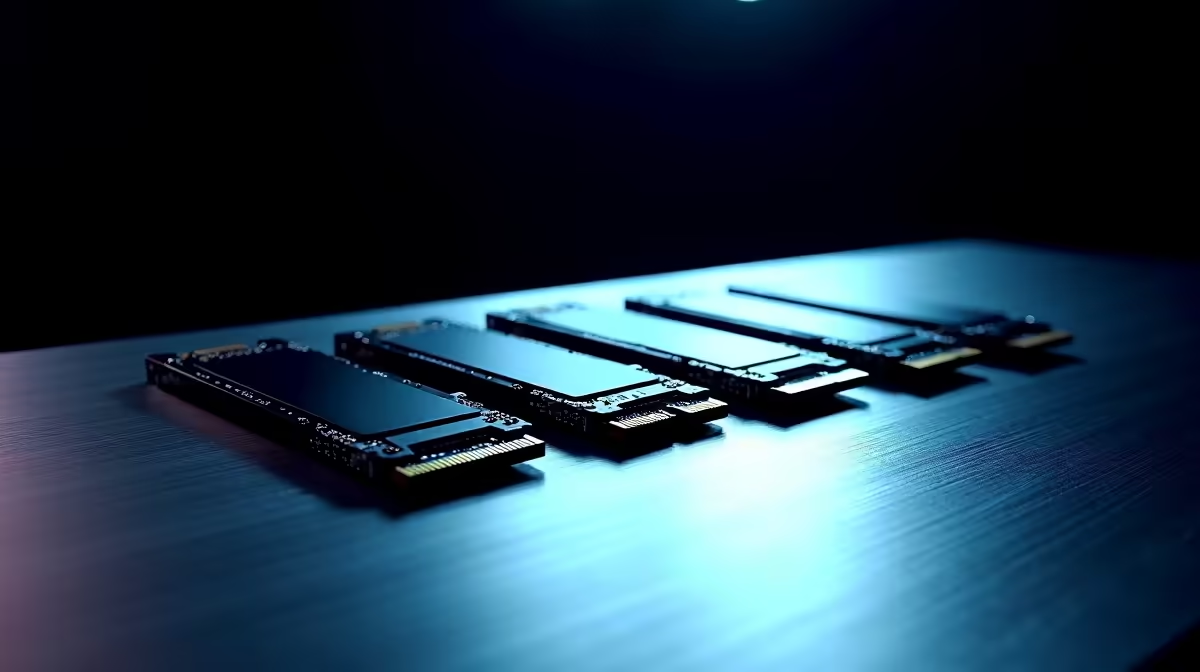
Tired of deleting your favourite games just to install the latest 150GB Call of Duty update? In South Africa, where downloading massive files on a slower line takes days, hoarding games locally is a survival tactic. If your motherboard supports it, a step-by-step guide to installing four M.2 SSDs for maximum storage and speed is exactly what you need to never see that disk full error again.
Preparing for Installing Four M.2 SSDs
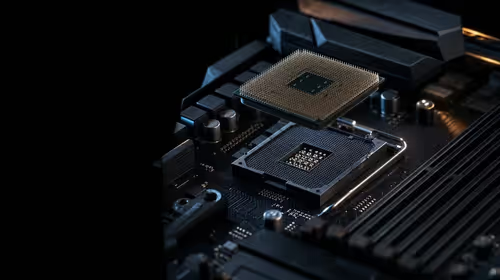
Before you buy terabytes of lightning-fast NVMe storage, you need to check your hardware. Not every motherboard can handle four drives running at full speed. Your CPU and chipset share a limited number of PCIe lanes. High-end ATX boards usually support this setup, but you must consult your manual. You need to ensure plugging in a fourth drive does not disable your SATA ports or throttle your graphics card.
If your current rig is too old to support this level of expansion, it might be time to look at the best gaming PC deals to find a system built for massive storage.
Thermal Management Pro Tip ⚡
When installing four M.2 SSDs close to your graphics card, things get very hot. Always use the motherboard's included metal heatsinks and peel off the clear plastic film from the thermal pads before screwing them down to prevent thermal throttling.
The Installation Process: Step-by-Step Guide
Now for the fun part. Grab a small magnetic Phillips-head screwdriver and let's get to work.
- Power down and unplug: Always disconnect your PC from the wall. Press the power button a few times to drain any leftover electricity.
- Remove the heatsink covers: Carefully unscrew the motherboard armour covering your M.2 slots. Keep these tiny screws safe... they are notoriously easy to lose on a dark carpet.
- Insert the drives: Slide each M.2 SSD into its slot at a 30-degree angle. It should slot in smoothly. Gently press the drive down flat and secure it with the standoff screw. Repeat this for all four slots 🔧.
- Reattach the heatsinks: Place the thermal covers back over the drives and tighten them down securely.
Maximising Storage and Speed in Windows
Once you boot up, head straight into your BIOS to confirm all four drives are recognised. After loading into Windows, you will need to open Disk Management to initialise and format your new storage.
You can keep them as separate drives for your OS, games, media, and backups. Alternatively, you can configure them in a RAID array for blistering speeds. Just remember that massive storage is not limited to desktop rigs anymore. If you are on the move, modern notebooks for sale in South Africa often feature dual M.2 slots to keep your library portable.
Upgrading your storage is one of the most cost-effective ways to breathe new life into your machine. With 1TB NVMe drives often dropping below R1,500 on sale, keeping an eye on weekly hardware specials is the smartest way to fill up those four slots without emptying your wallet 🚀.
Ready to Expand Your Digital Library?
Running out of space is a problem of the past. Whether you are looking for blazing-fast NVMe drives or a brand new motherboard to house them, Evetech has you covered. Explore our massive range of PC component specials and build the ultimate storage powerhouse today.