Quick Answer
USB-C transfer speed bottlenecks on modern gaming PCs are most commonly caused by a mismatch between the front-panel port speed and the motherboard's internal header type, using a cable not rated for the target speed, or connecting through a hub that splits bandwidth across multiple devices. A USB-C port labelled 20Gbps on the case may deliver only 5Gbps if the motherboard lacks a Gen 2x2 header.
The Header Mismatch Problem 🔧
Most mid-range and some high-end motherboards include a USB 3.2 Gen 2 Type-C header (10Gbps) but not the rarer USB 3.2 Gen 2x2 header (20Gbps) using a different 20-pin connector. A case advertising a 20Gbps front USB-C connects to whichever header the motherboard provides. If the board only has a 10Gbps header, the port delivers 10Gbps regardless of the case specification. Before purchasing a case for its high-speed front USB-C, confirm your motherboard's specification lists a USB 3.2 Gen 2x2 internal header. B650 and B760 boards often omit this; X870E and Z890 boards typically include it.
Cable Quality and Length Bottlenecks 💡
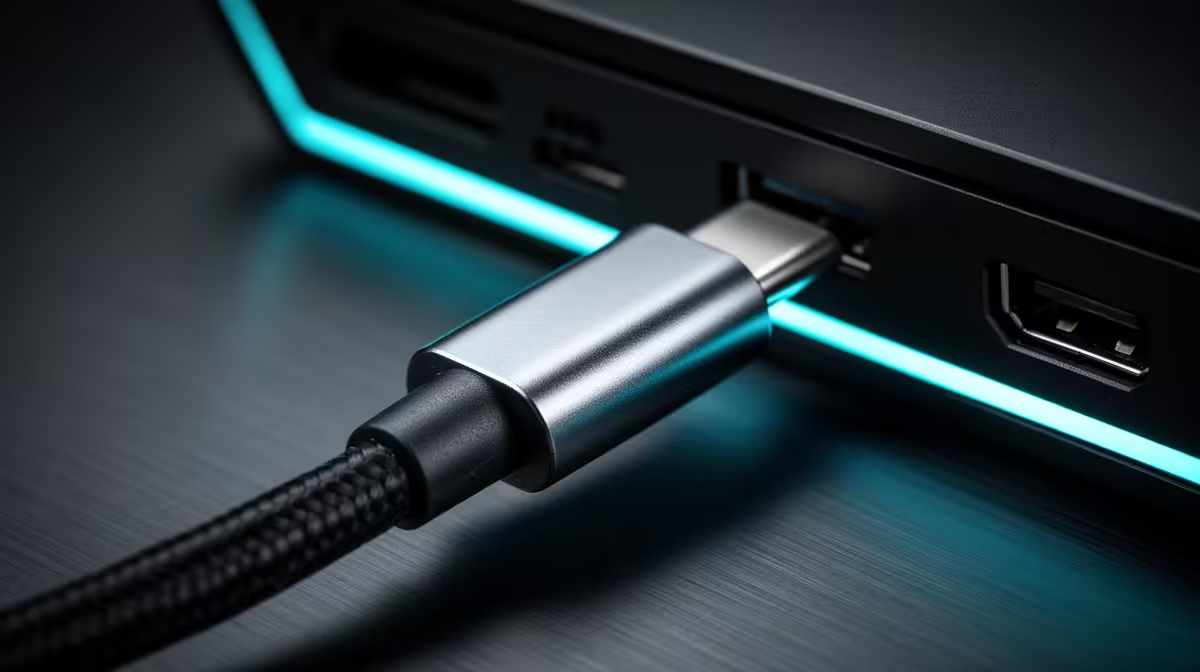
USB 3.2 Gen 2x2 at 20Gbps is sensitive to cable quality in a way that USB 2.0 is not. A cable without proper shielding, one over 1 metre for passive types, or one not rated for Gen 2x2 speeds will drop to a lower negotiated speed automatically. Windows shows the connected speed in device properties; if a device rated at 20Gbps shows 5Gbps or 10Gbps in Device Manager, a cable or header mismatch is the likely cause. In South Africa, USB-C cables sold without clear specification labelling are common in general retail. Buying cables from a technology-focused retailer with clear Gbps ratings avoids this issue.
Hub and Dock Bandwidth Sharing 🖥️
A USB-C hub connected to a 20Gbps port divides that bandwidth across every device through the hub. An external NVMe SSD, a USB audio interface, and a controller sharing one hub connection all compete for the 20Gbps pool. A 2,200 MB/s external SSD underperforms significantly when sharing with other active devices. For SA content creators transferring large files, connect the external SSD directly to a native USB-C port and use separate ports for lower-bandwidth devices rather than routing everything through one hub.
Check Windows Device Manager for Actual Port Speed ⚡
Right-click your USB-C connected device in Device Manager, go to Properties and the Details tab, and select Hardware IDs. The speed reported reflects the actual negotiated connection speed, not the theoretical maximum. This is the fastest way to confirm whether your front panel USB-C is genuinely delivering 10Gbps or 20Gbps rather than relying on case marketing.
FAQ
Is Thunderbolt the only way to get reliable 40Gbps USB-C on a gaming PC?
Yes at present. USB 3.2 Gen 2x2 tops at 20Gbps, and USB4 Gen 3 offers 40Gbps but requires both host controller and device support. Thunderbolt 4 at 40Gbps is the most common high-speed USB-C implementation on current gaming motherboards.
Can a USB-C to USB-A adapter cause a speed bottleneck?
Yes. Any adapter converting USB-C to USB-A is limited by the USB-A specification, topping at 10Gbps for USB 3.2 Gen 2. If your device is capable of 20Gbps, using a USB-C to USB-A adapter immediately caps you at 10Gbps.
Why does my USB-C device transfer quickly on one port but slowly on another?
Different USB-C ports on a motherboard's rear I/O or front panel may connect to different controllers with different speed ratings. One port may be Thunderbolt 4 at 40Gbps while another is a basic USB 3.2 Gen 1 at 5Gbps. Check which port the device is connected to against the motherboard's port specification map.
Want a gaming case with front I/O that genuinely keeps up with your components?
Browse Evetech's case range for models with clearly specified high-speed USB-C front panel connectivity.