Try to run a local AI image or video pipeline on a non-NVIDIA card and you hit the same wall everyone else does: the tools assume you have CUDA, and you do not. This is not brand loyalty talking. NVIDIA RTX is the GPU to buy for local AI generation because the entire diffusion software stack, from Stable Diffusion to Flux to ComfyUI, is built on CUDA and NVIDIA-only acceleration like OptiX and TensorRT.
Quick Answer
For local AI image and video generation, buy an NVIDIA RTX card. The major diffusion tools default to CUDA, many ComfyUI extensions only run on CUDA, and NVIDIA-exclusive acceleration delivers large speed gains. On other hardware you fight compatibility; on RTX everything simply works.
CUDA Is the Software Everyone Builds On
CUDA is NVIDIA's compute platform, and it has become the default target for AI development. The diffusion tools creators actually use, Stable Diffusion front-ends, Flux, and the node-based ComfyUI, are written against PyTorch with CUDA acceleration. When a developer adds a feature or a custom node, they build and test it on CUDA first because that is what their users run.
The practical consequence is compatibility. Many ComfyUI extensions and custom nodes only work with CUDA at all, so on non-NVIDIA hardware you find that the workflow you wanted to copy simply will not load. RTX is not just faster here; it is the path of least resistance, and for local AI that matters as much as raw speed.
The Speed Gap Is Real
Beyond compatibility, the performance difference is large enough to change how you work. NVIDIA's CUDA optimisations in PyTorch accelerate ComfyUI directly, and the gap shows in real numbers: a Flux image that takes around two minutes on a high-end Mac chip drops to roughly four seconds on a top RTX desktop card.
OptiX, TensorRT, and FP-Format Acceleration
The acceleration goes deeper than CUDA cores. OptiX and TensorRT are NVIDIA-only, and TensorRT-optimised workflows run noticeably faster than the unoptimised path. On the RTX 50-series, low-precision formats like FP8 and FP4 cut memory use and multiply throughput, with FP8 roughly doubling and FP4 roughly tripling performance in supported workflows. None of this is available on rival hardware, which is what makes RTX the practical default rather than a preference.
Choosing the Right RTX Card
Once you have settled on RTX, the next question is which one, and that comes down to VRAM and the models you want to run.
Match VRAM to Your Models
A 12GB card runs SDXL but will crash on full-precision Flux. A 24GB card handles both, with speed depending on the CUDA cores and memory bandwidth. Quantised Flux squeezes into smaller cards, but if local video generation is on your list, plan for more memory, since video is the most VRAM-hungry workload of all. Decide on the heaviest model you intend to run, then pick the card that covers it.
Where to See the Options
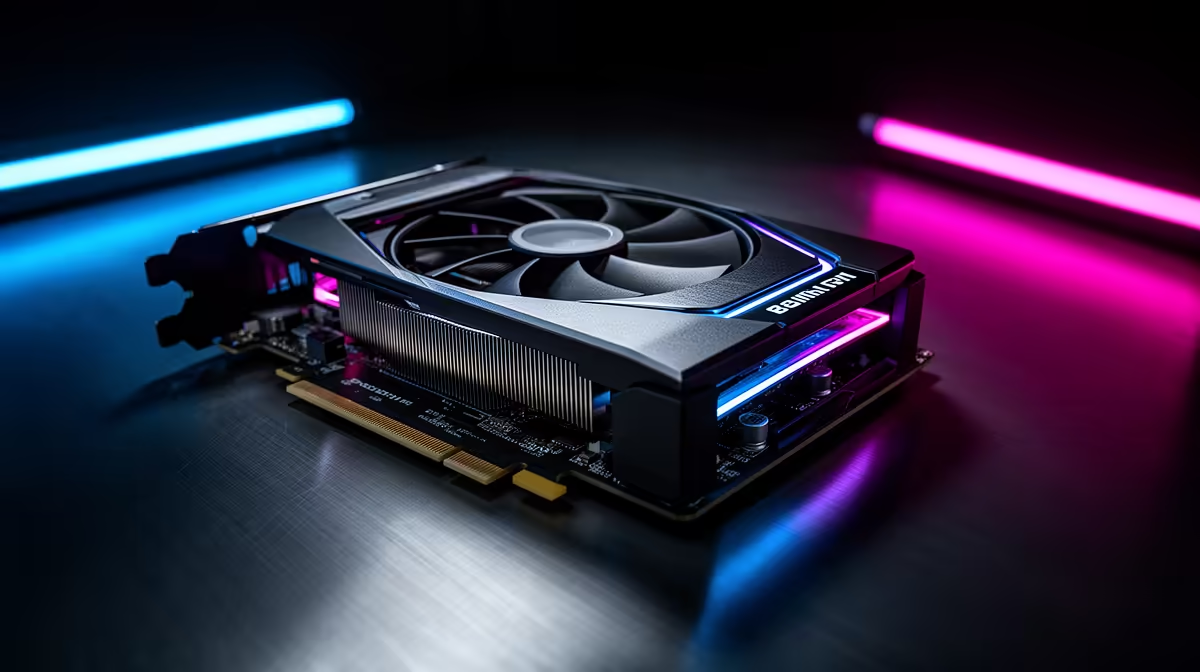
You can compare RTX cards and complete builds side by side in the AI PC range at Evetech, where each configuration lists the GPU and its memory. If you would rather start from the card itself and slot it into an existing rig, the best-selling graphics cards show which RTX models local creators are buying now.
TensorRT for RTX: What the Numbers Actually Mean
The performance gap between RTX and everything else is not a vague claim, it is quantified. TensorRT for RTX beats PyTorch's FP16 baseline by more than 70 percent on video generation workloads, and switching to FP8 on top of that adds another 30 percent. For Stable Diffusion 3.5 Large specifically, FP8 TensorRT delivers 2.3 times the throughput of BF16 PyTorch while using 40 percent less VRAM. Those are not marginal gains; they change whether a workflow is usable in practice.
The mechanism is just-in-time compilation. TensorRT analyses the model's computational graph, fuses operations where possible, tunes kernel execution for the specific RTX chip in the machine, and outputs code that runs as efficiently as the hardware allows. On newer Ampere and Ada cards this runs in seconds at first launch and is then cached. The result is that the same model, the same pipeline, runs meaningfully faster without changing a single setting in ComfyUI or your front-end of choice.
FP4 on Blackwell
The RTX 50-series Blackwell cards push the low-precision story further with FP4 support. FP4 roughly triples throughput relative to the unoptimised path in supported workflows, not by sacrificing meaningful quality but by packing the computation more tightly on dedicated tensor cores. Combined with the RTX 5090's 32GB of VRAM, FP4 quantisation means models that previously needed a high-VRAM card to run at all can now fit and run fast on mainstream Blackwell hardware. For local AI in South Africa, where GPU pricing is already steep, the headroom FP4 creates on a single card has real budget implications.
The Rest of the Rig Matters Too
The GPU does the heavy lifting, but a card cannot work in isolation. Local AI generation loads large model files repeatedly, so a fast NVMe SSD shortens the wait every time a model swaps in and out of memory. System RAM matters as well, since the tools stage data in main memory before it reaches the card; aim for at least double your GPU's VRAM in system RAM so the chain never starves the GPU.
Power and cooling are the quiet requirements. A top RTX card draws serious wattage under a sustained generation run, which is a very different load from a short gaming burst. Pair it with a power supply rated comfortably above the card's draw and a case with real airflow, because a card that thermal-throttles loses exactly the speed advantage you paid for. A balanced build keeps the GPU fed and cool so it delivers its full throughput on long batch jobs.
Desktop Over Laptop for Serious Work
If local AI is a real part of your workflow rather than an occasional experiment, a desktop RTX card beats a laptop equivalent of the same name. Desktop cards run at higher power limits, carry more VRAM at each tier, and sustain their clocks far longer without throttling. A laptop is fine for light, on-the-go generation, but the heavy lifting belongs on a desktop where the card can stretch its legs.
Frequently Asked Questions
Why is NVIDIA RTX required for local AI generation?
The major diffusion tools, including Stable Diffusion, Flux, and ComfyUI, are built on CUDA, and many ComfyUI extensions only run on CUDA. NVIDIA-only acceleration like OptiX and TensorRT adds further speed, making RTX the practical requirement.
Can I run Stable Diffusion or Flux on a non-NVIDIA card?
You will face compatibility problems. Much of the ecosystem defaults to CUDA, and some custom nodes will not work at all without it. RTX avoids that friction entirely, which is why it is the recommended choice.
How much faster is RTX for AI image generation?
The gap is large. A Flux image that takes around two minutes on a high-end Mac chip can finish in roughly four seconds on a top RTX desktop card, thanks to CUDA, TensorRT, and low-precision FP8 and FP4 acceleration.
Which RTX card should I buy for AI art?
Match VRAM to your heaviest model. A 12GB card handles SDXL but not full-precision Flux, while 24GB runs both. For local video generation, choose a card with more memory, since video is the most demanding workload.
What do OptiX and TensorRT actually do?
They are NVIDIA-only acceleration layers. TensorRT-optimised workflows run significantly faster than the standard path, and combined with FP8 and FP4 formats on newer RTX cards they deliver major performance and memory gains unavailable on other hardware.
Build a rig that runs the whole local AI stack without compatibility headaches. Compare RTX cards and ready-made builds in the AI PC range at Evetech and generate locally at full speed.