


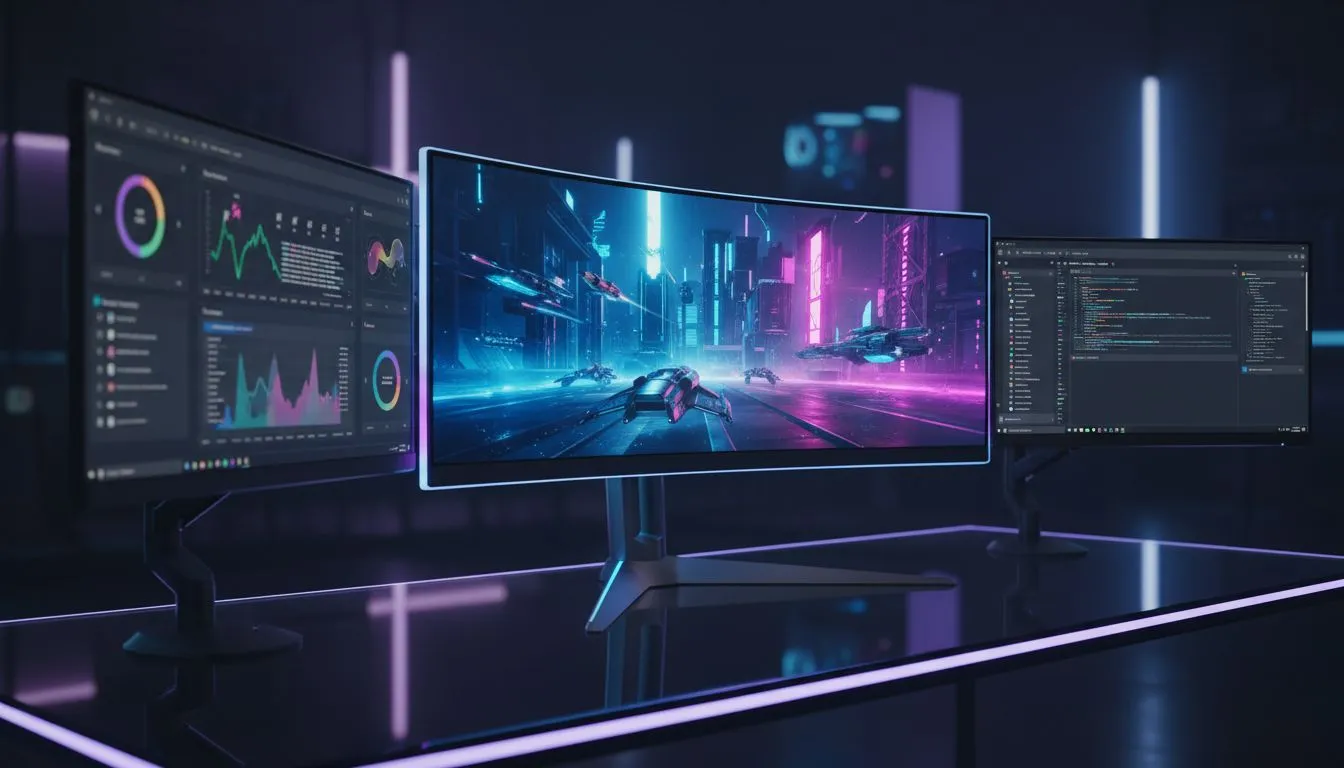
Upgrading your battle station in South Africa? You’ve sorted the rig, the keyboard, the mouse... but now comes the big screen decision. It’s the classic debate for gamers and creators alike: a single large monitor vs dual monitors. Do you go for one seamless, cinematic display or the multitasking power of two separate screens? Let’s break down which setup is better for your needs, right here, right now.
The Case for a Dual Monitor Setup
For many, the dual monitor setup is the undisputed king of productivity. The logic is simple: more screens equals more digital real estate. Imagine having your game running on your main screen while Discord, OBS, or a guide is open on the second. No more Alt+Tabbing out of a crucial moment in Apex Legends to reply to a message.
For work, it’s a revelation. You can have your code on one display and the live preview on the other, or your research open next to your document. It’s often a cost-effective route, too, especially if you're pairing two standard PC monitors that don't break the bank.
The Allure of a Single Large Monitor ✨
Then there's the other side of the coin: the single, sweeping vista of an ultrawide monitor. The main advantage is pure, uninterrupted immersion. With no plastic bezel bisecting your view, cinematic games like Cyberpunk 2077 or racing sims feel incredibly expansive. Your peripheral vision is engaged, pulling you deeper into the action.
A single large monitor also simplifies your desk. One stand, one power cable, one display cable... it's a cleaner, more minimalist approach. For those who value a tidy setup, exploring the world of gorgeous ultrawide and curved monitors is a must.
Productivity Pro Tip ⚡
On Windows, use the PowerToys FancyZones utility to create custom snap layouts for your windows. It's a lifesaver for managing multiple apps on an ultrawide monitor, letting you organise your timeline, preview window, and asset folders perfectly for video editing.
Single vs. Dual Monitors for Gaming? 🚀
So, which is truly better for gaming? It depends entirely on what you play.
- Dual Monitors Win For: Streamers, MMO/RTS players, and anyone who needs constant access to secondary apps. Managing your stream, inventory, or build guides without Alt+Tabbing is a massive quality-of-life improvement.
- A Single Large Monitor Wins For: FPS, racing sims, and third-person adventure games. The uninterrupted field of view provided by an ultrawide can give you a competitive edge by showing you more of the battlefield. There’s nothing quite like it.
Ultimately, the best choice comes down to your play style. It's worth taking time to explore the latest gaming monitors to see the specs on offer for both types of setups.
What About Work and Content Creation? 🔧
The debate between a single large monitor and a dual monitor setup extends beyond gaming. For content creators and professionals, the choice impacts workflow significantly.
Video editors often gravitate towards a single ultrawide to see more of their timeline at once. Programmers, on the other hand, frequently prefer a dual setup, sometimes with one monitor rotated into portrait mode for reading long blocks of code. For tasks that demand extreme detail and colour accuracy, equipping your desk with crisp 4K and 5K monitors is the professional standard. You could even enhance a laptop-based workflow by adding a portable monitor for extra screen space on the go.
The Practical Stuff: Cost, Space, and Cables
Let's get down to brass tacks. An amazing ultrawide can be a significant investment. Sometimes, buying two more affordable screens can give you more pixels for your Rand. The key is to keep an eye out for the best PC monitor deals in South Africa to maximise your budget.
Also, consider your desk space. While two 24-inch monitors have a wider footprint than one 34-inch ultrawide, monitor arms can help reclaim that space. Managing your setup with good monitor accessories like arms and stands not only saves space but also provides better ergonomics.
The Verdict: It's Your Call
There’s no single right answer in the single large monitor vs dual monitors showdown. The best setup is the one that perfectly fits your games, your work, and your desk.
- Choose Dual Monitors if: You are a master multitasker, a streamer, or a professional who juggles multiple applications constantly.
- Choose a Single Large Monitor if: You crave ultimate immersion, play cinematic games, and prefer a clean, minimalist desk.
Think about your primary use case, measure your desk, check your budget, and make the choice that will elevate your entire PC experience.
Ready to Upgrade Your View? The single vs. dual monitor debate is personal, but the perfect screen for your setup is waiting. Whether you crave cinematic immersion or multitasking mastery, we've got the display for you. Explore our massive range of monitor deals and find the perfect match to conquer your world.











