


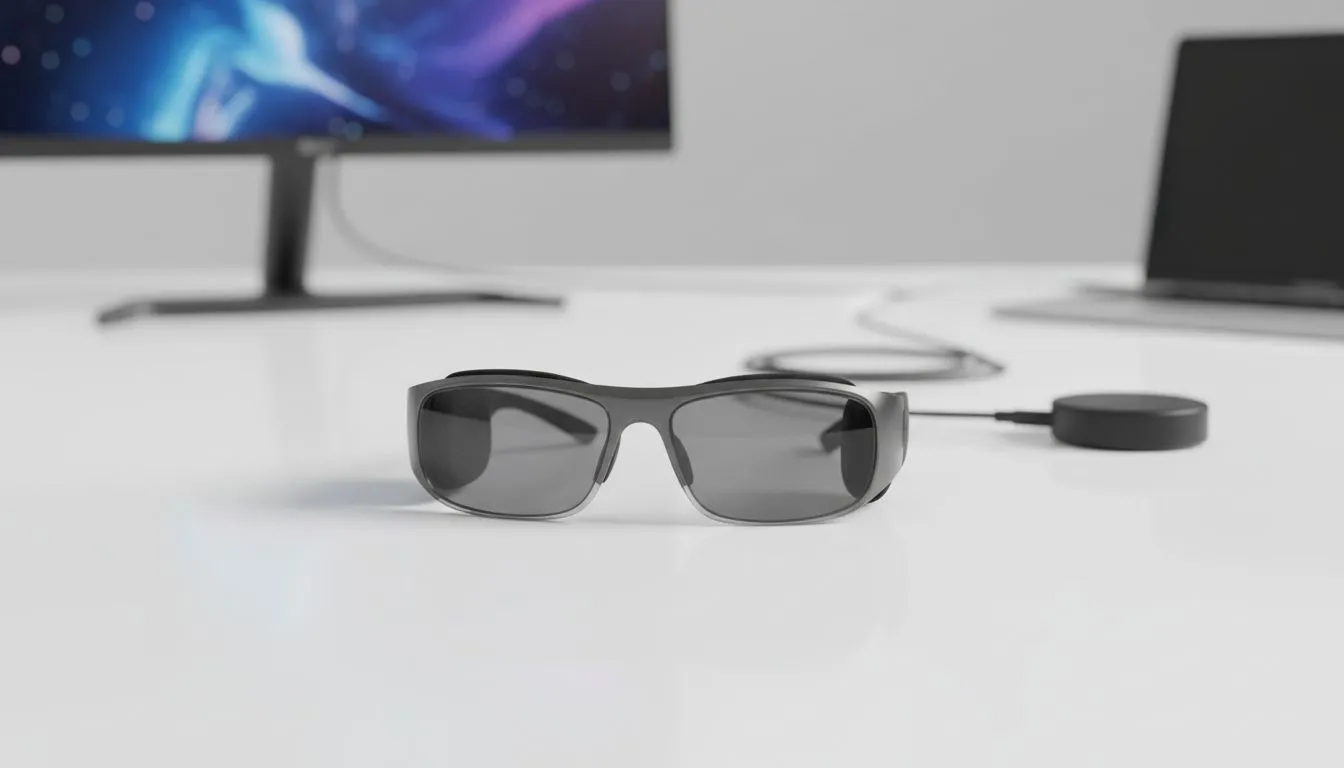
Master Your XREAL One Pro PC Setup
Imagine ditching your bulky monitor for a crisp, 120-inch virtual display while sitting at your desk in Joburg or Cape Town. The XREAL One Pro is redefining how we work and play, but getting that perfect, sharp image requires a bit of finesse. If you have just unboxed your pair, let’s get your XREAL One Pro PC setup dialed in for the best visuals possible. 🚀
Physical Connections and Hardware Basics
The first step in your journey is ensuring your hardware is compatible. The XREAL One Pro relies on a USB-C connection that supports DisplayPort Alt Mode. Most modern gaming laptops and high-end motherboards feature this, but it is always worth checking your manual. If you are looking for the latest AR glasses and compatible hardware, Evetech offers a variety of solutions to get you started.
Plug the USB-C cable directly into your GPU or the designated Thunderbolt port. Avoid using cheap hubs or extenders... these often degrade the signal and cause flickering. A direct connection ensures the lowest latency, which is vital for a smooth experience when navigating your Windows desktop. ⚡
How to Connect & Configure for Best Visuals
Once plugged in, Windows should recognise the glasses as a secondary monitor. To truly unlock the potential of the hardware, you need to download the Nebula for Windows app. This software allows you to create multiple virtual screens and adjust the "distance" of the display.
When you browse the full range of AR glasses, you will notice that software support is what separates the best from the rest. Within Nebula, set your refresh rate to 120Hz if your system supports it. This makes motion feel fluid and reduces eye strain during long sessions. Ensure your Windows display settings match the native resolution of the glasses to avoid any blurry text or scaling issues.
Visual Clarity Pro Tip ⚡
Always clean the lenses with a dedicated microfibre cloth before starting. Even a tiny smudge can cause light streaks (God rays) in high-contrast scenes. For the sharpest text, use the physical diopter adjustments on the top of the frames to match your specific eyesight requirements perfectly.
Fine-Tuning the Software Experience
To get the most out of your XREAL One Pro PC setup, you should look into "GingerXR" or similar spatial drivers if you plan on using the glasses for intensive gaming or head-tracking. These tools allow the virtual screen to remain fixed in space... even when you move your head. This mimics the feel of a physical monitor and is much more natural for the brain to process.
If you are investing in premium AR gear, you want the software to be just as robust as the hardware. Always keep your firmware updated via the official XREAL website. New updates frequently improve colour accuracy and reduce the power draw from your laptop. 🔧
Final Calibration for South African Lighting
Our local sunlight can be quite intense, especially if your home office has large windows. The XREAL One Pro features electrochromic dimming, which allows you to darken the lenses with a button press. For the best visuals, use the highest dimming level in bright rooms to increase the contrast ratio of the OLED micro-displays. This makes the blacks deeper and the colours pop, providing an experience that rivals high-end ZAR 15,000+ gaming monitors. ✨
Ready to Step into Augmented Reality? Elevating your setup with the XREAL One Pro transforms your digital workspace into something extraordinary. Explore our massive range of AR glasses and find the perfect tech to upgrade your South African gaming rig today.











