


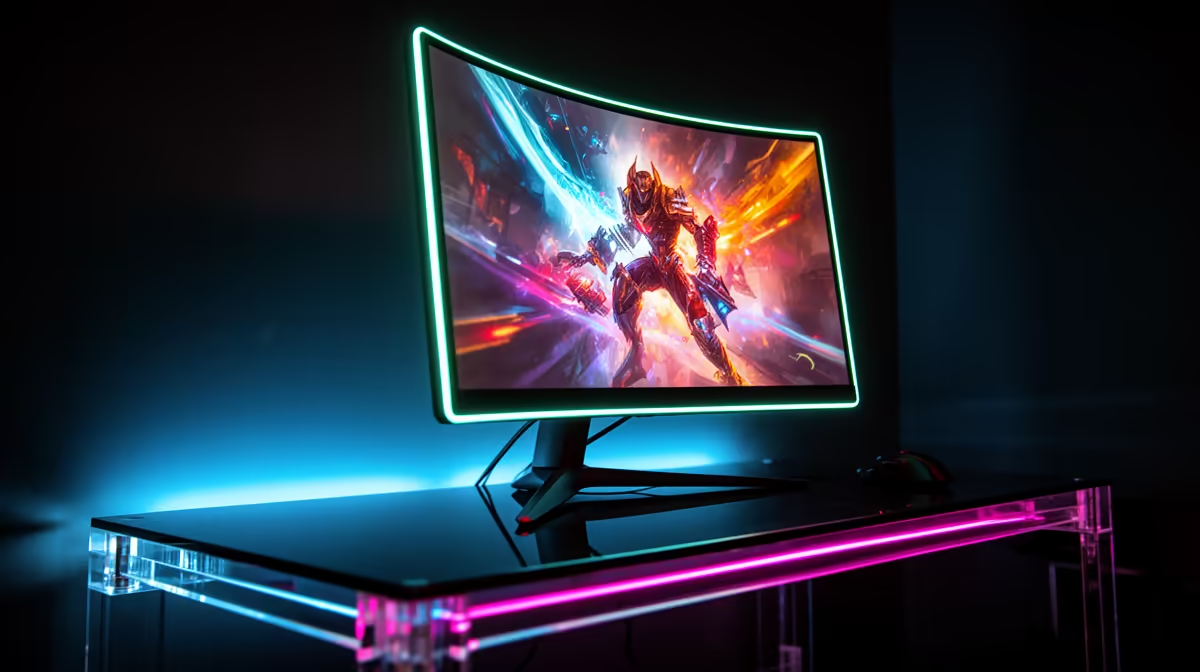
You're down to the last squad in Warzone, the circle is closing in... you line up the perfect shot, and your screen tears. Tragic. That choppy, stuttering gameplay isn't just bad luck; it's often a sign of refresh rate issues. For South African gamers, a high refresh rate isn't a luxury... it's a competitive edge. This guide will help you diagnose and fix refresh rate issues, getting you back to buttery-smooth victories. 🚀
Understanding Common Refresh Rate Problems
Before we dive into the fix, what are we even talking about? A monitor's refresh rate, measured in Hertz (Hz), is how many times per second the screen updates the image. A 60Hz monitor refreshes 60 times, while a 144Hz monitor refreshes 144 times. More updates mean smoother motion.
The problem is, your new high-Hz monitor might be running at a sluggish 60Hz out of the box. This is often due to default Windows settings, the wrong cable, or an incorrect driver configuration. It's a common story with many PC monitors sold in SA, but thankfully, the fix is usually simple.
Your Step-by-Step Guide to Fix Refresh Rate Issues 🔧
Let's get that refresh rate sorted. Follow these steps, in order, to ensure your monitor is running at its full potential.
Step 1: Check Your Windows Settings
This is the most common culprit. Windows often defaults to 60Hz, even on a 144Hz or 240Hz screen.
- Right-click on your desktop and select Display settings.
- Scroll down and click on Advanced display settings.
- Find the "Choose a refresh rate" dropdown menu and select the highest possible value.
- Your screen will flicker for a moment. Click "Keep changes," and you're done!
Step 2: Optimise Your GPU Control Panel
Sometimes your graphics card software can override Windows settings.
- For NVIDIA: Open the NVIDIA Control Panel, go to "Change resolution" under the Display menu, and ensure the Refresh rate is set to the highest option.
- For AMD: Open AMD Radeon Software, click the "Gaming" tab, then "Global Display," and check your refresh rate settings there.
Enable Adaptive Sync! ⚡
modern displays support G-Sync (Nvidia) or FreeSync (AMD). This amazing tech syncs your monitor's refresh rate with your GPU's frame rate to eliminate screen tearing completely. Make sure it's enabled in your GPU control panel and your monitor's on-screen menu for the smoothest possible experience. It's a standard feature on nearly all modern [gaming monitors](https: www.evetech.co.za all-gaming-monitors x 1587) today.
Step 3: Use the Right Cable
That old HDMI cable from your DStv decoder won't cut it. For high refresh rates (especially above 144Hz), a DisplayPort cable is almost always your best bet. While newer HDMI 2.1 can handle it, DisplayPort offers more consistent support across a wider range of monitors. Make sure your cable is plugged in securely.
When It's Time for an Upgrade ✨
If you've tried everything and you're still stuck at 60Hz, your monitor might simply be the bottleneck. The performance leap from 60Hz to 144Hz is one of the most significant upgrades a gamer can make. Everything feels more responsive and fluid.
Today, there's a monitor for every type of gamer. You might crave the immersion of curved monitors for that wrap-around feeling, or the incredible detail found on high-resolution 4K monitors, though you'll need a beastly GPU to drive high frames. Even on-the-go setups are covered these days, with impressive portable monitors that can keep up. If these fixes for your refresh rate issues don't work, it could be the perfect time to check out some of the best PC monitor deals available right now.
Ready for a Silky-Smooth Upgrade? Fixing your settings is a great first step, but nothing beats the competitive edge of a true high-refresh-rate display. Stop letting lag and screen tear dictate your K/D ratio. Explore our massive range of gaming monitors and find the perfect screen to dominate the lobby.









