


Graphics card connection tips — pick the right port for gaming 🔧
South African gamers: want silky 240Hz gameplay without guessing which cable to use? This short guide cuts the confusion. Learn which ports handle high refresh rates, where adapters can cause bottlenecks, and the quick checks that stop artefacts and no-signal nightmares — all in under a ten-minute read. Ready? Let’s get your rig talking to your monitor properly.
Graphics Card Connection Guide essentials: what to know first
Every setup starts with compatibility. The "Graphics Card Connection Guide: Choose the Right Port" idea is simple: match your GPU output, your monitor input, and the cable bandwidth. DisplayPort usually favours high refresh rates and adaptive sync, while HDMI is common on TVs and many monitors. For an accessible comparison of HDMI vs DisplayPort behaviours, see a reputable breakdown here: https://www.pcgamer.com/hdmi-vs-displayport/ ⚡
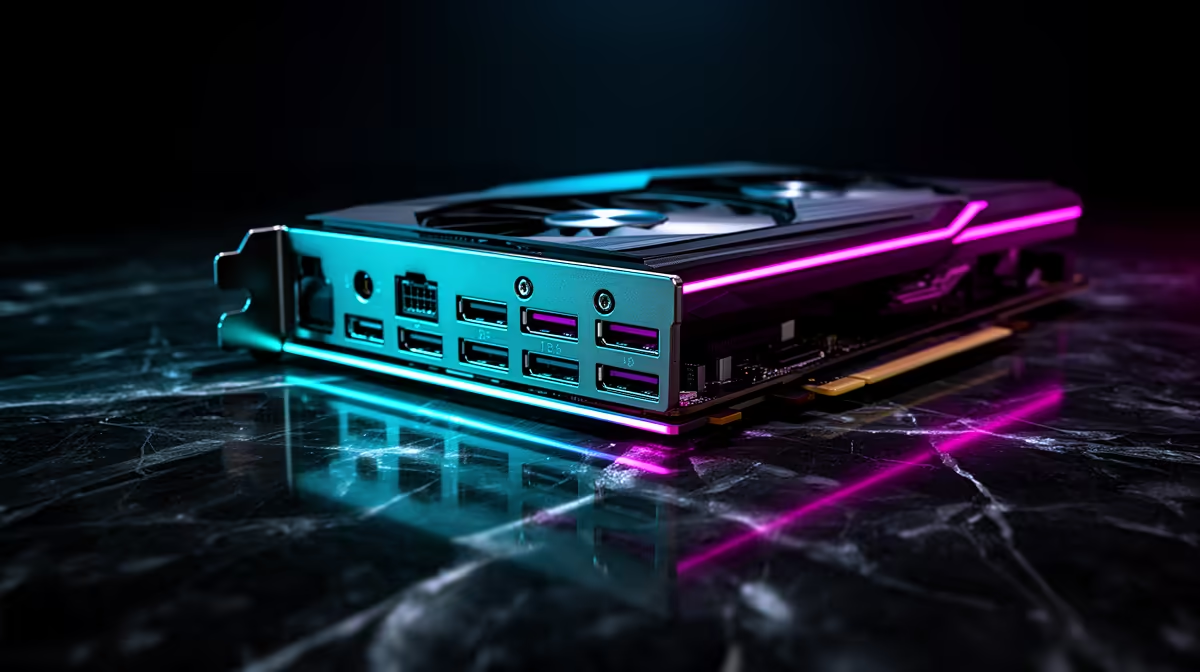
Graphics card connection guide — common ports explained
- DisplayPort: Best for 144Hz+ monitors and adaptive sync.
- HDMI: Widely supported; recent HDMI versions approach similar bandwidth to DisplayPort.
- DVI: Legacy option; fine for 60–144Hz at lower resolutions.
- USB-C (DP Alt Mode): Convenient on laptops and ultrawides; check support for full bandwidth.
If your GPU has a 12VHPWR-style power connector, use a certified cable to avoid issues. Need a reliable 12VHPWR cable? Check this 12VHPWR option on Evetech for compatibility and pricing: Gamemax 12VHPWR cable (best-deal) — https://www.evetech.co.za/gamemax-12vhpwr-cable-b-argb-extension/best-deal/24244
Graphics card connection guide — choosing the right port for your goal
- Competitive esports (high Hz, low latency): prioritise DisplayPort and the highest refresh rate your monitor supports.
- Console or TV gaming: HDMI is usually the right pick.
- Content creation and colour work: ensure the port supports the monitor’s colour depth and resolution.
Small note on adapters: passive HDMI-to-DisplayPort adapters can limit bandwidth. If you must adapt, grab an active adapter rated for your target resolution and refresh rate.
Connection Quick Tip ⚡
Always power down and unplug your PC before swapping ports or cables. Label both ends when changing multiple cables to avoid confusion. For high-refresh setups, use the cable supplied with your monitor or a certified high-bandwidth cable.
Graphics card connection guide — cable quality, sleeves and management
Good cables reduce headaches. Neat cabling also improves airflow. If you want tidy, premium sleeved PSU cables to pair with your build, Evetech stocks individually sleeved cables that look sharp and help cable-manage at the back of your case: NZXT individually sleeved premium cables — https://www.evetech.co.za/PC-Components/nzxt-individually-sleeved-premium-cables-93 ✨
Practical buying tip: match cable rating to the highest capability you plan to use today. Buying once saves frustration.
Graphics card connection guide — troubleshooting common connection problems
- No signal: check monitor input source, try a different cable and port, reseat the GPU and cables.
- Flicker or image corruption: test another port or cable; check GPU drivers.
- Lower-than-expected refresh rate: ensure Windows and monitor settings are set to the target Hz and that the cable supports the bandwidth.
When in doubt, consult your GPU and monitor manuals for supported modes. If hardware purchases are needed, Evetech’s product pages list specifications clearly.
Ready to Find Your Perfect Match? The Mac vs Windows debate is complex, but for maximum power, choice, and value in South Africa, Windows is hard to beat. Explore our massive range of laptop specials and find the perfect machine to conquer your world.











