


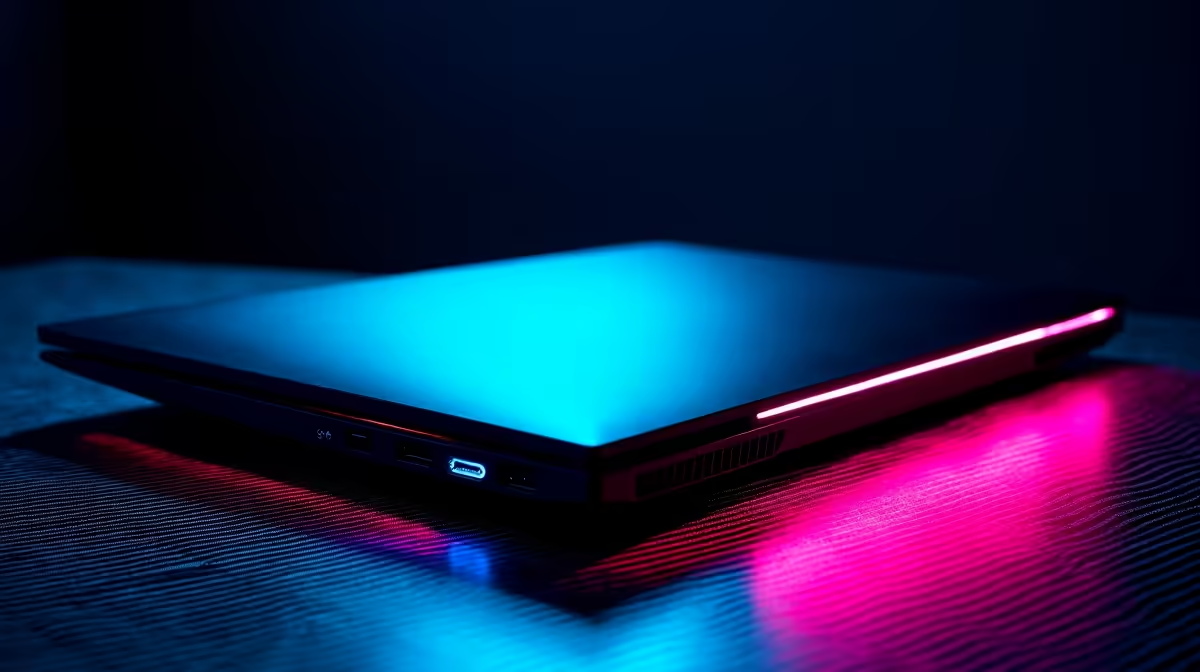
You bought that shiny HP gaming laptop for a reason: to dominate in Apex Legends, explore the vast world of Elden Ring, and get buttery-smooth frame rates. But lately... is it feeling a bit sluggish? A little warmer than you remember? Don't stress, boet. Proper HP gaming laptop maintenance is easier than you think, and it's the key to keeping your machine running like the day you unboxed it. Let's get your rig back in fighting shape. 🚀
The Physical Clean-Up: Dust is Your #1 Enemy
Before you even think about software tweaks, you need to tackle the physical gunk. Dust is the silent killer of performance, clogging fans and choking airflow, which leads to thermal throttling. That’s when your laptop intentionally slows itself down to avoid overheating. This simple cleaning routine is a crucial part of your HP gaming laptop maintenance schedule.
Vents, Fans, and Keyboard Care
The most important step is clearing the airways.
- Power Down & Unplug: Never clean your laptop while it's running. Shut it down completely and unplug it from the wall.
- Compressed Air is Your Friend: Grab a can of compressed air. Holding it upright, use short, controlled bursts to blow dust out of the intake and exhaust vents. Don't blast air directly into the fans for too long, as this can damage their bearings.
- Keyboard & Chassis: Turn the laptop upside down and gently tap it to dislodge crumbs. Use the compressed air for stubborn bits. For the chassis and keys, a slightly damp microfibre cloth is perfect for wiping away grime and fingerprints.
Taking care of the robust chassis on modern HP gaming laptops ensures they not only perform well but also look great for years to come.
Essential Software & Driver Maintenance
A clean machine is only half the battle. Outdated software and drivers can cause performance issues, bugs, and even security vulnerabilities. Keeping your digital house in order is a core part of maintaining your HP gaming laptop's health.
Keeping Everything Up-to-Date
- Windows Updates: Don't ignore them! They often contain critical performance and security patches.
- Graphics Drivers: This is a big one. Both NVIDIA (via GeForce Experience) and AMD (via Adrenalin Software) release regular updates that are optimised for the latest games. A new driver can literally boost your FPS overnight.
- HP Support Assistant: Your laptop likely came with this pre-installed. It’s a handy tool for finding official BIOS updates and other hardware-specific drivers that you might otherwise miss. This is especially useful for keeping models like the popular HP Victus gaming laptops in peak condition.
Check Your Temps! 🌡️
Download a free tool like HWMonitor or MSI Afterburner. These apps let you see your CPU and GPU temperatures in real-time. If you're consistently hitting over 90°C during gaming sessions after cleaning your fans, it might be a sign that your thermal paste is drying out and needs to be replaced—a more advanced maintenance step.
Optimising for Peak Gaming Performance
With the hardware and software basics covered, you can dive a little deeper to squeeze out every last drop of performance. This part of your HP gaming laptop maintenance guide focuses on fine-tuning the system for pure gaming.
Tweak Your Settings
- Manage Startup Programs: Press
Ctrl + Shift + Escto open Task Manager, go to the "Startup" tab, and disable any unnecessary apps that launch when you boot up. Every program running in the background eats up precious resources. - OMEN Gaming Hub: If you have an Omen or Victus laptop, use the OMEN Gaming Hub. It lets you monitor system vitals, boost network performance, and control performance modes. Setting it to "Performance" mode before a gaming session ensures your hardware is running at full tilt.
For serious gamers, these optimisations are non-negotiable. It's what separates a good experience from the flawless performance you expect from top-tier machines like those found in our HP Omen gaming laptop deals.
When It's Time for an Upgrade
Following this guide will significantly extend the life and performance of your machine. ✨ But technology moves fast. Sometimes, no amount of maintenance can bridge the gap when new games demand more VRAM, faster processors, and features like DLSS 3.0. If you've cleaned, updated, and optimised, but still can't hit the frame rates you want, it might be time to consider an upgrade. The latest laptops offer massive leaps in performance and cooling technology that can't be matched by older hardware.
Ready for a Performance Upgrade? Proper maintenance can work wonders, but sometimes you just need more power. If your old rig is holding you back, it might be time for an upgrade. Explore our incredible laptop specials and unleash next-level performance today.










