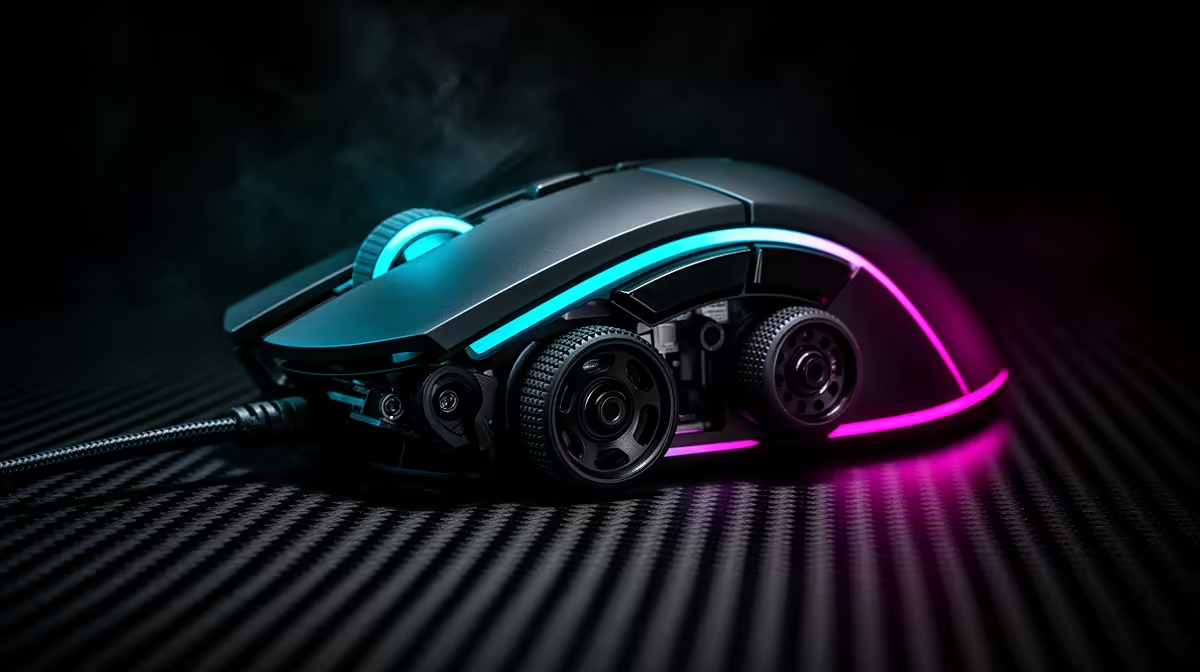
Two sensor filters can both smooth movement while changing aim for different reasons. Choosing angle snapping and ripple control settings starts with raw testing at your DPI, pad and game sensitivity.
Quick Answer
Turn angle snapping off for aiming when you want raw hand movement, because it can straighten a line the sensor thinks you intended. Treat ripple control as a smoothing filter to test rather than a setting to leave on by rule. It may reduce visible jitter at high DPI and can change fine response or latency. Names and implementations vary by mouse, so draw slow lines and play a familiar tracking drill with each control alone.
Angle snapping edits the path
Angle snapping, prediction or line correction looks for movement near a straight line and nudges the reported path towards it. That can help basic drawing and can resist the small vertical movement you intended while tracking a target.
Open a paint application and draw long horizontal lines freehand. With snapping active, sections may become unnaturally straight. Draw circles and diagonals too. A strong setting can create flat spots.
For FPS play, start with snapping disabled. Artists using a mouse may prefer a small amount for a specific task, though a pen tablet provides better control.
Ripple control targets sensor noise
At very high sensor counts, tiny surface variation and electronic noise can make the pointer tremble during slow movement. Ripple control or smoothing may average samples to produce a steadier line.
The cost depends on implementation. Filtering can soften micro-corrections or add processing delay. Some sensors apply smoothing only above certain DPI values even when the app has no visible toggle.
Test 800, 1,600 and your high-DPI value on the same pad. Keep in-game sensitivity adjusted so turn distance stays constant.
Change one control
Update firmware only through the official route when needed, then reset the mouse profile. Disable angle snapping, ripple control, operating-system acceleration and game smoothing for the baseline.
Record a tracking drill and small-target score. Enable one feature and repeat several runs. A better straight line in Paint does not prove better aim.
Rest between runs so fatigue does not pick the winner.
Use the same polling rate and USB port. Wireless receiver position and a dirty sensor lens can create jitter that software filtering hides.
Keep casual use simple
You do not need to optimise every sensor switch. Choose a comfortable DPI, clean surface and stable connection. Leave correction off when the pointer feels right.
Browse current sensor options on the peripheral best-seller page and check pads, receiver extensions or other items in the gaming accessories range.
FAQ
Should angle snapping be off for shooters?
Start with it off so the pointer follows your hand. Test a supported setting only for a defined task.
Does ripple control add lag?
It may add filtering delay or soften response, depending on the mouse and DPI. Measure the exact implementation.
Can I see the difference myself?
Yes. Draw slow lines and circles, then repeat a tracking drill with one setting changed.
Reset the mouse, test snapping and ripple control one at a time, and keep only the filter that improves your real tracking result.