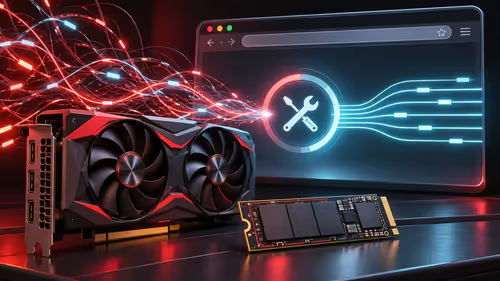
An encoder preset is a trade between picture quality and processing effort, and the best preset for OBS is the slowest one your PC can run without skipped frames while you play. Start in the middle, test with your heaviest game, and only step up when the status bar stays clean.
Quick Answer
For NVENC begin at P5 (or the Quality preset on older drivers), for AMF use Balanced or Quality, and for x264 use veryfast. Run a 10-minute test with a demanding game. If OBS shows no skipped or dropped frames, try one step higher; otherwise move one step faster.
⚖️ What a Preset Actually Does
The preset tells the encoder how hard to look for savings on every frame. A slower preset finds more of them, so the picture looks cleaner at the same bitrate, but it demands more processing. A faster preset does less work, saving resources at the cost of fine detail, especially in dark scenes and fast motion.
Presets do not change your bitrate. They change how efficiently that bitrate is used.
🧪 A Safe Way to Test
- Pick the starting preset for your encoder, as above.
- Play your most demanding title for ten minutes with a short recording running.
- Watch the status bar at the bottom of OBS for "skipped frames due to encoding lag" and the CPU and GPU meters.
- If anything is skipped, move one step faster and test again.
- If all is clean and the game is smooth, try one step slower.
Change one setting at a time, otherwise you cannot tell what helped. For x264 specifically, jump to slow only after you have seen veryfast, faster and fast run clean.
Good audio improves a stream more than a heavier preset does, so look at streaming essentials before chasing small gains.
🎯 Presets by Encoder
- NVENC: presets run from P1 (fastest) to P7 (best quality). P5 is a sensible mid-point on a recent card.
- AMF: Speed, Balanced and Quality. Balanced is the safer start on older Radeons.
- QuickSync: Balanced works for most, since the chip is already limited.
- x264: veryfast to medium, with veryfast as the bulk choice on a gaming PC.
Pair the preset with a bitrate your line can carry. A better preset will not fix a weak upload, and viewers on a shared South African fibre connection still need a stable stream. A sharp webcam also makes a bigger visual difference than moving up one preset.
Frequently Asked Questions
What does an encoder preset change?
It sets how much effort the encoder spends compressing each frame. Slower presets give better quality at a given bitrate but need more processing.
Which x264 preset should a streamer start with?
Veryfast. If CPU usage stays low and no frames drop in a real game, step up one preset at a time and never jump straight to slow.
What preset suits NVENC?
NVENC presets run from P1 to P7. P5 is a sensible start, and you can adjust if you lose frames.
How do I know a preset is too heavy?
OBS reports skipped frames due to encoding lag in the status bar. If you see that, move one step faster before lowering the bitrate.
Will a better preset fix a poor upload?
No. A preset improves quality per bit, but a low or erratic upload still limits you, so match bitrate to the line first.
Does the game I play change my preset?
Yes. Fast shooters punish a weak preset, so test with your heaviest title at the hour you actually stream.
Ready to polish your stream?
Head to the Evetech streaming category and pick up microphones, webcams and accessories that make your tuned encoder settings shine.