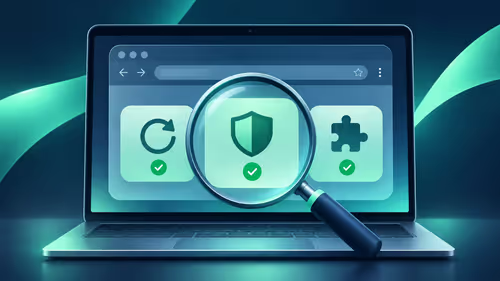
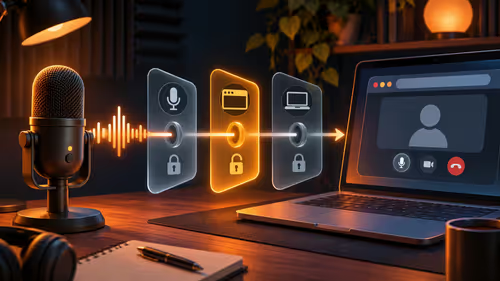
The right capture card for mac m1 is a USB device that works without a driver and clearly lists Apple silicon support. Intel-era cards and software often lag behind, so the label matters more than the price. Check support first, then match the card to the resolution you really record.
Quick Answer
Choose a USB capture card that works as a driverless video device and names M1 or Apple silicon in its specs. A listed macOS version alone does not prove M1 support. For 1080p60 expect to spend roughly R1,500 to R3,500, while 4K models cost more. Test with QuickTime Player, using File, New Movie Recording, before relying on it for a stream.
🔌 Why driver support decides everything
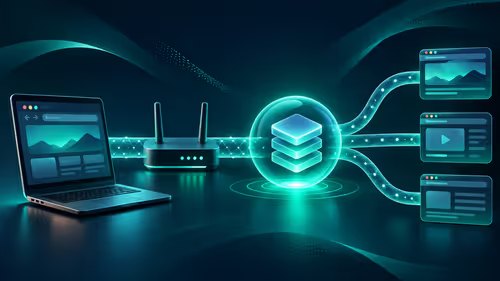
Apple silicon Macs run Arm code, and some older capture software was built only for Intel. A card that behaves as a standard USB video device, like a webcam, needs no extra driver and shows up in apps such as QuickTime and OBS straight away. Cards that rely on a vendor driver or an old utility can fail to install on newer macOS versions.
Read the product page closely. Look for the words Apple silicon or M1, not just macOS. If the maker is vague, ask before buying. Our category for streaming essentials is a good place to compare cards and the microphones that go with them.
📐 Match resolution and ports to your Mac
An M1 Mac handles 1080p capture with ease. The limit is the connection: 4K or high-frame-rate capture needs a USB 3 link and a good cable. Many M1 MacBooks sold in South Africa offer just two USB-C ports, so a card with a USB-C connector saves you from adapters. Cheap hubs and dongles can cut bandwidth and cause dropped frames.
Decide what you capture. A console at 1080p60 needs a card rated for that, and a camera feed for a lecture or a church livestream may be fine with 1080p30. Do not pay for 4K passthrough if your display and your upload cannot use it.
✅ Test it before you commit
Plug the card in, connect your source over HDMI and open QuickTime Player. Choose File, New Movie Recording, then pick the card from the dropdown next to the record button. If you see live video, the card works as a driverless device. OBS should also list it under Video Capture Device.
Pairing it with a good webcam for presenters gives you a camera plus screen setup for tutorials and remote teaching. If you capture a PlayStation or Xbox, remember that protected content may show a black screen because of HDCP, so check your console's settings.
Check the maker's page for the exact Apple silicon note on the model you pick.
Frequently Asked Questions
Do I need drivers for a capture card on a Mac?
Many cards act as driverless USB video devices, but not all. Confirm macOS support on the maker's page before buying.
Does macOS support mean M1 support?
Not always. A page that lists macOS may not name Apple silicon, so look for M1 in the specs.
What resolution can an M1 Mac capture?
1080p is easy. 4K or high frame rates need a USB 3 card and a good cable.
How do I check that the card works?
Open QuickTime Player, choose New Movie Recording and select the card. OBS lists it as a video source as well.
Will an M1 Mac have enough ports?
Many have only a couple of USB-C ports, so a card with a USB-C lead avoids adapters. Cheap dongles can cut bandwidth.
Can I capture a console on a Mac?
Yes. Plug the console's HDMI into the card and the USB side into the Mac. Protected content may need HDCP turned off.
Ready to set up capture on your Mac?
Browse the Evetech streaming essentials and webcam categories to pair a capture card with a microphone and camera for recording or streaming.