


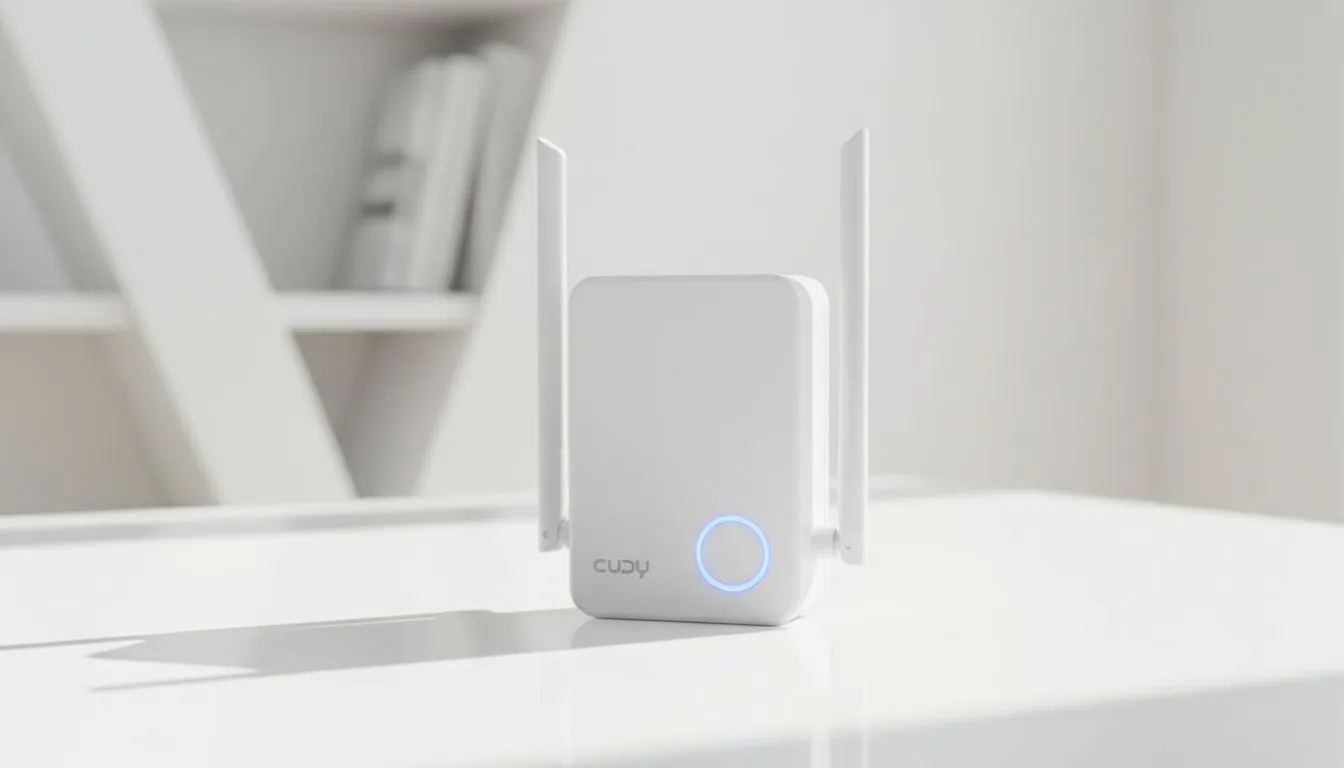
Eliminate Dead Zones with a Pro Cudy RE3000 Setup
Dead zones are the ultimate boss fight in South African homes. Whether you are trying to clutch a 1v5 in Valorant or just streaming 4K video in the bedroom, a weak signal is frustrating. The Cudy RE3000 setup is your ticket to seamless connectivity. This Step-by-Step Range Extender Guide will get you back in the game without the headache of complicated networking jargon. ⚡
Getting Started with Your Cudy RE3000 Setup
Before we dive into the technical bits, ensure your device is plugged into a power outlet close to your main router. This proximity is only temporary for the initial configuration. Once the handshake is complete, we will move it to its permanent home. If your signal is currently struggling to reach the far corners of your house, browsing our full range of wireless range extenders can help you identify if you need additional units for a mesh-like experience.
Method 1: The One-Touch WPS Method
The fastest way to complete your Cudy RE3000 setup is via Wi-Fi Protected Setup (WPS). It is as simple as pushing a button... literally.
- Plug the RE3000 into an outlet near your router.
- Wait for the Power LED to turn solid.
- Press the WPS button on your main router.
- Within two minutes, press the WPS button on your Cudy RE3000.
- The LED will blink and eventually stay solid, indicating a successful link.
Remember that an extender is only as good as the source signal it receives. Upgrading to one of the latest wireless routers can provide a stronger foundation for your whole network, ensuring the RE3000 has high-quality data to repeat.
Signal Strength Pro Tip ⚡
Always place your Cudy RE3000 halfway between your main router and the dead zone. If you put it too far away, it will struggle to repeat a clean signal. Use the LED indicator on the front... if it is red, you are too far. Blue means you are in the sweet spot for maximum throughput.
Advanced Configuration via Web Browser
If your router does not have a WPS button, or if you prefer a more hands-on approach, the web interface is your best friend. This method allows you to customise your SSID and security settings more precisely.
- Connect your phone or PC to the Wi-Fi network named "Cudy-RE3000".
- Open a browser and type
http://cudyre.netor192.168.10.254into the address bar. - Create a login password to keep your settings secure.
- Select the Wi-Fi network you want to extend and enter its password.
- Wait for the device to reboot and apply the settings.
For desktop PCs located in rooms where even an extender might struggle, pairing your new setup with high-speed wireless adapters ensures you get every megabit of performance available.
Optimising Your Wireless Network for Gaming
South African homes often feature thick brick walls that act as shields against Wi-Fi signals. To get the most out of your Step-by-Step Range Extender Guide, ensure the RE3000 is out in the open. Do not hide it behind a TV or inside a cabinet. 🔧
Building a seamless home network requires the right gear to handle multiple devices simultaneously. Check out our complete wireless networking section for all your connectivity needs, from high-gain antennas to mesh systems. By following this Cudy RE3000 setup, you are ensuring that your ping stays low and your download speeds stay high, no matter where you are in the house. ✨
Ready to Eliminate Dead Zones? Don't let poor signal ruin your killstreak or slow down your productivity. Explore our range of Cudy networking solutions and enjoy high-speed Wi-Fi 6 coverage across your entire South African home today.











