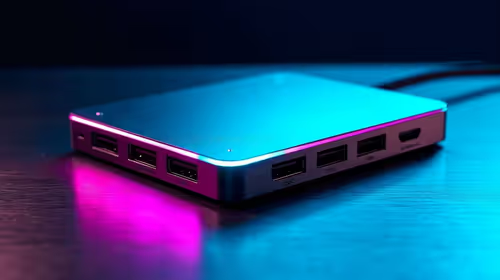
A KVM switch lets you run one keyboard, mouse, and monitor across several computers, but the video standard it is built around decides what resolutions and refresh rates actually reach your screen. The DisplayPort vs HDMI KVM choice is not cosmetic. Pick the wrong one and your 144Hz panel suddenly behaves like a 60Hz office monitor, no matter how capable the rest of your gear is.
Quick Answer
A DisplayPort 1.4 KVM can carry up to 8K at 30Hz or 4K at 144Hz, while an HDMI KVM is limited by its HDMI version, with HDMI 2.0 topping out at 4K at 60Hz. For high-refresh gaming or a sharp productivity monitor, a DisplayPort KVM is the safer pick. For a standard 1080p or 4K-60 setup, HDMI is perfectly adequate and usually cheaper.
The Core Difference: Bandwidth
Both standards send digital video, but they carry different amounts of data per second, and that bandwidth ceiling is everything in a KVM. DisplayPort 1.4 has the headroom for 4K at 144Hz, which is exactly the combination high-refresh gamers and fast-paced creators want. HDMI 2.0, still common on many switches, hits a wall at 4K and 60Hz. Push a 144Hz monitor through it and the switch will simply negotiate down to whatever it can handle.
The trap is that a KVM may pass your resolution fine while quietly capping the refresh rate. You get a crisp 4K image that feels sluggish in motion, and the cause is the switch, not the monitor or the cable.
Matching the KVM to Your Monitor
The deciding question is what your display actually does. A 1440p or 4K monitor running at 60Hz is well within HDMI 2.0 territory, so an HDMI KVM keeps things simple and affordable. The moment you move to a high-refresh panel, 4K at 120Hz or 144Hz, or a fast 1440p gaming monitor, DisplayPort becomes the standard that can keep up.
Check the HDMI version too. Not all HDMI KVMs are equal, and an older HDMI 2.0 switch behaves very differently from a current HDMI 2.1 one. The version printed in the spec sheet tells you the real ceiling, so read it before you buy rather than assuming "HDMI" means a single fixed capability.
Practical Setup Tips
A few habits save frustration. Use cables rated for the bandwidth you need, since a tired HDMI cable can cap a perfectly good switch. Confirm that every computer feeding the KVM outputs the same video standard, mixing a DisplayPort source into an HDMI switch via a passive adapter often fails to negotiate high refresh rates. And if you run dual monitors, make sure the KVM has enough video ports of the right type for both.
The desk a KVM anchors matters more than people expect, because a multi-machine station is only as clean as the surface underneath it. Sorting the furniture at the same time is sensible, and the workspace desks Evetech carries cover that side of the setup neatly. To see what other buyers are pairing with their KVM-driven stations, the desk-side accessory best sellers at Evetech offer a useful starting reference.
Frequently Asked Questions
Which KVM is better for 144Hz gaming?
A DisplayPort 1.4 KVM, because it has the bandwidth for 4K at 144Hz. HDMI 2.0 switches cap at 4K and 60Hz, which will throttle a high-refresh gaming monitor.
Can I use a DisplayPort source with an HDMI KVM?
Sometimes, with a powered adapter, but high refresh rates often fail to negotiate. It is far more reliable to match the source output and the KVM to the same standard.
Is HDMI ever the better choice?
Yes. For a 1080p or 4K-60 setup, an HDMI KVM is simpler and usually cheaper, and it delivers everything that kind of monitor can show.
Does the HDMI version on the KVM matter?
It matters a lot. HDMI 2.0 caps at 4K-60, while HDMI 2.1 supports much higher refresh rates. Always check the exact version in the specification.
Will a KVM reduce my image quality?
A good switch passes the signal through cleanly with no visible loss. Problems come from exceeding the switch's bandwidth ceiling or using underrated cables, not from the switching itself.
Setting up a multi-PC desk? Match a high-refresh monitor and a solid desk to your KVM at Evetech, and make sure your video standard can deliver the full resolution and refresh your gear is capable of. https://www.evetech.co.za/accessories-best-sellers/x/1919