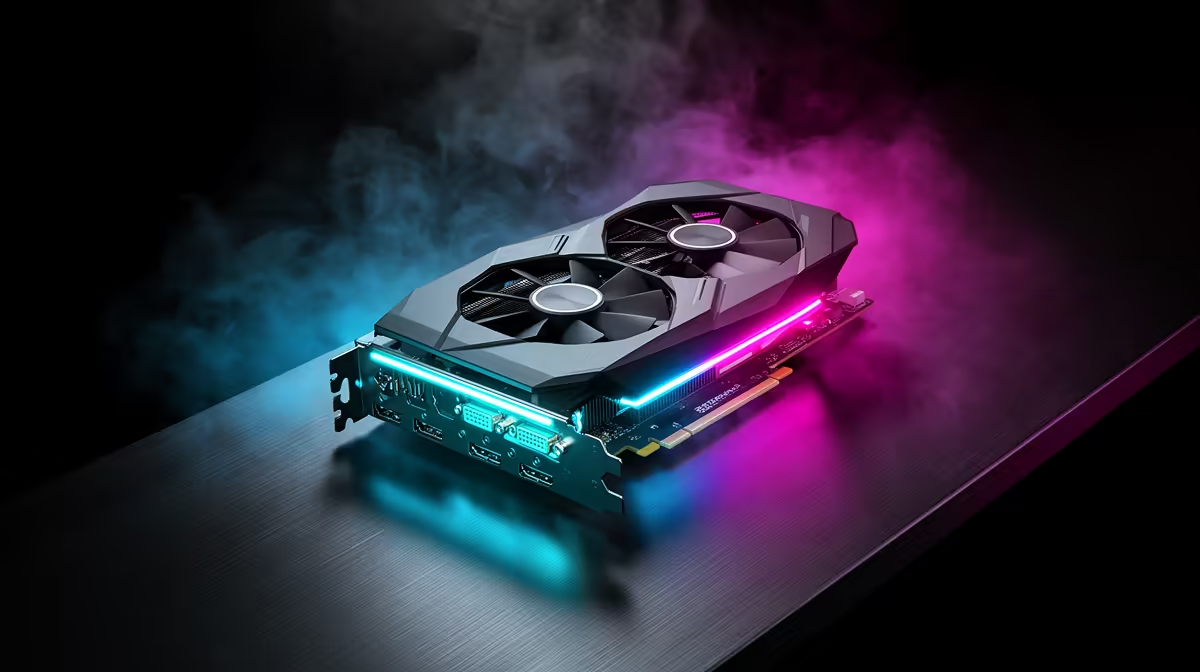
You can skip plenty of graphics-driver releases without hurting the card. Update when a new game you plan to play gets a driver profile, the release notes fix a problem you have, or a security notice calls for it. A stable PC gains little from installing each package on release day.
Quick Answer
For a gaming PC, read the Game Ready release notes and install the production driver around an important launch or relevant fix. Creators should check whether the Studio branch has certification for their applications. Wait a few days when your current setup works and the release adds nothing you need.
The GeForce graphics-card range gives you the hardware context, while best-selling GPU options show the broader choices. Driver availability cannot compensate for a card that lacks the required hardware feature or VRAM.
Game Ready, Studio and Optional Builds
NVIDIA's Game Ready branch targets launch support and gaming fixes. The Studio branch has a release cadence aimed at creative applications and validation. Both serve GeForce hardware; choose around the work you need rather than assuming one is universally faster.
AMD marks some packages as Recommended and others as Optional. A Recommended build has the stronger case for a daily system. An Optional release can make sense when it contains support for your new game or fixes your exact fault.
WHQL indicates that a Windows driver package passed Microsoft's certification process. It is useful evidence, but it cannot guarantee that every game, monitor and overlay combination is bug-free.
Read Before Installing
Check supported products, fixed issues and known issues. Search the notes for your game, display connection and feature, such as HDR, frame generation or hardware encoding. If a known issue matches your setup, keep the installer for the current working driver before updating.
Pause GPU tuning and close monitoring tools during installation. Restart when asked. Test one familiar game before changing more settings, so a new fault has a short list of possible causes.
When to Roll Back
New flicker, crashes, broken sleep or a large performance loss after the update justify returning to the last known-good version. Use the vendor installer's clean option first where available. Reserve third-party removal tools for a stubborn conflict, and follow their current instructions.
Windows may replace a driver during troubleshooting. Record the version number, not the date alone, and confirm what is active in the vendor app or Device Manager.
Keep custom colour profiles, game filters and per-title settings in mind. A clean installation may reset them, so capture the values you care about before starting. Reapply them after the stock driver passes its first test, one group at a time.
FAQ
Must I install every Game Ready driver?
No. Install releases that support your games, fix your problems or address a security concern.
Is a WHQL driver guaranteed stable?
No. Certification is useful, but game-specific and system-specific bugs can remain.
Should a creator always use Studio drivers?
Use the branch supported by your applications and workflow. A gaming release may still be appropriate when a new title matters more that week.
Read the release notes for your game or application, keep the last working installer and update only when the new driver solves a real need.