


How Evetech Warranty Works: Complete Claims Guide for SA Buyers
How Evetech Warranty Works: Complete Claims Guide. Comprehensive checklist covering every spec and feature you should verify before buying in SA.
Read moreFix poor video call setup on a laptop with 1080p camera, spatial audio, and a dual-use audio jack. Troubleshoot mic/video, routing, and gain settings for clear calls and fewer dropouts. 🎥🔊
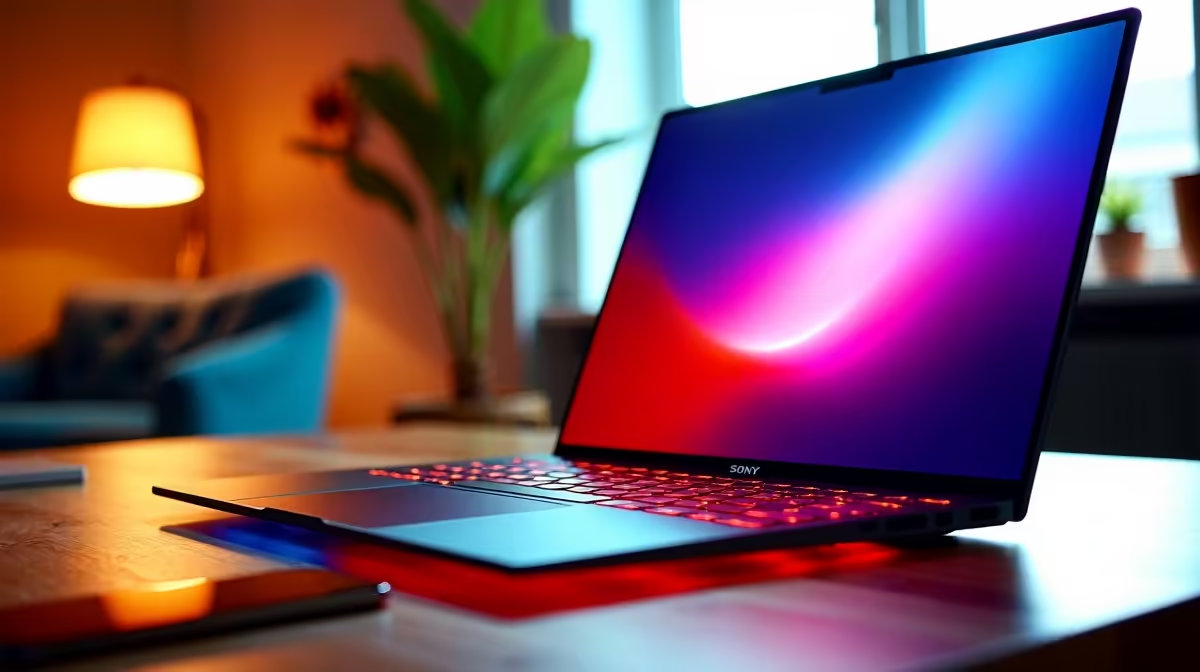
A blurry video call is frustrating when your laptop camera should be doing better. If you’re joining a work meeting, checking in with mates, or hopping onto a team chat after a late gaming session, poor image quality makes you look underprepared. The good news? You can fix a lot of it without rushing out for a new machine. Sometimes the real issue is not the camera at all... it’s the setup 🔧
If your laptop has a 1080p camera, start with the basics. Clean the lens first. Fingerprints, dust, and even a tiny speck can soften the image. Then check your app settings. Many video tools default to lower quality to save bandwidth. In Zoom, Teams, or Google Meet, hunt for HD video options and switch them on where available.
Next, look at lighting. A 1080p camera still struggles in a dark room. Face a window or place a lamp behind your screen. Avoid strong light from behind you, because it turns your face into a silhouette. That one fix helps more than most people expect ⚡
Internet stability matters too. A shaky connection can make a sharp camera look poor. If possible, use Ethernet or sit closer to your router. On busy home networks, pause big downloads and cloud backups during calls. If your laptop is older and has limited memory, a faster, smoother system can also help video calls feel less choppy. You can compare options like MacBooks under R30,000 or MacBooks under R28,449 if you’re shopping for an upgrade.
Some people assume a better camera alone solves everything. Not quite. A decent processor, enough RAM, and a solid screen all support a better calling experience. If you multitask with Slack, Chrome tabs, and a meeting window, memory pressure can slow the whole system. For buyers who want smoother everyday use, 16GB MacBooks are worth a look, and 16GB models with a 15.3-inch screen offer a more comfortable layout for calls and work.
If you’re comparing newer hardware, take a look at Apple M5 MacBooks. For broader browsing, the full MacBooks range lets you compare features in one place. That makes it easier to balance performance, battery life, and budget in rand.
Move your laptop slightly above eye level and look toward the top of the screen. It improves posture, reduces double-chin angles, and usually gives the camera a cleaner, more professional frame. A small stand or a stack of books can do the trick.
If the picture still looks off, update your camera and graphics drivers. On Windows, this often solves weird colour shifts and focus problems. On macOS, keep system updates current. Also check your privacy settings. If your app does not have camera permission, it may fall back to a weaker video source or behave unpredictably.
For gaming households, this matters even more. A call running beside a game launch, stream, or update can expose weak Wi-Fi and limited system resources fast. Close the extras, switch on the right settings, and test your setup before an important meeting. A two-minute test call can save a lot of awkward “Can you hear me?” moments later 😉
Ready to Find Your Perfect Match? The Mac vs Windows debate is complex, but for maximum power, choice, and value in South Africa, Windows is hard to beat. Explore our massive range of laptop specials and find the perfect machine to conquer your world.
Blurry video often comes from wrong camera selection, focus/auto-exposure issues, or low light. Check app camera source and lighting, then restart the call app.
Confirm the default input device, check dual-use audio jack wiring, and verify the mic level isn’t muted. Replug headset and restart the app.
Select the correct input in call settings and ensure the headset matches CTIA/TRRS requirements. Try a known-good adapter or USB mic if the jack can’t route mic.
Spatial audio can be disabled or overridden by conferencing apps. Enable it in sound settings, then test in the call app audio preview and output device.
Lower speaker volume, disable mic monitoring if it’s causing loops, and use the correct headset device. Echo also improves when you route audio through headphones.
USB headsets often simplify device routing for mic and audio, reducing dual-use jack issues. If your setup keeps switching defaults, USB is a strong fix.
Lower resolution or frame rate inside the call app, close background apps, and ensure the laptop power mode isn’t limiting performance during calls.
How Evetech Warranty Works: Complete Claims Guide. Comprehensive checklist covering every spec and feature you should verify before buying in SA.
Read more
Handheld Gaming PCs for entry-level PC should be shortlisted around the job it must do. South African buyers should compare fit, performance, compatibility, and upgrade room, warranty path, and upgrade room before treating any pick as best.
Read more
Handheld Gaming PCs for low-latency online should be shortlisted around the job it must do. South African buyers should compare fit, performance, compatibility, and upgrade room, warranty path, and upgrade room before treating any pick as best.
Read more
Should SA buyers pay more for boom arm support should be shortlisted around the job it must do. South African buyers should compare panel type, resolution, refresh rate, and ports, warranty path, and upgrade room before treating any pick as best.
Read more
Should SA buyers pay more for noise rejection should be shortlisted around the job it must do. South African buyers should compare audio quality, mic clarity, comfort, and connection type, warranty path, and upgrade room before treating any pick as best.
Read more
Should SA buyers pay more for pickup pattern should be shortlisted around the job it must do. South African buyers should compare audio quality, mic clarity, comfort, and connection type, warranty path, and upgrade room before treating any pick as best.
Read more
Best Value Laptops South Africa 2026 — Find top picks, local prices and buy tips to maximise performance per rand. Compare deals for students, creators and gamers. 🔎💸

Struggling with a weak Desktop PC Wi-Fi signal? 📶 Discover expert tips on positioning your tower and external antennas to eliminate lag and maximize your internet speeds for gaming and streaming. 🚀

Tired of loadshedding router restarts killing your Wi-Fi? ⚡ Discover why power cuts disrupt your connection and learn expert tips to get back online faster after the lights return. 🌐

Master using a Nano SIM 4G router as your primary internet solution. Get stable speeds and seamless connectivity for gaming and streaming at home! 🌐🚀

Gauteng r30 000 needs practical checks before you choose. Compare fit, workload, support, setup needs, timing, and delivery expectations without relying on live availability or fixed 2026 claims.

Gauteng r40 000 needs practical checks before you choose. Compare fit, workload, support, setup needs, timing, and delivery expectations without relying on live availability or fixed 2026 claims.

Gauteng r50 000 needs practical checks before you choose. Compare fit, workload, support, setup needs, timing, and delivery expectations without relying on live availability or fixed 2026 claims.

Gauteng r60 000 needs practical checks before you choose. Compare fit, workload, support, setup needs, timing, and delivery expectations without relying on live availability or fixed 2026 claims.

Three-tier smart watch plan for commuting should be shortlisted around the job it must do. South African buyers should compare fit, performance, compatibility, and upgrade room, warranty path, and upgrade room before treating any pick as best.

AR Glasses buying order for commuting students should be shortlisted around the job it must do. South African buyers should compare fit, performance, compatibility, and upgrade room, warranty path, and upgrade room before treating any pick as best.

Smart Watch buying order for commuting should be shortlisted around the job it must do. South African buyers should compare fit, performance, compatibility, and upgrade room, warranty path, and upgrade room before treating any pick as best.

Smart Watch buying order for quiet PC builds needs a balanced parts plan, not a random basket. Map the CPU, GPU, RAM, SSD, cooling, and monitor target to the budget so SA builders know where to spend first.