When Glitches Strike Mid-Stream, Here’s How to Fix Fast ⚡🎙️
The viewers are watching, the chat’s heating up, and then... boom. Audio cuts out. Webcam freezes. Stream lags into oblivion. If you’re a South African content creator juggling an unexpected outage, flaky gear, and tight budgets, you’ve likely felt that panic. But here’s the good news: fixing streaming equipment glitches fast isn’t black magic—it’s a combo of smart gear, simple checks, and battle-tested fixes.
Start with the Usual Suspects
Most stream glitches can be traced to a few common culprits:
- Loose USB connections or underpowered ports
- Software updates (or lack thereof)
- Overheating devices, especially webcams and capture cards
- Power surges or unstable voltage
Start here before you go diving into OBS forums.
Mic Issues: No Sound, Distorted Sound, Random Cut-Outs
If your mic vanishes mid-stream or suddenly sounds like a robot under water, first check:
- USB cable firmly seated
- Mic not muted in software or OS
- Default input hasn't switched (especially after Windows updates)
Try plugging it into a different USB port—preferably on the back panel for more power stability.
Looking for mics under R799 that won't ghost you mid-stream? Check these reliable options.
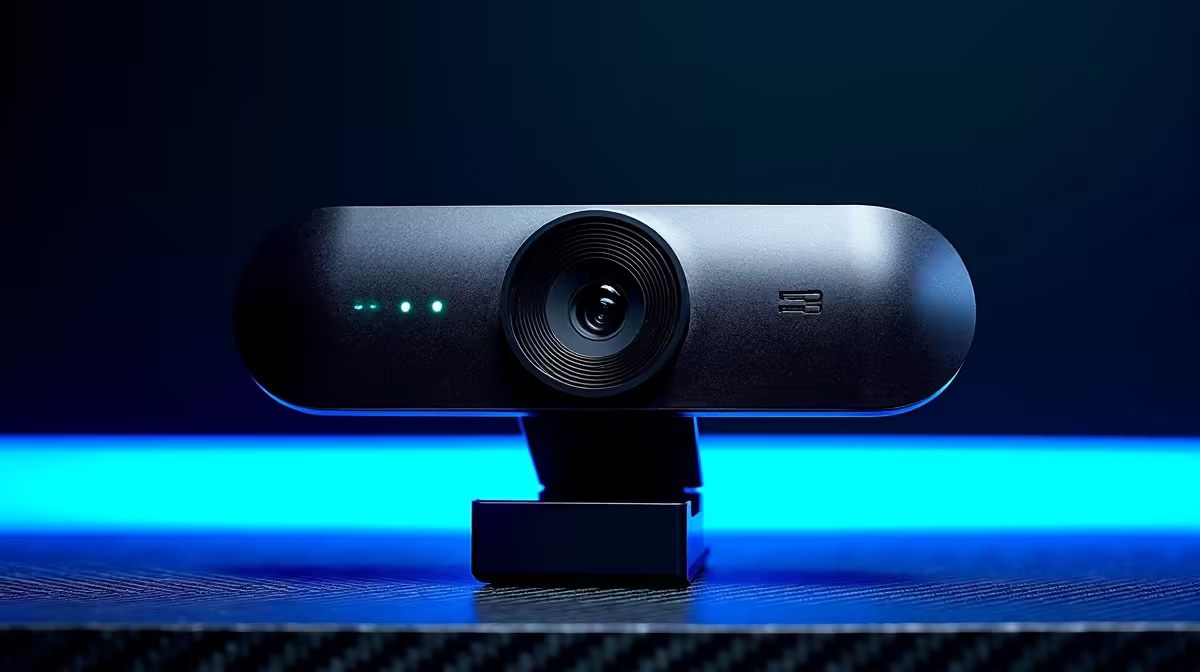
Webcam Glitching? Don’t Blame the Camera Just Yet 🎥
Webcams can freeze, flicker, or go full-blur due to:
- Competing software (e.g. Skype stealing control)
- Excessive exposure compensation in low light
- Frame rate mismatches (e.g. 60fps in 30fps scenes)
To fix:
- Turn off all other apps using the cam
- Lower the resolution if your stream isn’t 1080p
- Keep lighting consistent
Stability often improves just by pairing it with lighting kits and compatible gear designed for streamers.
Freeze Fix Trick
If your webcam freezes mid-stream, toggle it off on in OBS’s source panel—it’ll often reset without a full reboot.
Audio Sync Problems: Delay, Echo, or “Lip-Flap”
Few things are more distracting than delayed audio. If you're dealing with out-of-sync lips or echo:
- Set a manual delay in OBS for mic input
- Match your mic and cam frame rates (e.g. both at 30fps)
- Disable “Listen to this device” in Windows sound settings to kill echo
Also: avoid wireless mics if you’re on a budget. Latency and dropout are more common unless you’re using high-end gear.
Dropped Frames and Stutters? Check the Heat and Power 🔥🔌
If your stream randomly lags, it’s often due to thermal throttling or power dips:
- Monitor CPU temps during stream (use tools like HWMonitor)
- Close background apps (especially browsers with tabs open)
- Invest in a simple UPS or surge-protected power strip
Streaming from a laptop? Use a cooling pad to drop internal temps by 5–10 °C.
If you’re due for an upgrade, the streaming gear page has budget-stable gear that won’t crash mid-hype.
When in Doubt, Reboot the Stream Stack
Sometimes, glitches are cumulative. Quick reset checklist:
- Exit OBS and unplug mic/webcam
- Restart your PC
- Plug devices back in and launch OBS clean
This flushes driver conflicts and resets any stuck devices.
If problems persist, it could be a sign your gear isn't rated for sustained streaming… time to swap in something stream-stable.
Bonus: Local Troubleshooting Tips for SA Creators 🇿🇦
- Use a power bank to keep lighting running during short outages
- Keep fibre or LTE backup plans ready—mobile tethering can be a stream-saver
- Use “record to disk” mode if your connection is inconsistent, then upload later
South African conditions aren't always ideal for live content creation… but the right prep makes all the difference.
Glitch-Proof Your Stream
Don’t let one bad cable ruin your whole session. Shop now at Evetech and stream with confidence, every time.