Classic Bluetooth headphones often switch from high-quality media playback to a hands-free call profile when their microphone opens. That profile must carry voice in both directions, so music and game audio lose bandwidth and can sound thin or mono. Newer LE Audio paths can improve this, but every device in the chain must support them.
Quick Answer
Close the app using the headset mic and sound should return to the media profile. For gaming voice chat, use the headset's 2.4GHz USB receiver, a wired connection or a separate microphone while Bluetooth handles playback. Check whether the PC and headset support a newer bidirectional codec before expecting Bluetooth to avoid the switch.
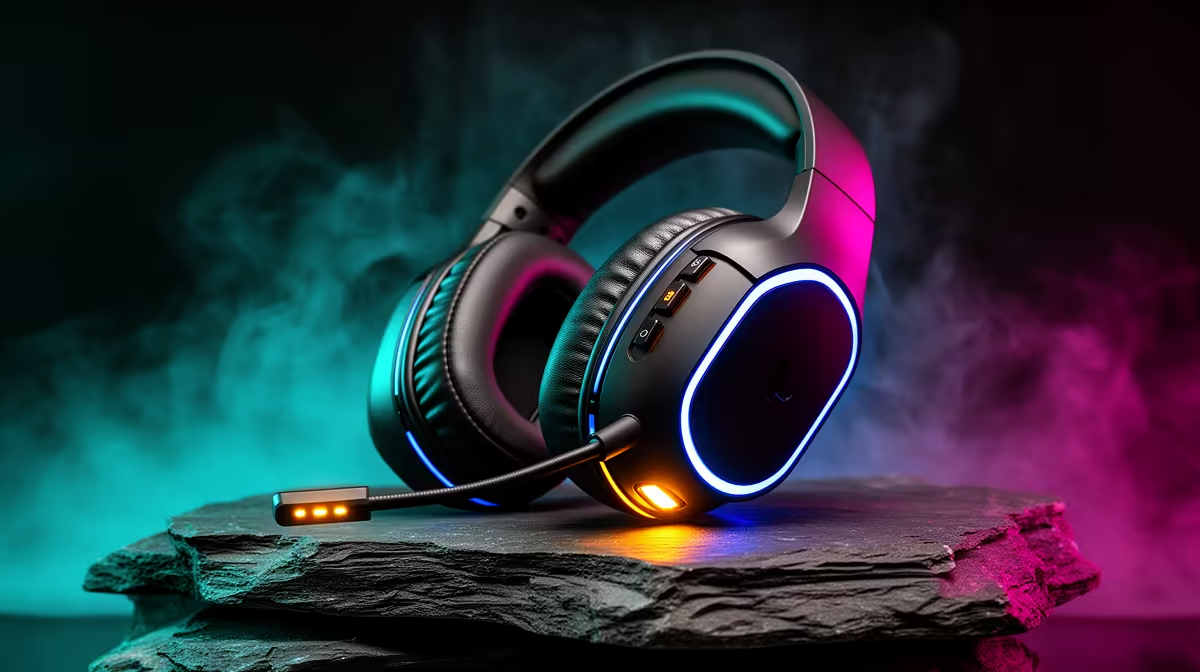
Compare connection options in Evetech's gaming-headset catalogue and current headset best sellers. A model can support Bluetooth for phones and a separate low-latency receiver for full PC audio.
Why the Profile Changes
The media profile, often called A2DP, is built for high-quality one-way playback. The hands-free profile, HFP, creates a two-way call link for microphone and headphones. Traditional HFP bandwidth is lower, though wideband speech options can improve voice.
Windows changes endpoints or modes when Discord, a game, browser or meeting app opens the Bluetooth mic. Muting inside the app may not release the profile if the microphone stream remains active.
LE Audio and newer Bluetooth implementations can offer a different route. Support depends on headset firmware, PC radio, driver, Windows version and app. One missing part returns you to the classic behaviour.
Choose a Better PC Path
A proprietary 2.4GHz receiver can carry playback and microphone with gaming latency and quality designed by the headset maker. Connect it directly or through its extension and select its Game output plus microphone.
A separate USB microphone lets Bluetooth remain in media playback. Disable the headset mic in the app so it never opens HFP. Wired USB or analogue can also bypass the Bluetooth profile, subject to the headset design.
If you need Bluetooth multipoint for a phone, test what happens when a call arrives. Some headsets prioritise the phone and lower PC audio by design.
Find the App Holding the Mic
Check Windows privacy indicators and Sound input activity. A browser tab, game launcher or voice assistant can keep the Bluetooth microphone open after the call ends. Close one app at a time until playback returns to its normal profile.
Select the Stereo or Headphones media endpoint for output where Windows exposes separate device names. Choose another microphone under Input. On newer Windows audio stacks the endpoints may be unified, so use the device properties and current headset guide rather than hunting for an old Hands-Free label.
Disable exclusive mode only as a targeted test. Re-pair the headset after a driver change and remove duplicate stale entries. Use the PC maker's Bluetooth driver instead of a generic driver pack.
Check Latency as Well as Tone
A2DP can restore music quality while retaining enough delay to feel poor in a shooter. Video apps may hide it through lip-sync buffering. Test a click or rhythm source in the actual game.
The 2.4GHz receiver is usually the intended low-latency PC path. Keep it near the headset and away from busy USB 3 devices, then compare voice and game audio together.
FAQ
Is the headset driver broken when audio turns thin?
Usually the bidirectional Bluetooth call profile caused the change. Close the mic stream and retest media playback.
Does disabling the mic button restore quality?
Only if the application releases the microphone endpoint. Select a different input or close the app for a clean test.
Can LE Audio solve the profile compromise?
It can improve supported bidirectional paths, but the headset, radio, operating system, driver and app all need compatibility.
Keep Bluetooth on its media profile with a separate mic, or use the headset's 2.4GHz receiver when game audio and voice must stay active together.