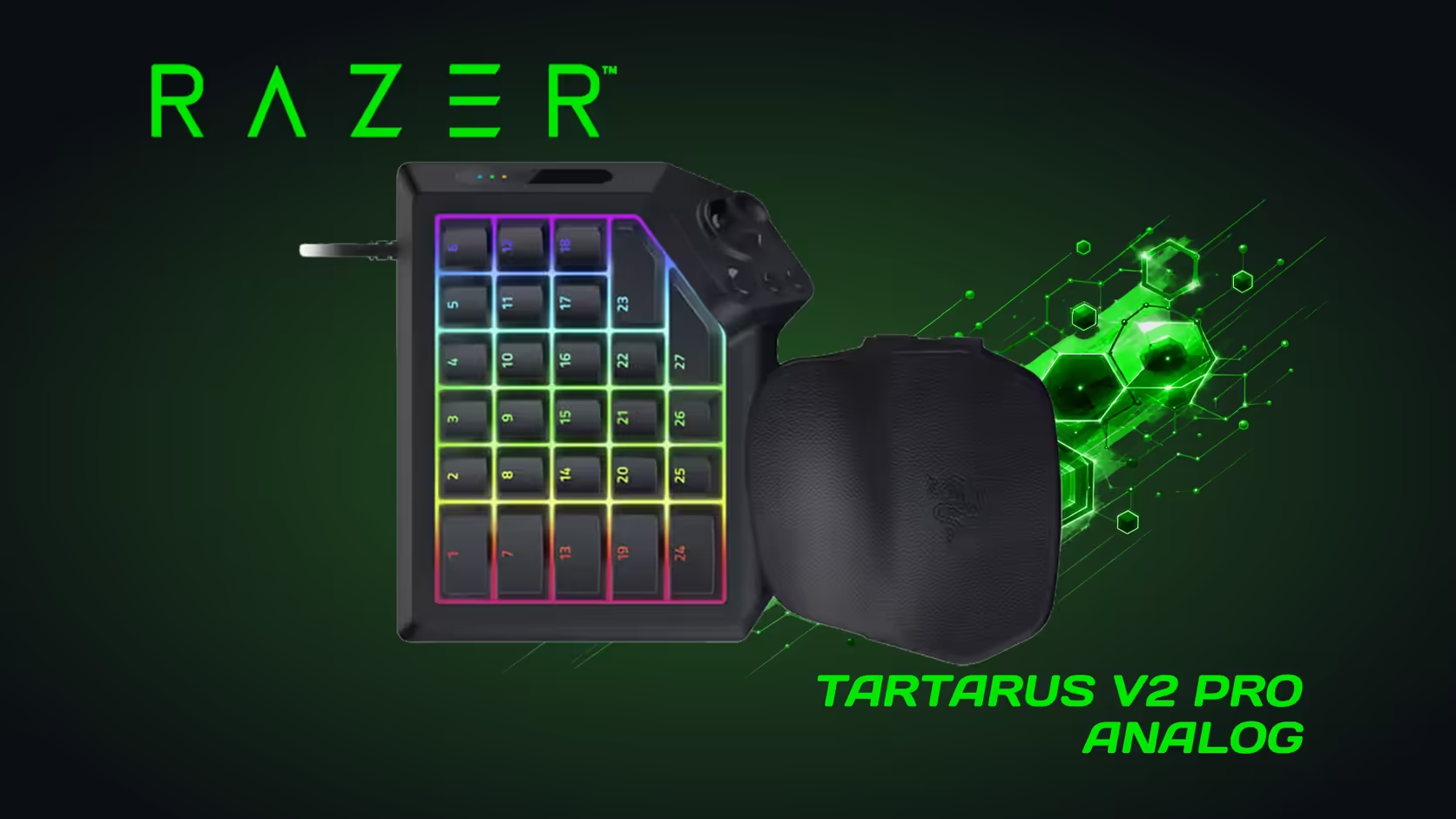
A thumbstick that stops responding feels like a dead keypad, but the cause is usually a blocked path, a missing binding or a setting in the software. The Tartarus V2 Pro uses a TMR thumbstick, which senses position magnetically and is built to resist the drift that wears out older sticks. Start with the cheapest checks first, because most of the time the fix takes less than ten minutes.
Quick Answer
Start by clearing any debris from around the stick, then check its binding in the Razer software before anything else. The Tartarus V2 Pro's TMR thumbstick is anti-drift, so a stick that has stopped responding more often points to a binding or a blocked path than to worn parts. At R4,799, the stick is one of the features you are paying for, so it is worth the ten minutes.
🧹 Clear the area around the stick
Turn the keypad over and tap the base gently five times over a sheet of paper. Crumbs, hair and dust sometimes fall out this way, and any that stay in the gap are the ones to remove next. Use a dry, soft cloth on the stick itself, moving in one direction only, so grit does not get pushed further in.
A soft dry brush reaches that gap better than a cloth, and the gaming accessories range is a place to look for one. Look at the three buttons beside the stick as well. A button that sits lower than the others may be catching on a crumb, and wiping the gap around it often restores its feel. Do this before you touch the software, because a physical obstruction will fool every software check you run afterwards.
Give the cleaning 5 minutes before you touch the software, because a crumb under the cap will fool every check that follows.
🔗 Check the binding in the software
Open the Razer software and find the thumbstick in the key list. Confirm that each direction has a binding. A direction with no binding will never send an action to the game, and the stick will look dead in that direction even though the hardware is fine. If you are still deciding whether the keypad is the right one for your games, the gaming keyboards range lists the alternatives. Bind any empty direction to an action you can test, then move on.
Next, watch the readout while you push each direction. Move the stick left, right, forward and back five times each, and note whether the reading changes every time. If one direction stays silent, the binding or the hardware for that direction is the suspect, and you can narrow it down by swapping its binding with a working direction.
🧪 Run the stick test in a game
Load a training area, then move left and right 20 times each in 60 seconds. Count the presses that do not register. Zero or one miss in each 60-second set is normal. Five or more means something is still wrong, and the cause is either the binding inside the game or a fault in the stick.
If the game reads the stick correctly but the action is wrong, check the game's own controls before you touch the keypad again. A binding that points at the wrong action looks like a faulty stick, and it is one of the most common causes of this symptom.
Frequently Asked Questions
My thumbstick works in one direction only. What is wrong?
Check the binding for the silent direction in the Razer software first. An unbound direction never sends an action, so it looks dead even when the hardware works.
Can dust stop the stick from responding?
It can block the path under the cap, so clear the gap first. Tap the base over paper and wipe with a dry cloth before you assume a fault.
How long should the thumbstick checks take?
About ten minutes in total: five for cleaning and checking the software, and five for the in-game test. If the stick still fails, note which direction and which check failed.
Stick working again?
Keep the desk clear around the keypad so the cap stays free of crumbs, and recheck the stick after a month of heavy use.