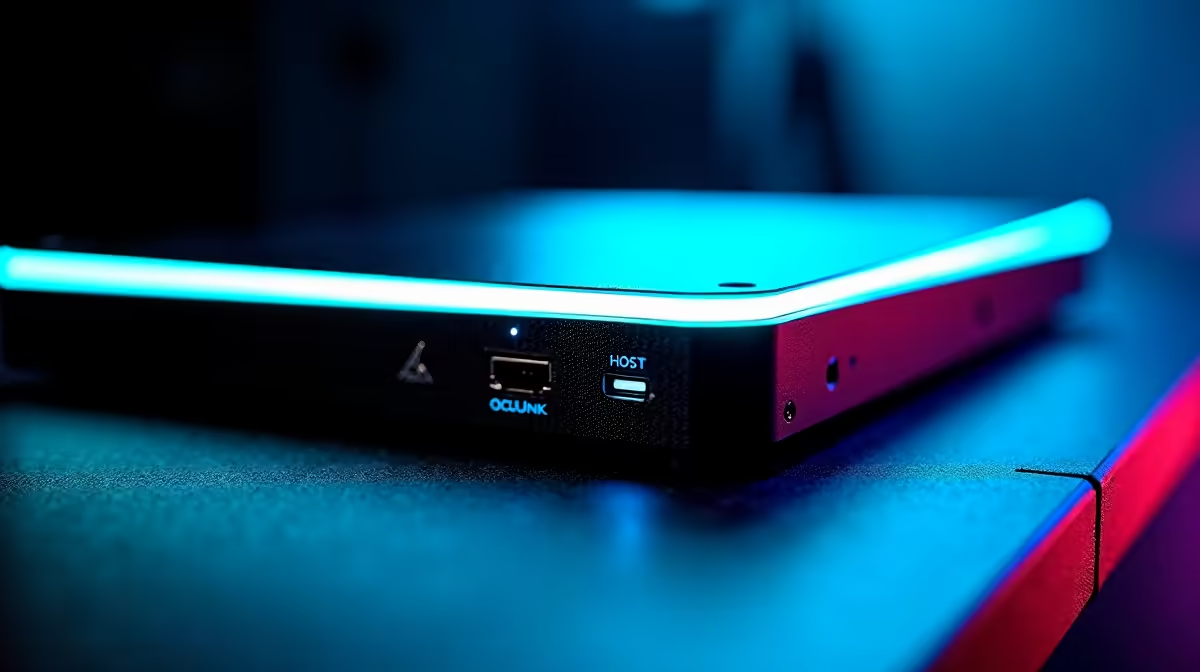
An OCuLink connection is built for PCIe 4.0, so seeing your eGPU link at PCIe 3.0 instead of 4.0 means you are leaving half the bandwidth on the table. The cable and the GPU are usually fine. The host machine has simply defaulted its OCuLink or M.2 slot to the slower generation, and a single BIOS setting flips it back. On capable hardware the fix takes two minutes and roughly doubles the link speed.
Quick Answer
The cause is the host defaulting the OCuLink or M.2 slot to PCIe 3.0, which halves the bandwidth. Enter the BIOS, find the OCuLink or PCIe link-speed option, and change it from Auto to Gen 4. That restores the full PCIe 4.0 x4 connection, taking throughput from roughly 3.3GB/s up to around 6.7GB/s.
Why It Drops to PCIe 3.0
OCuLink x4 can carry PCIe 4.0, but many host devices ship with the link set to Auto, and Auto often settles on PCIe 3.0 to guarantee stability. On a 3.0 x4 link you get about half the bandwidth of 4.0 x4, which is the difference between roughly 32Gbps and 64Gbps. For an eGPU, that lost bandwidth shows up as reduced performance in bandwidth-sensitive scenarios, especially at higher resolutions and when the GPU is fed large amounts of data.
This is a configuration default, not a fault. The hardware on both ends supports Gen 4; the host just has not been told to use it.
The BIOS Fix, Step by Step
First, reboot and enter the BIOS, usually by tapping Delete or F2 during startup. Second, move to the advanced settings, where link-speed options live. Look for an entry named OCuLink, PCIe link speed, or M.2 link speed, depending on which slot your adapter uses. On machines with a dedicated OCuLink port, there is often a specific OCuLink option listed under the advanced tab.
Third, change that setting from Auto to Gen 4 (PCIe 4.0). Fourth, save and exit, then boot back into the operating system. Confirm the new speed in a tool that reports PCIe link state, or run a quick bandwidth test, where you should see throughput jump from around 3.3GB/s to roughly 6.7GB/s. If the option only offers Auto and a generation list, selecting Gen 4 explicitly is what forces the faster link. The adapters and ports involved sit alongside the docking stations at Evetech.
If Gen 4 Causes Instability
A small word of caution from real-world use: some setups show instability when the OCuLink link runs at PCIe 4.0 while the processor is under heavy load. If you flip to Gen 4 and start seeing crashes or dropouts under stress, the practical fallback is to return the setting to PCIe 3.0, which trades some bandwidth for rock-solid behaviour. Confirm your cable is rated for Gen 4 and seated firmly, since a marginal cable can also force the link down. The graphics cards you might pair with an eGPU are in the GPU best sellers at Evetech.
Frequently Asked Questions
Why is my OCuLink eGPU running at PCIe 3.0?
The host has defaulted its OCuLink or M.2 slot to PCIe 3.0, usually because the link speed is set to Auto. Changing it to Gen 4 in the BIOS restores the full PCIe 4.0 connection.
How much faster is PCIe 4.0 over OCuLink?
It roughly doubles bandwidth. A 4.0 x4 OCuLink link carries about 64Gbps versus around 32Gbps on 3.0 x4, which in testing moves throughput from near 3.3GB/s up to about 6.7GB/s.
Where is the OCuLink link-speed setting in the BIOS?
In the advanced section, look for an OCuLink, PCIe link speed, or M.2 link speed entry depending on the slot you use. Set it from Auto to Gen 4, then save and reboot.
Could a bad cable cause the slower link?
Yes. A cable not rated for Gen 4, or one that is loose, can force the link down to 3.0. Confirm the cable supports PCIe 4.0 and is firmly seated before changing BIOS settings.
What if PCIe 4.0 makes my system unstable?
Some setups become unstable at Gen 4 under heavy processor load. If you see crashes or dropouts, set the link back to PCIe 3.0, which sacrifices some bandwidth for reliable operation.
Setting up an eGPU? Browse docking stations and connectivity gear in the docking station range at Evetech to get the full PCIe 4.0 bandwidth your hardware can deliver.