You flip the KVM to your work machine and suddenly the cursor stutters and keystrokes arrive late. The culprit is almost never the PC. Fixing KVM input lag comes down to two things: a USB 2.0 switch choking a high-polling-rate mouse, and Windows USB selective suspend quietly putting the KVM port to sleep between switches.
Quick Answer
A powered USB 3.0 KVM with USB selective suspend disabled fixes mouse and keyboard lag in most setups. A USB 2.0 switch cannot keep up with a 1000Hz gaming mouse, and selective suspend lets the port nap so the first inputs after a switch arrive late. Address both and the lag disappears.
Cause one: USB 2.0 bottlenecking a fast mouse
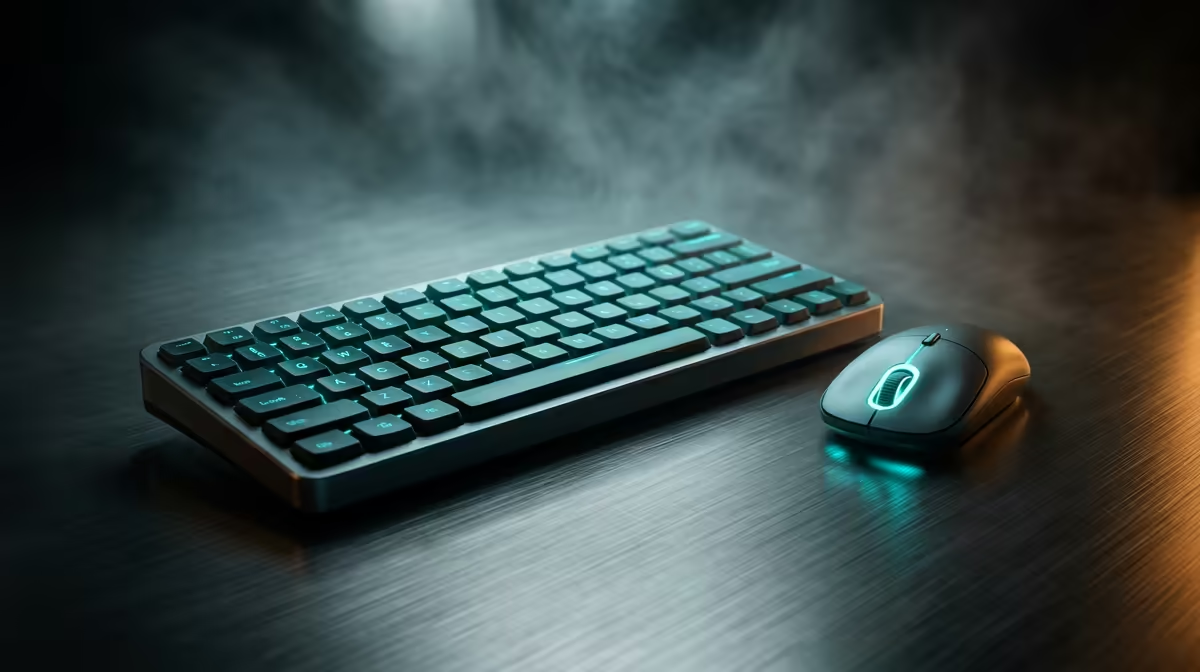
A 1000Hz gaming mouse sends a position update every millisecond. Push that through a USB 2.0 switching controller and the data path simply cannot deliver every update on time, so the cursor feels heavy or skips. People have measured polling jumping unpredictably past the configured rate once a KVM sits in the chain.
Two fixes work. First, move to a USB 3.0 KVM, which has the bandwidth to carry a high-polling mouse cleanly. Second, if you are stuck on the current switch, lower the mouse polling rate to 500Hz in its software and save it onboard. The drop is barely perceptible in normal use and often clears the stutter outright.
Cause two: USB selective suspend
Windows power management can suspend a USB port to save energy. Through a KVM, that means the controller dozes off and the first few mouse movements or keystrokes after you switch inputs are dropped or delayed while the port wakes. Disable USB selective suspend in the active power plan, and on desktops turn off Fast Startup as well, so the port stays awake and ready the instant you switch.
Long sessions at the desk make this lag doubly annoying, so it pays to get the whole setup right, desk included. If you spend hours switching between work and play machines, check out the gaming and ergonomic desks at Evetech for workspace surfaces built to handle full-day use.
Cause three: power and firmware
A KVM that draws power for your peripherals over a single weak connection will glitch under load. If your switch shipped with an external power adapter, use it without exception. If it did not, feed the KVM's upstream connection through a powered USB hub that supplies a stable 5V at 900mA or more, rather than plugging straight into the PC.
Finally, check the manufacturer's site for a firmware update. Vendors regularly ship fixes for exactly these latency and compatibility bugs, and a five-minute update sometimes solves a problem no setting change could.
A quick fix order
Work through it in this sequence so you change one thing at a time and know what fixed it: disable USB selective suspend, then turn off Fast Startup, then lower the mouse polling rate, then add proper power, then update firmware, and upgrade to a USB 3.0 switch last if the lag survives everything else. For a comfortable marathon session while you test, the best-selling desk accessories at Evetech cover useful workspace additions at a range of prices.
Frequently Asked Questions
Why does the lag only appear after I switch inputs?
That points squarely at USB selective suspend. The port sleeps while idle, and waking it on a switch costs the first inputs. Disabling selective suspend keeps the port active so switching is instant.
Will lowering my mouse polling rate hurt gaming?
The difference between 1000Hz and 500Hz is barely noticeable for most players, and a smooth 500Hz beats a stuttering 1000Hz through a strained switch. If you want full polling, move to a USB 3.0 KVM instead.
Is a powered KVM really necessary?
If your switch came with a power adapter, yes, always use it. Underpowered switches glitch under load, especially with backlit keyboards and high-DPI mice drawing current through the same path.
Could it be a driver issue?
It can. Install the latest chipset drivers from your motherboard vendor and the newest KVM firmware. Both regularly fix USB latency and enumeration problems that no power-plan setting will touch.