


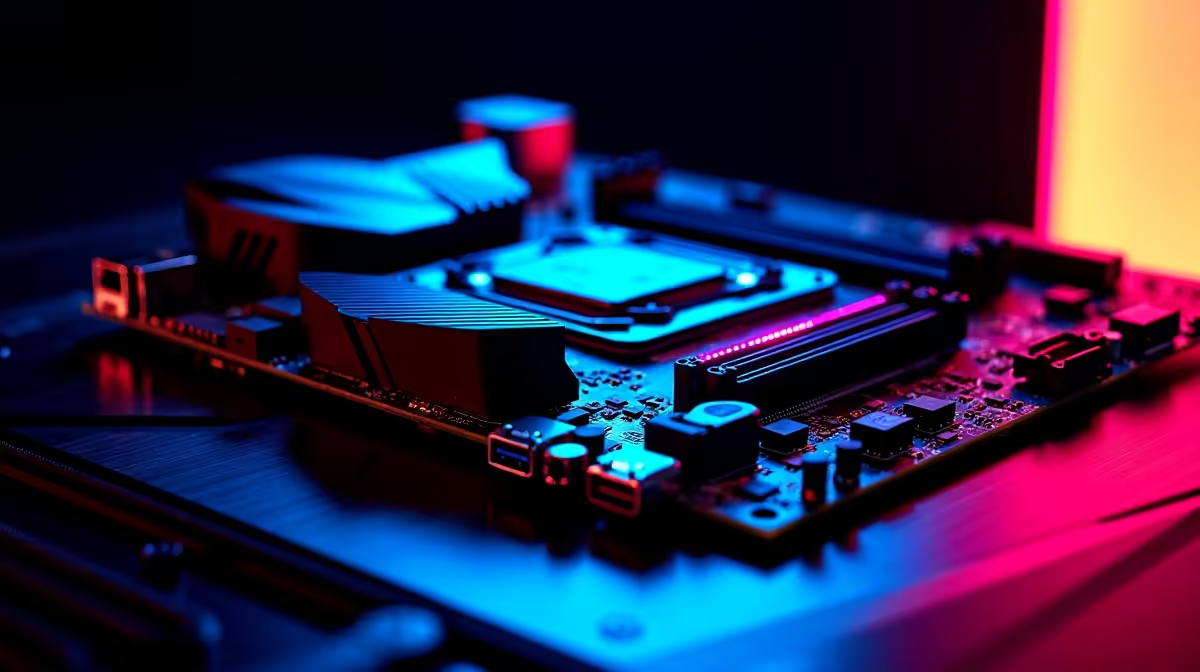
Installing an AMD X870E motherboard is a rewarding project that unlocks high-end AM5 platform features including PCIe 5.0 storage, USB4, and advanced overclocking headroom. Whether building fresh or upgrading, getting the installation right first time saves hours of troubleshooting.
Quick Answer
To install an AMD X870E motherboard, seat the CPU first, install RAM, mount the board in the case, connect power connectors and front-panel headers, then attach storage and cables before booting.
🔧 Prepare Your Components Before You Start
Discharge static by touching a metal surface or use an anti-static wrist strap. Have a Phillips-head screwdriver ready. Confirm your case supports ATX form factor - most X870E boards are standard ATX.
Place the motherboard on its anti-static bag. Install the AM5 CPU by lifting the socket lever, aligning the gold triangle on the processor with the socket marker, and lowering it gently - no force required. Lock the lever. Seat your DDR5 RAM modules in the recommended slots (usually A2 and B2 - verify in your board's manual). Press firmly until both clips click.
💡 Mount the Board and Connect Power
Screw the I/O shield into your case's rear panel cutout. Lower the motherboard in, aligning the rear ports with the shield and mounting holes with the case standoffs. Secure with screws - snug, not overtightened.
Plug in the 24-pin ATX power connector on the right edge, and the 8-pin CPU power connector at the top-left corner - both are keyed and fit one way only. Connect front-panel headers (power button, reset, LEDs) using the pinout in your manual. Attach USB headers, HD audio header, and fan connectors.
🎮 Final Steps: Storage and First Boot
Install your NVMe SSD into the primary M.2 slot. X870E boards support PCIe 5.0 M.2 - use that slot for a Gen 5 drive. Seat your GPU in the top PCIe x16 slot and connect PCIe power cables. Power on, enter BIOS (Delete or F2), confirm all components are detected, enable EXPO for your RAM, and save.
FAQ
Q: Do I need to update the BIOS on an X870E before installing a Ryzen 9000 CPU? A: Most X870E boards ship with firmware already supporting Ryzen 9000 series. Boot into BIOS - if the CPU is detected, you're fine.
Q: How many M.2 slots does a typical X870E board have? A: Most X870E motherboards include three to five M.2 slots, with at least two PCIe 5.0 slots - one CPU-direct and one via chipset.
Q: Can I install DDR4 RAM in an X870E motherboard? A: No. The AM5 platform is DDR5-only. There are no DDR4-compatible AM5 motherboards.
Evetech stocks X870 Motherboards and Graphics Card Deals — shop online with fast delivery across South Africa.
Ready to Find Your Perfect Match? Explore relevant Evetech options, compare current South African pricing, and choose hardware that fits your setup. Shop now









