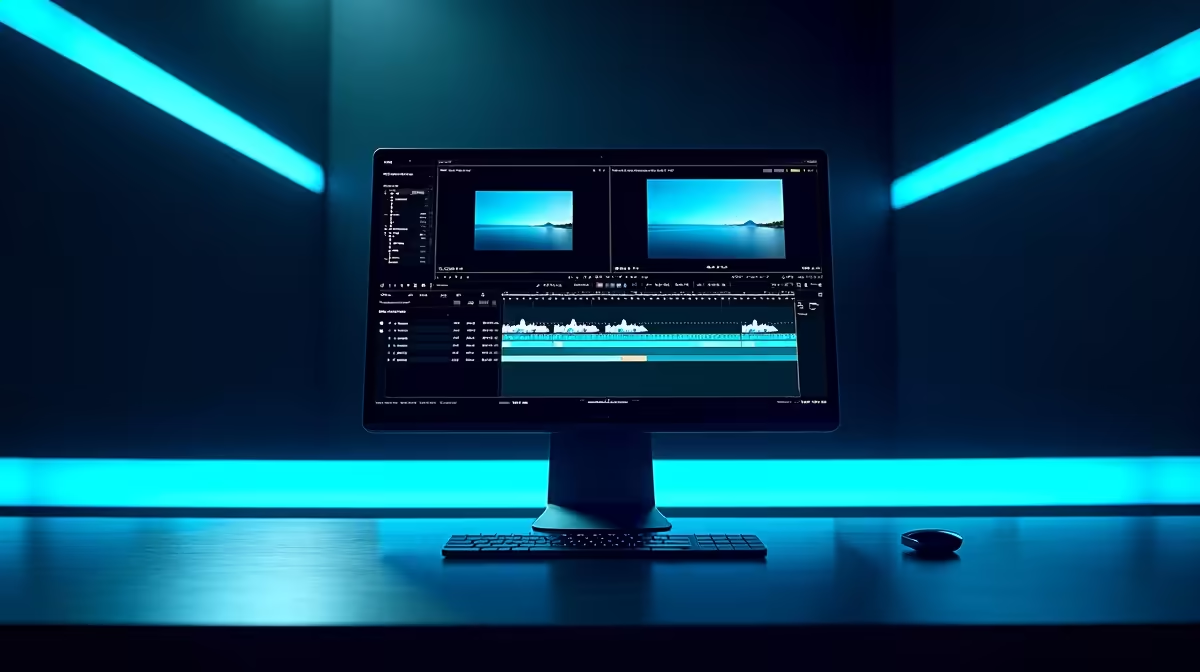
Nothing kills the creative vibe faster than a laggy timeline. You just hit that perfect sniper headshot in Warzone. Now you want to edit the montage. But Vegas Pro stutters, freezes, and crashes. We have all been there. If you want to know how to optimise Vegas Pro for performance, you are in the right place. Let us get your rendering times down and keep those timeline edits buttery smooth today.
Hardware Tweaks to Optimise Vegas Pro for Performance 🔧
Video editing eats hardware for breakfast. Vegas Pro relies heavily on your CPU and GPU to render effects. If your rig is struggling to keep up, it might be time for a serious upgrade. Sometimes software tweaks are just not enough. You need raw power to push those pixels. If you are building a new editing station, checking out the best gaming PC deals is a smart move. High-end gaming rigs double as incredible, high-performance workstations.
Do not want to build it yourself? No stress. There are amazing pre-built PC deals that pack enough RAM and processing power to chew through 4K footage effortlessly. If you are a creator constantly on the move... perhaps editing between load shedding schedules... you should look into powerful laptops for sale in South Africa. A solid notebook with a dedicated GPU makes a massive difference for busy mobile creators.
Software Settings for Smoother Playback ⚡
Let us dive into the software itself. To truly optimise Vegas Pro for performance, you must adjust your internal settings. First, allocate more RAM to your dynamic RAM preview. Go to Options, then Preferences, and click the Video tab. Increase the maximum value, but leave enough memory for your operating system to breathe.
Next, turn on GPU acceleration. This shifts the heavy computational lifting from your processor straight to your graphics card. If your current GPU is outdated, it will bottleneck your entire system. You might need to buy graphics cards with more VRAM to handle heavy colour grading and intense visual effects. Upgrading your GPU is often the absolute quickest way to slash those frustrating render times.
Editing Pro Tip 🚀
Lower your preview quality while editing. Set your preview window to 'Draft' or 'Preview' instead of 'Best'. It reduces the strain on your system and stops timeline stuttering. You will still render the final video in glorious full resolution.
Managing Your Timeline and Media
Proxy files are your absolute best friend. When working with massive 4K files, Vegas Pro has to work incredibly hard to decode them in real-time. Right-click your media in the project window and select 'Create Video Proxy'. Vegas will generate a smaller, lower-resolution file for you to edit with. It swaps the original high-quality files back in when you finally hit render.
Keep your project files on a fast NVMe SSD. Traditional mechanical hard drives are simply too slow for modern video editing. They cause massive read bottlenecks when scrubbing through your large video files. If you need to upgrade your storage without breaking the bank, keep an eye on our latest hardware specials to grab a high-speed SSD for far less ZAR.
Ready to Edit Without Limits?
Software tweaks can only take you so far. When you need raw rendering power to match your creative vision, a hardware upgrade is the ultimate solution. Explore our massive range of PC components and build the ultimate Vegas Pro workstation today.