Unlock Your Gaming Edge: How to Program Macros on a Gaming Keyboard
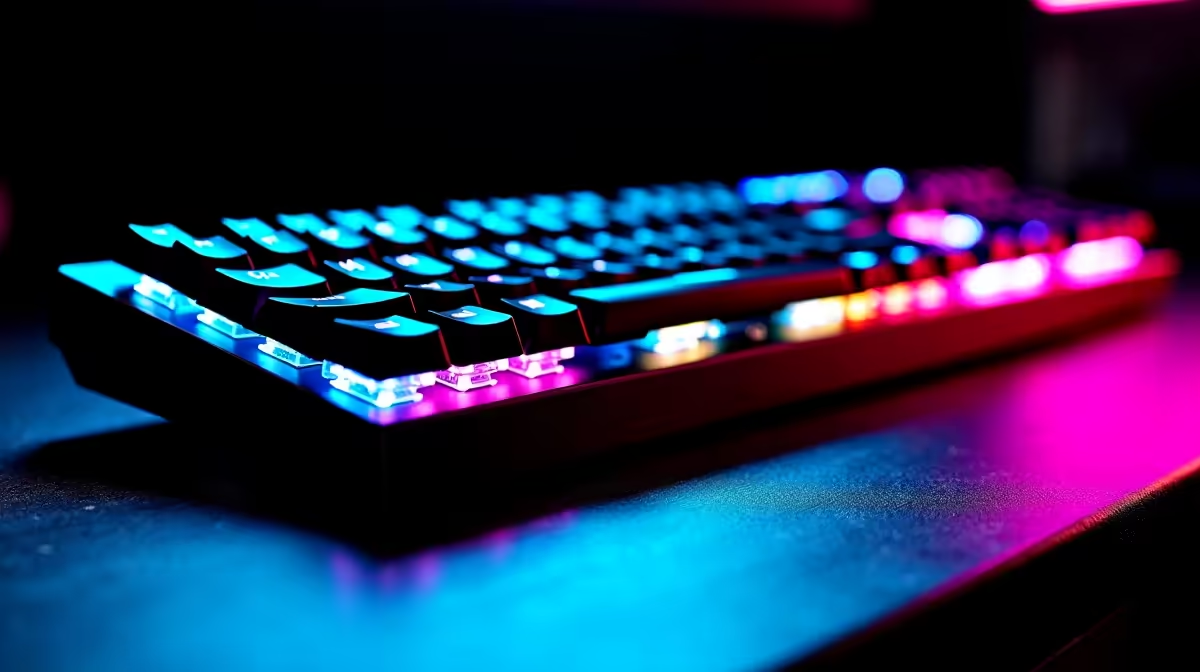
If you’re serious about gaming in South Africa, mastering how to program macros on a gaming keyboard can make all the difference. Imagine executing complex combos or rapid-fire commands with a single keypress — no fumbling, just pure skill. Whether you're into MMOs or FPS, custom macros can boost your gameplay and efficiency, turning your keyboard into a personalised command centre. Let’s dive into this essential skill and take your setup to the next level ⚡.
What Are Macros and Why They Matter in Gaming
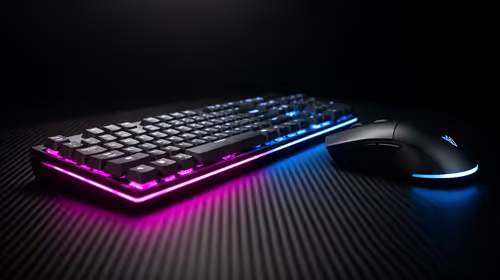
A macro is basically a recorded sequence of key presses and mouse clicks that's triggered by one button. Instead of spamming multiple keys, you assign your most needed combos to one macro key. Programmable keyboards from Evetech offer this edge, letting you customise every detail. This automation speeds up your inputs, reduces fatigue during long sessions, and even improves reaction time — especially in competitive scenes.
If your rig could use a hardware upgrade first, check out our best gaming PC deals to start strong.
Step-By-Step Guide to Program Macros on Your Gaming Keyboard
Step 1: Connect Your Keyboard and Launch the Software
Most gaming keyboards come with dedicated software — like Razer Synapse, Logitech G Hub, or Corsair iCUE — designed to configure macros. First, plug your keyboard in and open the accompanying software. If you’re uncertain about your keyboard choice, explore options on our gaming keyboards page.
Step 2: Select or Create a Macro Profile
Profiles let you save different sets of macros for various games or applications. Pick an existing profile or create a fresh one. Profiles keep your setup clean and adaptable to different genres.
Step 3: Record Your Macro Sequence
Hit the “record macro” button in the software interface, then input the key presses or mouse clicks you want saved. Most software supports delays and repeated inputs, giving you flexibility to mimic complex actions precisely.
Step 4: Assign the Macro to a Key
Choose a convenient key on your keyboard — usually a dedicated macro key or spare function key — and assign your recorded macro to it. Test it out in-game to make sure it performs smoothly.
Step 5: Save and Backup Your Profiles
Save your macro profiles and consider backing them up. Software crashes or system updates can happen, and you want to keep your custom macros intact.
Macro Programming Pro Tip
Try scripting short macros first, then expand their complexity. Overly long macros can cause delays or misfiring during fast-paced games
Maximise Performance With Supporting Upgrades
Macros work best alongside fast, reliable hardware. Consider upgrading your system memory for better multitasking — browse our memory options here. And if you want a ready-made powerhouse, check our selection of pre-built PC deals tailored to gaming.
On the go? South African gamers love our range of notebooks built for performance with customisable keys that support macro functions.
Final Thoughts on Programming Macros for South African Gamers
In a competitive gaming market like South Africa, every millisecond counts. Custom macros enhance your gameplay precision and convenience. With practice and the right gear, you’ll streamline your control and gain an in-game advantage. Remember: the key is balancing complexity and usability.
Boost Your Gameplay Today
Ready to program your macros on cutting-edge gear? Shop now at Evetech for performance that leaves lag in the dust.