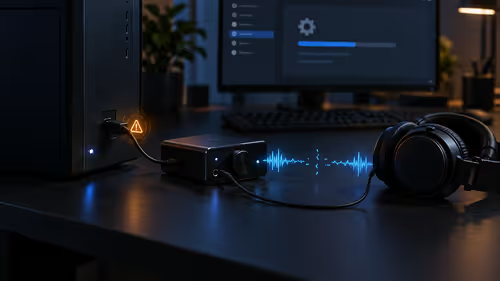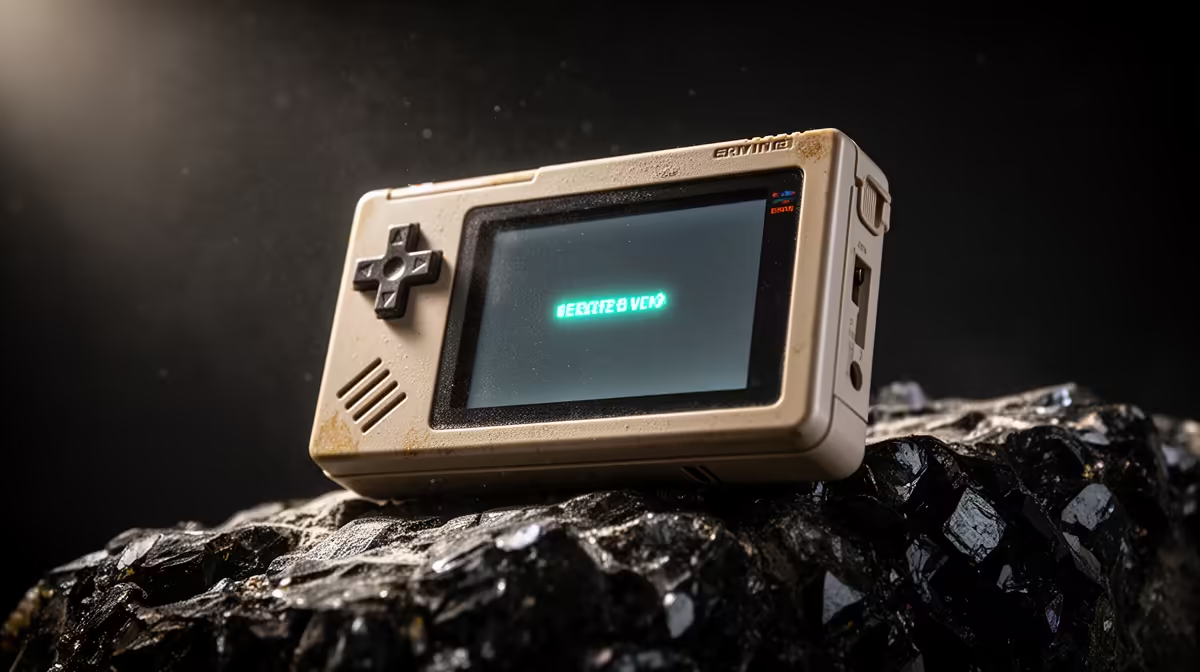
A retro handheld that hangs on a black screen, loops the boot logo, or simply will not start after a firmware update looks dead, but it almost never is. On these devices the operating system lives on a removable microSD card, not soldered-in storage, so recovering a retro handheld usually means writing a clean firmware image back onto that card. Ten minutes with a card reader and the right file, and the device you thought you killed boots like nothing happened.
Quick Answer
Re-image the microSD with a known-good firmware file using Balena Etcher, then put it back in the handheld and power on. Because the OS sits on the card rather than internal memory, a device that looks bricked is nearly always recoverable this way. You need a card reader, the correct image for your exact model, and about 10 minutes.
Why a Failed Update Rarely Bricks the Device
On handhelds like the Anbernic RG35XX family and similar Android and Linux units, the bootable system is stored on the microSD card. A failed update corrupts the files on that card, but the hardware underneath is untouched. Wipe and rewrite the card and you have effectively a factory-fresh OS again.
That is the whole trick. You are not repairing anything physical, you are replacing a damaged software image with a healthy one. This is also why running a separate game card from your OS card is smart: reflashing the system never risks your ROM library.
Step by Step: Reflash a Clean Image
Work carefully and use the image that matches your specific model, not a similar one.
- Power the handheld fully off and remove the OS microSD card.
- Put the card in a reader connected to a PC.
- Download the correct stock or custom firmware image for your exact model from the maker's official source.
- Install and open Balena Etcher, which writes the image to the card. Rufus or Win32 Disk Imager also work.
- Select the card as the target and the firmware file as the source. Etcher and Rufus handle compressed .img.gz files directly, so there is no need to unzip first.
- Flash, wait for the verify step to finish, then safely eject.
- Reinsert the card into the handheld and power on. It should boot to the fresh OS.
If you run a dual-card setup with games on a second card, that card stays untouched throughout, which makes recovery far less stressful. To see what fellow handheld gamers are buying for their setups, the best-selling systems list is a quick browse.
If It Still Will Not Boot
A clean reflash fixes the large majority of failed updates. If it does not, the usual culprits are a wrong image for the model, a failing microSD card, or an incomplete download. Try a fresh download, a different known-good card, and a slow, full flash rather than a quick one. Persistent failure across several good cards is the rare case that points to genuine hardware trouble. If you decide a fresh device is the simpler path, the current range of handheld gaming consoles covers the popular models.
Frequently Asked Questions
Is my handheld actually bricked after a failed update?
Almost certainly not. Since the operating system lives on the removable microSD card, a failed update corrupts the card, not the device. Rewriting a clean firmware image to the card revives nearly all of these so-called bricks.
Which tool should I use to reflash the card?
Balena Etcher is the most beginner-friendly choice and writes compressed images directly. Rufus and Win32 Disk Imager are solid alternatives. All three target the microSD card and write the firmware in a few minutes.
Will I lose my games and saves?
If your games sit on a separate card, they are safe because you only reflash the OS card. If everything was on one card, the reflash erases it, so back up saves first whenever you can before writing a new image.
Do I need the exact firmware for my model?
Yes, and this matters a lot. Flashing an image meant for a different model is a common reason a reflash fails to boot. Always download the firmware that names your specific device.
What if reflashing still does not work?
Try a fresh download in case the file was incomplete, then a different microSD card in case the original is failing. If several known-good cards all fail, that is the uncommon situation where the hardware itself may be at fault.
Most failed updates are a ten-minute fix, not a dead device. And when you are ready for your next adventure on the go, browse the handheld gaming consoles at Evetech.