


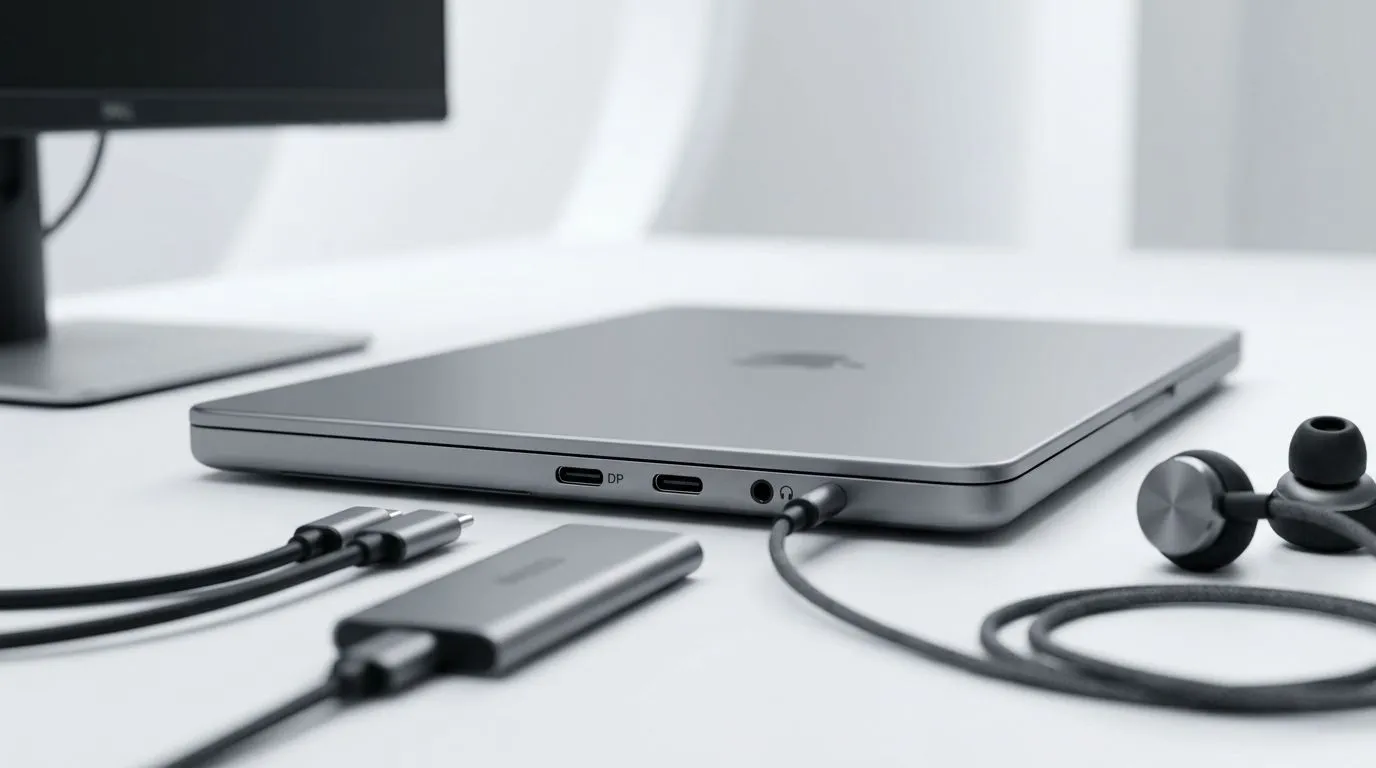
MacBook Neo 13 USB-C DisplayPort connection options for South African users 🔧
If you’ve ever unpacked a new MacBook and stared at your monitor ports like they were written in another language, you’re not alone. The good news? USB-C DisplayPort support makes modern MacBook setups far simpler than the old cable chaos. For South African gamers, creators, and office warriors, that matters. Less faffing. Less desk clutter. More time actually doing the thing... whether that’s editing, browsing, or jumping into a late-night session.
MacBook Neo 13 USB-C DisplayPort connection options explained
A USB-C port can carry video using DisplayPort Alt Mode, which lets a compatible monitor receive a display signal through a USB-C cable or via an adapter. Apple’s official support documents note that Mac laptops with Thunderbolt and USB-C ports can connect to external displays, depending on model and port capabilities. If your monitor has USB-C, that is usually the cleanest route. If not, a USB-C-to-DisplayPort cable or adapter is the usual fix. See Apple’s display connection guidance for the technical basics: Apple Support.
That is why the MacBook Neo 13 USB-C DisplayPort connection options are worth understanding before you buy. A lot of buyers think they only need the laptop. In reality, the right monitor and cable can make the whole setup feel premium instead of messy.
MacBook Neo 13 USB-C DisplayPort connection options for real-world setups ⚡
If you’re looking at a compact work-and-play machine, start with your use case. For light productivity, a single external display is often enough. For more headroom, look at models with extra memory and a larger panel, especially if you keep a browser, Discord, and a few apps open at once.
You can browse current MacBook options here: Evetech MacBooks under R30,000 and compare them with MacBooks under R28,449. If you want more workspace, this 16GB memory and 15.3-inch screen option is a smart place to start. For users who prefer extra multitasking room, check the wider 16GB memory MacBook selection.
What to check before you plug in a display
First, confirm the monitor’s input. DisplayPort, USB-C, and HDMI all behave differently. Second, check your cable quality. Cheap cables can cause flicker or random disconnects. Third, think about resolution and refresh rate. A cable that works at 1080p may not behave the same at higher resolutions.
Display Setup Pro Tip ⚡
On a MacBook, use a certified USB-C to DisplayPort cable for the most stable external monitor connection. It often avoids the fiddly adapter stack that causes black screens, wake issues, and signal dropouts.
If you want a newer Apple laptop direction, Evetech also has models with the Apple M5 listed for buyers who want to compare chip generations. And if you just want to see the full range, the main MacBooks page keeps everything in one place.
MacBook Neo 13 USB-C DisplayPort connection options and buying smarter
A sensible setup saves money later. That matters in South Africa, where every rand has to work harder. A well-matched laptop, monitor, and cable combo can feel faster than a spec-heavy machine with the wrong peripherals. If you game casually, stream, or work from home, that balance becomes even more important.
The smartest move is to buy for the whole desk, not just the laptop. Check the screen size, memory, and port setup before you click checkout. A few minutes of planning can spare you a lot of frustration later 🔌
Ready to Find Your Perfect Match? The Mac vs Windows debate is complex, but for maximum power, choice, and value in South Africa, Windows is hard to beat. Explore our massive range of laptop specials and find the perfect machine to conquer your world.











