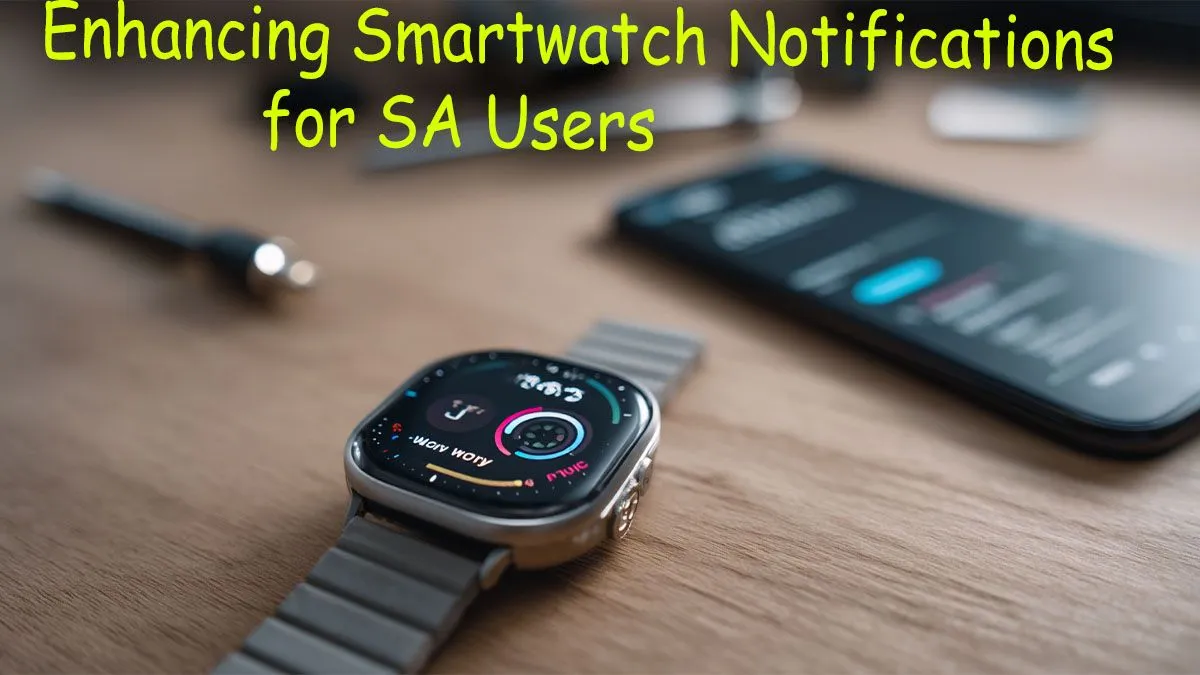
Is your wrist buzzing non-stop? A WhatsApp group message, a social media like, another news alert... it's a constant stream of digital noise. Your smartwatch is meant to simplify life in South Africa, not add to the chaos. Reclaiming your focus is essential, whether you're navigating traffic or just trying to enjoy a braai in peace. This quick guide will show you exactly how to manage smartwatch notifications and make your wearable work for you. ✨
Tame the Digital Noise: Why Notification Control Matters
Before we dive into the "how," let's talk about the "why." Constant, unfiltered alerts don't just drain your smartwatch's battery; they drain your mental energy too. Effective smartwatch notification management helps you stay focused on the task at hand, reduces stress, and ensures that when your wrist does buzz, it’s for something that actually matters. It’s the key to transforming your device from a simple accessory into a true productivity tool. With a wide range of smartwatches available, finding one with great customisation is easier than ever.
How to Customise and Manage Your Smartwatch Notifications 🔧
Getting control over your alerts is simpler than you think. It just takes a few minutes of setup within your smartphone's companion app.
The Companion App is Your Command Centre
Almost all notification management happens on your phone, not the watch itself. Whether you use the Galaxy Wearable app for a Samsung watch, Zepp for an Amazfit, or another dedicated app, this is your control panel. Open the app, find the "Notifications" or "App Alerts" section, and you'll see a list of every application installed on your phone. This is where the magic begins.
Be Ruthless: The "Less is More" Approach 🧘
Now for the most important step: go through that list and be ruthless. By default, most watches mirror every single phone notification. Ask yourself: do you really need to know about every email newsletter or game update on your wrist? Probably not.
Toggle off everything that isn't essential. We recommend keeping alerts for:
- Messaging Apps: WhatsApp, SMS, Telegram.
- Calls: So you can see who's ringing.
- Calendar: For meeting and appointment reminders.
- Banking Apps: For important transaction authorisations.
By curating your list, you ensure every buzz is a valuable one. Many modern devices, including affordable Promate smartwatches, offer excellent and intuitive apps to make this process a breeze.
Battery-Saving Pro Tip ⚡
Many smartwatches let you disable notifications while you're actively using your phone. Check your companion app's settings for an option like "Mute notifications on phone". This stops your wrist from buzzing for an alert you're already seeing on your phone screen, saving a surprising amount of battery life over the day.
Master Your Watch's Focus Modes
Sometimes you need complete silence. Get familiar with your watch's built-in modes:
- Do Not Disturb (DND): Silences all notifications and calls, but they'll still be waiting for you when you turn it off. Perfect for meetings.
- Theatre/Cinema Mode: Turns off the screen and all vibrations. Your screen won't light up with every accidental wrist movement in a dark room.
- Sleep Mode: Tracks your sleep while keeping notifications silenced until you wake up.
Even if you're on a tight budget, you can find great options under R1000 that include these crucial focus features.
Ready to Upgrade Your Wrist Game?
Having the right device makes all the difference. A modern smartwatch gives you granular control over your digital life, right from your wrist. Explore Evetech's incredible range of smartwatches and find the perfect companion to keep you connected and focused.