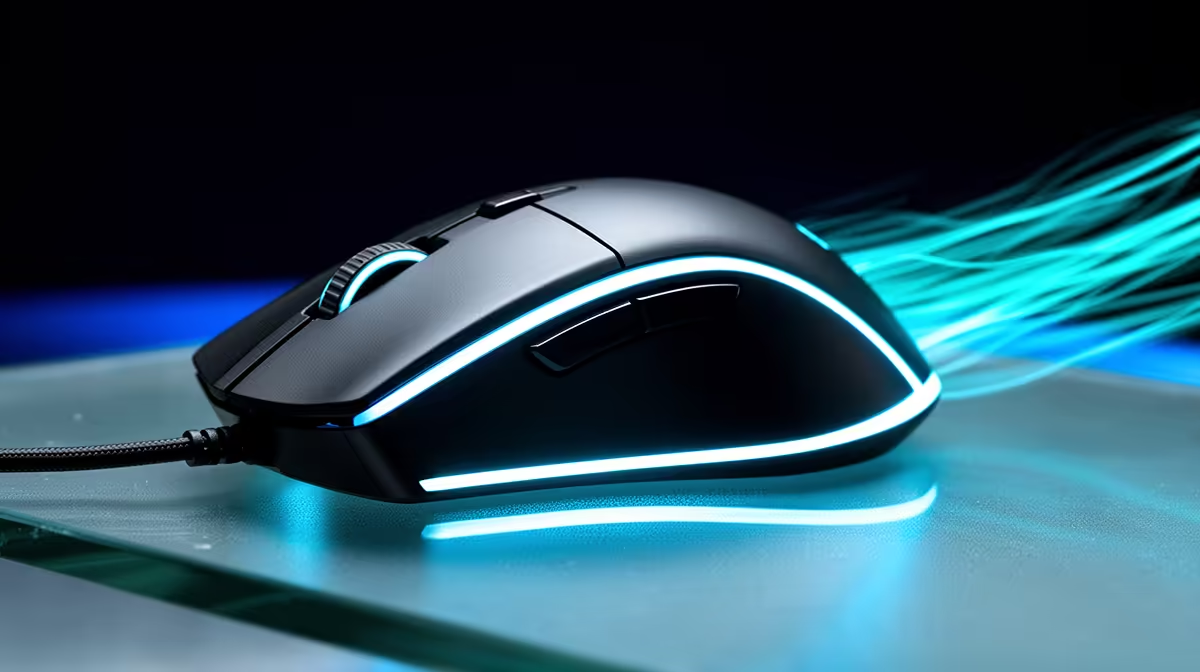
A mouse sensor and USB connection keep their own reporting clocks until a feature aligns them. Mouse motion sync can make intervals more consistent, with latency and feel tested on the exact sensor implementation rather than assumed.
Quick Answer
Motion sync aligns a compatible mouse sensor's motion samples with the USB report schedule. That can make report timing more even, while some implementations add a tiny amount of waiting to perform the alignment. It does not fix low frame rate, wireless loss or a poor sensor. Leave it at the maker's default, record frame time and aim feel, then compare on and off in the same drill. Some mice expose no toggle because the sensor or firmware handles sampling another way.
What the setting aligns
A sensor captures movement on its own internal schedule. The mouse reports movement to the PC at the selected polling rate.
Motion sync times those two stages so a report contains a sample close to the report boundary. The goal is consistent spacing rather than more distance or artificial smoothing.
Implementation differs by sensor and firmware. One mouse's motion sync result cannot be transferred to another model.
Why you might disable it
A latency-sensitive player may prefer the earliest unsynchronised sample when a model adds measurable wait. Another player can prefer the smoother report cadence.
High polling, frame rate and display refresh can make the difference easier to measure. At low frame rate, other delays can hide it.
Turn off angle snapping and acceleration separately. Those features change motion behaviour and should not be confused with sample alignment.
Read the sensor graph with care
A smooth line in a plotting tool can come from consistent sampling, the way the tool draws points or actual firmware filtering. Use a tool that reports timing as well as shape.
Move the mouse at slow, medium and fast speeds. Some sensors or firmware use different processing at the edge of their useful range. Keep DPI and surface unchanged.
Do not infer better aim from a prettier graph alone. The setting must also pass a real tracking and flick drill with stable frame time.
Check wireless and high-polling modes
Motion sync behaviour can change with polling rate or connection mode. Test 1000Hz by cable and receiver first, then raise the rate.
If frame-time spikes appear at a high rate, step down before judging motion sync. CPU overhead and sample alignment are two separate variables.
Save the working setting onboard and verify it after sleep. Some software profiles apply only while the app is open.
Run a fair comparison
Use the same DPI, polling rate, receiver position, game scene and frame cap. Draw repeated straight and circular movements, then play an aim drill.
Watch frame time and report stability with a reputable tool. Keep the setting that stays consistent and feels natural.
Browse gaming mouse deals for sensor and software details. Use the mouse best-seller range to compare complete shapes and current options.
FAQ
Does motion sync add lag?
Some implementations can add a tiny alignment wait. Measure the exact mouse and firmware rather than assuming a universal result.
Is it the same as smoothing?
No. It aligns sample and report timing. Smoothing or prediction changes the motion data itself.
Should you turn it off?
Start from default and compare one repeatable drill. Disable it only when the complete result improves.
Hold DPI, polling and frame time steady, compare motion sync in one aim drill and keep the mode with the cleaner complete result.