For obs bitrate for 1080p 60fps recording, skip the fixed number and use a quality-based mode. Set the rate control to CQP (NVENC or AMD) or CRF (x264) at a value of 18 to 23 and let the file size follow. A fixed bitrate only makes sense for live streaming, where your upload line sets the ceiling.
Quick Answer
For local 1080p60 recording, use CQP 20 with NVENC, or CRF 20 with x264, which gives clean footage at a manageable size. If you do want a fixed bitrate, 20,000 to 40,000 kbps (20 to 40 Mbps) covers most game footage. Streaming needs much less and depends on your upload speed.
🎬 Why recording is not streaming
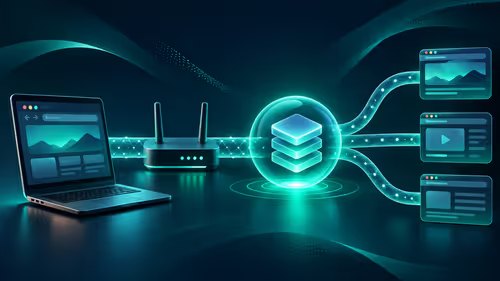
A stream has to squeeze through your upload line in real time, so bitrate is the limit. A recording only writes to your own drive, so it can be as large as you like. That is why recording settings use constant quality, where each frame gets what it needs, while streams use CBR, a fixed rate.
Fast action costs more bits. A shooter with lots of foliage needs more than a card game. CQP and CRF adapt, spending bits on busy scenes and saving them on calm ones.
⚙️ Settings that matter in OBS
In OBS Settings, choose Output, change the mode to Advanced, and select the Recording tab. Set the Type to Standard, the Recording Format to MKV, and the Encoder to NVENC (new) if you have an NVIDIA card, or the AMD or x264 option if not.
Then set Rate Control to CQP. Quality values run roughly like this: 16 to 18 for near-lossless, 20 to 23 for high quality with sensible sizes, 28 and above for visible loss. Keep Preset on Quality or Max Quality for NVENC, and the keyframe interval at 2 seconds. Under Video, set the Base and Output resolution to 1920 by 1080 and the FPS to 60.
💾 Drive space and format
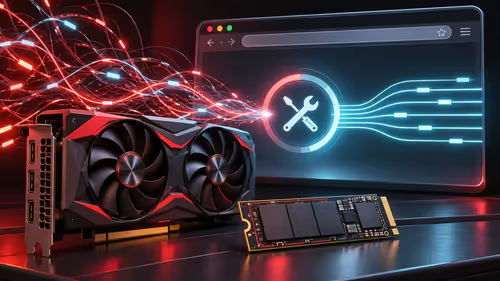
High-quality 1080p60 files can run into several gigabytes per hour, depending on the encoder and quality. Record to an SSD with plenty of free room rather than a nearly full drive, since a slow or crowded disk causes dropped frames that look like encoder problems.
MKV is safer than MP4 for recording. If the PC crashes or the game takes the system down, an MKV file stays playable, while an MP4 can end up unreadable. Afterwards, use File, Remux Recordings in OBS to convert to MP4 for editing or sharing.
📡 Streaming is a different budget
When you go live, switch to CBR and size the bitrate to your upload speed, leaving headroom of at least 20 percent. On South African fibre, upload on many lines is far below download, and LTE upload varies hour by hour. Run a speed test before you go live, and pick a stream bitrate comfortably under what you measure.
Hardware encoders such as NVENC need a little more bitrate than x264 for the same look, so choose the encoder before the number. If you stream and record together, set separate outputs: a lower fixed rate for the stream and a high-quality CQP file for editing later.
A clean voice track matters as much as video. A USB mic from the streaming essentials range and a sharp webcam finish the setup.
Frequently Asked Questions
Should I use CBR or CQP for recording?
CQP or CRF holds quality steady and lets size move, which suits local recording. CBR is for streaming, where the rate must stay fixed.
What bitrate does streaming 1080p60 need?
It depends on your upload and the platform limits. Test your upload and leave headroom so the stream does not drop frames.
How big are 1080p 60fps recordings?
Expect gigabytes per hour at high quality. Record to a fast SSD with plenty of space.
Which file format is safest in OBS?
MKV, since a crash does not ruin it. Remux to MP4 when you need to edit or share.
Does the encoder change the bitrate I need?
Yes. NVENC needs a bit more than x264 for the same look, so pick the encoder first.
Will fibre upload speed matter for recording?
Only for streaming. Local files do not use your upload line at all.
Ready to record and stream like a pro?
Head to the Evetech streaming essentials category for microphones and extras that match your OBS setup.