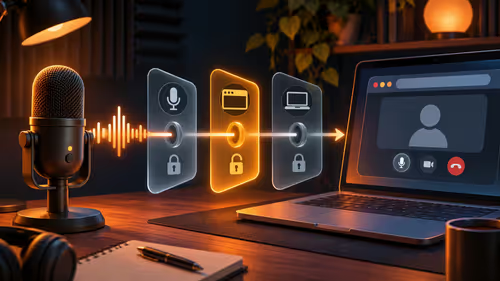
The best obs studio audio settings for streaming are a 48 kHz sample rate, a mic that peaks in the yellow zone, and desktop audio on its own source. Get those three right and your stream stops sounding like it was recorded in a tin. The rest is filters and a quick check of what viewers hear.
Quick Answer
In OBS, go to Settings, Audio and set the sample rate to 48 kHz. Keep the Mic/Auxiliary and Desktop Audio sources separate in the mixer. Aim for voice peaks near -12 dB to -6 dB, never touching the red. Add noise suppression, a noise gate and a limiter on the mic filter chain.
🔊 The base settings
Open Settings, Audio. Set Sample Rate to 48 kHz, which matches most USB mics, Windows devices and video platforms. A 44.1 kHz mismatch can cause drift or crackle. Channels can stay Stereo.
Under Global Audio Devices, choose your real microphone by name for Mic/Auxiliary Audio, and leave Desktop Audio on Default only if your game plays through the default device. Disable any extra mic you do not use, such as a webcam microphone, so it is not hidden in the mix.
In Advanced settings, you can set the Monitoring Device. Keep monitoring off for the mic unless you wear headphones and need to hear yourself.
🎛️ Mixer levels and filters
The mixer meter shows green, yellow and red zones. Set your voice so peaks land in the yellow, around the -12 to -6 dB range. Pull the game down until your voice sits clearly above it. Start with the game around -20 dB and adjust.
Right-click the mic in the mixer, choose Filters and add them in this order: Noise Suppression (RNNoise is a good pick), Noise Gate, Compressor if needed, then Limiter at -2 dB. Set the gate so it opens when you speak and closes between words. Too tight a gate clips word starts, so listen back.
🎚️ Multiple tracks for editing
Go to Settings, Output, Advanced, Recording, and tick several audio tracks. Put the mic on one track, game audio on another and music on a third, using Advanced Audio Properties to assign them. Your live stream still carries the mix from track 1, while your recording keeps pieces you can fix later.
This is useful for VODs. If a loud gunshot buries your voice, you can fix it in an editor without reshooting. If you plan to upload clips to YouTube, the default AAC audio rate in OBS is fine, and 160 kbps is a reasonable setting.
🔁 Echo, delay and double sound
If viewers hear delay or echo, the cause is usually monitoring or capturing the same audio twice. Check Advanced Audio Properties and set Audio Monitoring to Monitor Off for the mic. Make sure only one source grabs desktop sound, since a second capture plus a browser source doubles the game sound.
Stream stability matters too. On a South African LTE line, an unstable upload will break up even perfect audio, so settle video bitrate for your fibre or LTE connection first, then fine-tune sound. A good USB mic from the streaming essentials range cuts a lot of this work, since it needs less filtering than a cheap headset mic. Pair it with a webcam when you want a face on screen.
Frequently Asked Questions
What sample rate should OBS use?
48 kHz. It matches most USB mics, video platforms and Windows devices. A 44.1 kHz mismatch can cause drift or crackling.
How do I keep my voice louder than the game?
Set the mic so peaks reach the yellow zone and pull game audio lower. Never push voice into the red.
Which filters help a streaming mic?
Noise suppression, a noise gate and a limiter, in that order, cover most rooms. Add compression only after the base level is right.
Should I record audio on separate tracks?
Yes. Mic, game and music on different tracks let you fix problems in editing, while the live stream hears the mix.
Why do viewers hear a delay or echo?
Usually monitoring or a double capture of desktop audio. Turn mic monitoring off and capture the game once.
Do YouTube audio needs differ?
The default AAC bitrate in OBS works for YouTube. A stable upload is the bigger concern.
Ready to make your stream sound sharp?
Browse the Evetech streaming essentials category for USB microphones and gear that give OBS a clean signal from the start.