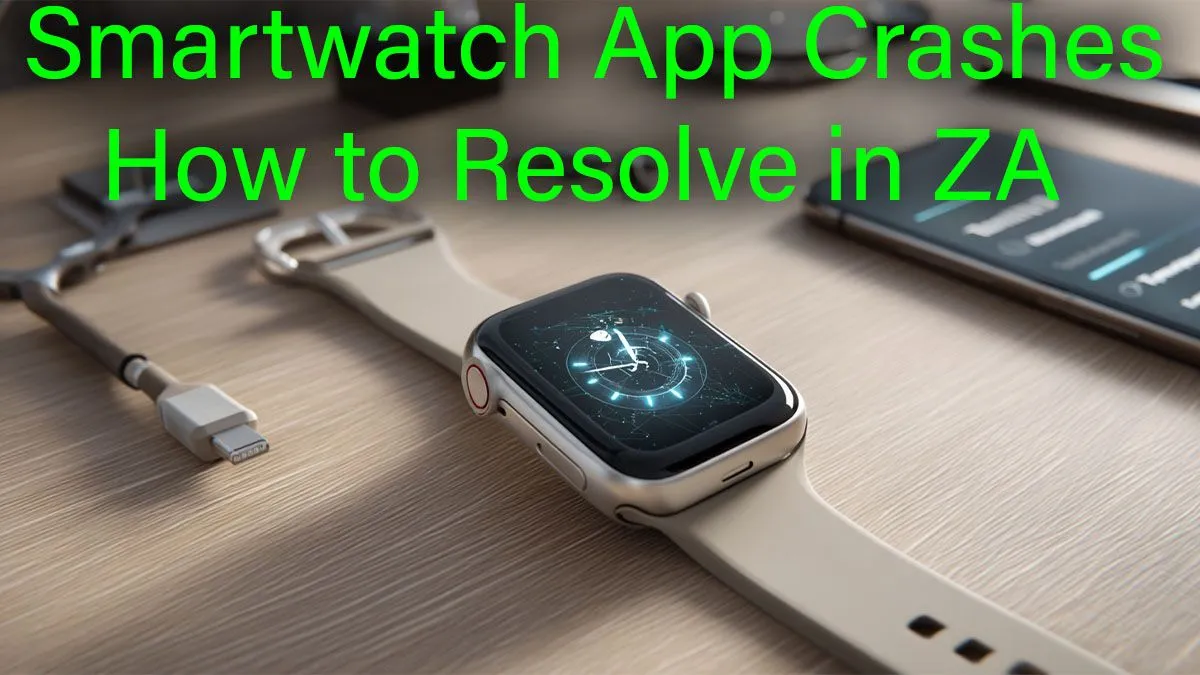
Nothing kills your flow faster than a frozen app. You’re about to check your outage schedule or track your morning run, and suddenly… your favourite app is unresponsive. If you’re dealing with frequent smartwatch app crashes in ZA, you're not alone. It’s a massive frustration, but don’t throw your device at the wall just yet. Most of the time, a few simple steps can get you back on track without needing a trip to a repair shop.
Why Do Smartwatch Apps Keep Crashing?
Before we dive into the fixes, let's quickly look at the culprits. Often, smartwatch app crashes aren't because your device is broken. The issue usually boils down to one of these things:
- Outdated Software: Both the app and your watch's operating system need to be up-to-date to play nicely together.
- Corrupted Cache: Apps store temporary data to load faster. When this data gets corrupted, it can cause instability.
- Low Memory or Storage: Just like a PC, if your watch is running too many things at once or is full, apps will struggle.
- Compatibility Glitches: Sometimes, a new app update just doesn't agree with your specific watch model.
Your Quick Fix Guide for Smartwatch App Crashes 🔧
Work through these steps in order. Chances are, one of them will solve your problem and stop those annoying smartwatch app crashes for good.
1. The Simple Restart
It sounds too easy, but it works wonders. Restart both your smartphone and your smartwatch. This clears out temporary memory glitches and allows everything to start fresh. It’s the first thing you should try, every single time.
2. Clear the App's Cache
If a specific app is the problem, clearing its cache is your next best move.
- On your phone: Go to
Settings > Apps. Find the companion app for your smartwatch (e.g., Galaxy Wearable, Zepp, etc.). Tap on it, then go to Storage and select Clear Cache. - On your watch (if possible): Some watch operating systems allow you to do this directly on the device. Check your watch's settings menu for an
Apps or Storage section.
Storage Sanity Check 💡
If your watch is constantly low on space, it can lead to performance issues and app crashes. Go through your installed apps and watch faces. Uninstall any you don't use regularly to free up precious storage. A lean device is a happy device!
3. Check for Updates
An outdated app or operating system is a common cause of instability. Open the Play Store (or App Store) on your phone and check for updates to the problematic app and your watch's companion app. While you're at it, go to your watch's settings and check for a system update. Developers are always patching bugs that cause smartwatch app crashes.
When the Fixes Don't Work… Is It Time for an Upgrade?
If you’ve tried everything and your apps are still crashing, it might be a sign that your hardware is struggling to keep up. Older models can lack the processing power or RAM needed for modern, feature-heavy apps. This is especially true for devices that no longer receive software updates.
Sometimes, the most reliable fix is an upgrade to a newer, more stable device. Modern wearables from reliable brands like Promate are built with better processors and more memory, specifically to handle today's demanding applications without a fuss. Even better, you don't have to break the bank; there are plenty of great options under R1000 that offer a smooth, crash-free experience. A new device ensures you get the latest security and feature updates, which is key to long-term stability.
Ready for a Crash-Free Experience?
Constant troubleshooting is a drag. If your old watch is letting you down, it might be time for an upgrade. Explore Evetech's full range of smart watches and find a reliable device that just works.