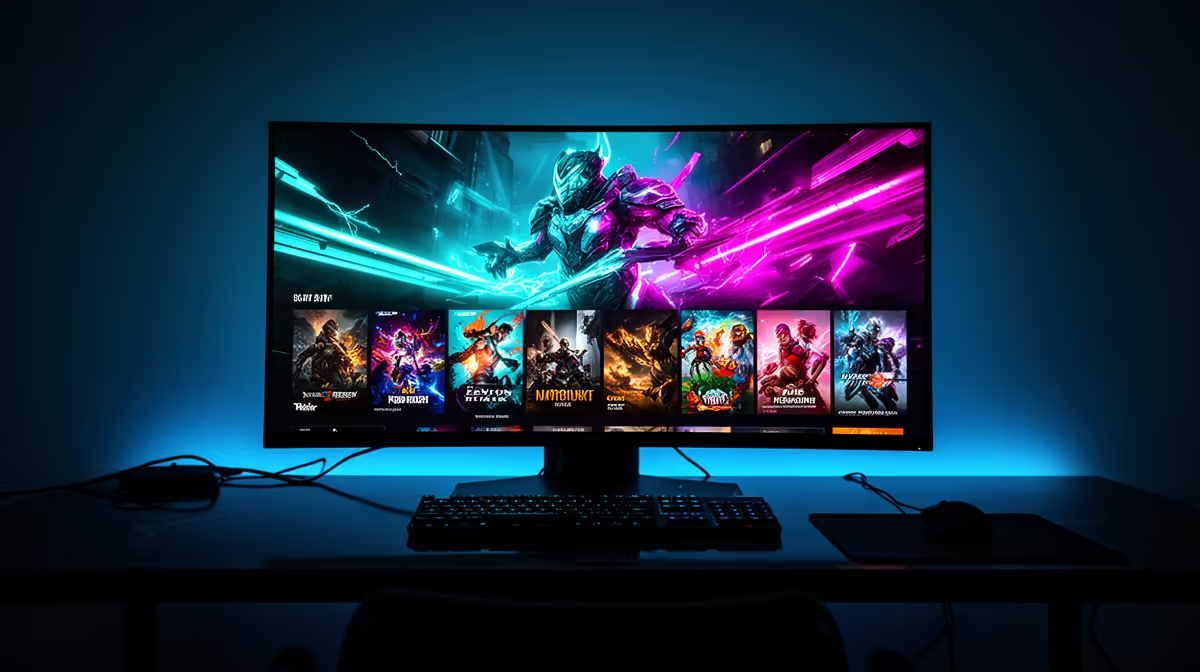
Static chat, borders and production controls can sit on the same OLED pixels for an entire broadcast. OLED burn-in for streamers is best managed through varied layouts, panel care features and sensible brightness rather than panic.
Quick Answer
An OLED streamer should manage any static bright element that remains on the physical panel for long sessions. Chat, dashboards, taskbars, preview frames, and channel graphics can contribute to uneven pixel wear. An overlay composited into the outgoing stream does nothing to the monitor unless that image is also displayed there.
Compare exact panels in the general PC monitor range, the models people choose among monitor best sellers, and the focused OLED monitor selection. Read model-specific care and warranty terms before purchase.
Identify what stays on the OLED
List the taskbar, OBS controls, chat window, audio meters, browser tabs, alerts, and game HUD. Take a screenshot at the beginning and end of a normal session. Large unchanged bright regions deserve attention.
The game can also contain static HUD elements, so it is not automatically lower risk than the overlay. Wear depends on brightness, colour, area, duration, cumulative use, and panel management.
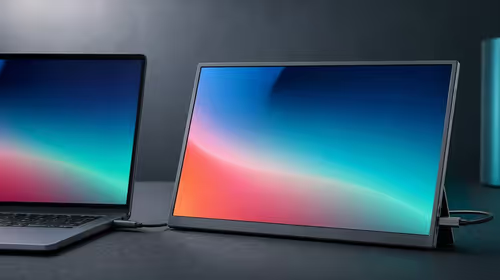
Move utility windows to an LCD second screen when you already own one. Keep the OLED for the game or programme preview that changes more often. Do not buy another monitor solely from fear before understanding the real layout.
Use the panel protections as designed
Enable pixel shift, static-element dimming, screen saver, standby, and compensation or refresh routines according to the exact manual. Do not interrupt maintenance by switching power off at the wall immediately after every session.
These features reduce risk and do not make the panel immune. Avoid disabling them to keep a fixed logo at maximum brightness.
Auto-hide the taskbar, use dark application themes when comfortable, reduce SDR brightness to suit the room, and let the screen sleep during breaks. Vary full-screen content rather than parking the desktop for hours.
Keep the streaming workflow practical
Put chat close to the camera on the second screen or a mobile device. Hide the local preview once framing is confirmed when your software supports it. Use hotkeys or a control pad for scene changes.
After a long session, close the application and allow the display to enter its normal maintenance state. Follow the written warranty and care instructions if image retention remains after recommended routines.
Keep the purchase terms and panel-care record. If the monitor reports cumulative maintenance or panel hours, use that information through the supported menu rather than forcing hidden service controls.
FAQ
Does a stream overlay cause OLED burn-in?
Only the image shown on the physical OLED affects its pixels. A software overlay sent to viewers but not displayed locally does not appear on that panel.
Do pixel shift and logo dimming prevent burn-in?
They reduce risk. They cannot guarantee zero uneven wear under every brightness, pattern, and duration. Keep them enabled and vary static content.
Should streamers avoid OLED?
No universal answer applies. OLED can suit a mixed-content setup when you accept its care routine, warranty terms, and cumulative-wear characteristics.
Audit what stays fixed on the physical OLED, move utility windows where practical, and keep every model-specific protection and maintenance routine active.