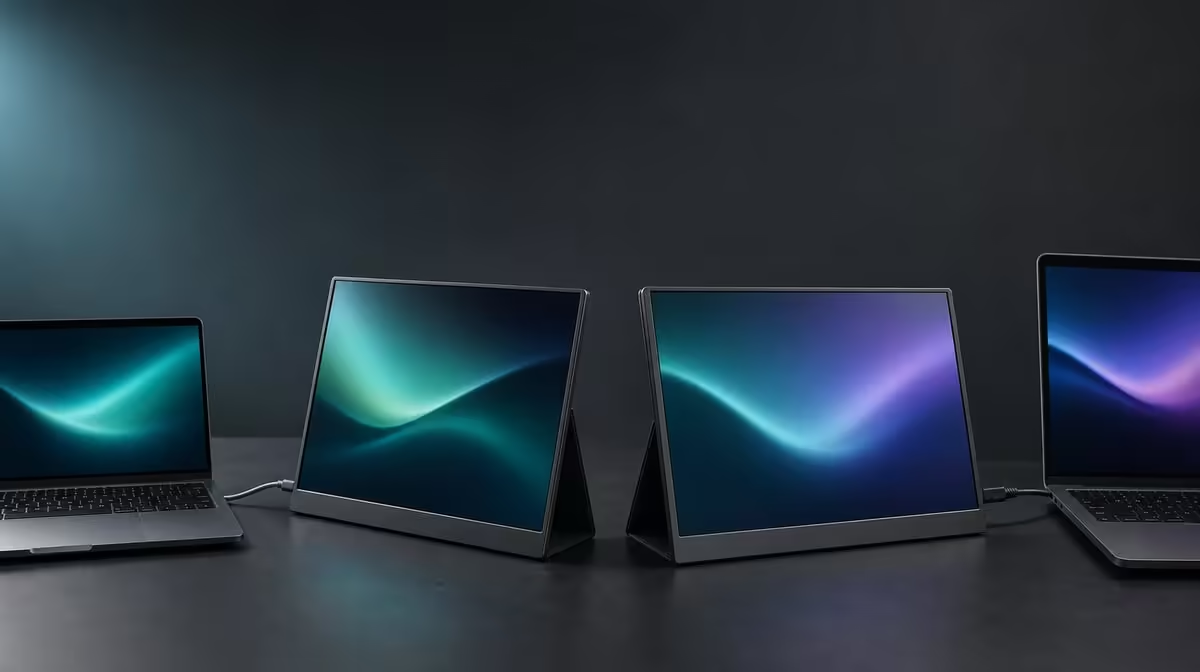
Two ports that look convenient can demand very different checks. The comparison between USB-C and HDMI portable monitor connections should begin with source output, cable capability, and power, because connector shape alone never proves that a picture will appear.
Quick Answer
USB-C can carry display video and may simplify power when the source, cable, and monitor support the necessary functions. HDMI provides a dedicated video route and commonly sits beside separate power. The R5,999 UPERFECT UColor J5 includes both inputs, letting buyers choose the proven path for each device rather than assuming one connector is universally better.
🔌 USB-C can simplify or confuse
Check whether the exact source USB-C port outputs display video. Then confirm that the cable carries the required signal. A charging cable with the correct plug may not provide a monitor picture.
Power must be considered separately. A one-cable arrangement is possible only when the participating devices agree on what is required. If the J5 powers on but remains blank, verify the selected input, source capability, and cable rather than concluding that every USB-C route will fail.
Evetech's portable monitor range is useful for comparing input combinations against the ports on laptops, mobile devices, and other sources.
🎮 HDMI provides a clear video route
HDMI is widely used for dedicated video output from laptops, desktops, and consoles. It can be the easier diagnostic path when a USB-C source's capabilities are uncertain. The monitor still needs its required power arrangement.
Connect one input at a time and select it explicitly. Confirm that the source detects the display, then set native 3840 x 2160 output and readable scaling. A successful HDMI test proves the panel can receive a picture, helping narrow a later USB-C problem.
Neither connection changes the J5's IPS technology, 400cd/m2 rating, or 1000:1 contrast. Evetech's PC monitor category provides context for displays with different input mixes.
🧪 Diagnose from power to settings
Use a fixed order: power indication, chosen input, source video support, cable capability, host display detection, resolution, then scaling. Changing several items simultaneously can make a temporary success impossible to explain or repeat.
Document the working path for each device. If USB-C handles the complete arrangement on one host while another requires HDMI and separate power, keep those routes distinct. Multi-device flexibility comes from evidence, not from forcing one cable plan everywhere.
Review Evetech's best-selling monitor selection for another current comparison. The UColor J5's R5,999 price buys both connection choices, but their practical value depends on the source ports and cables already in the setup.
Build a connection card for every host. Record the port, cable, power route, monitor input, detected resolution, and scaling. A laptop may use a single proven USB-C plan while a console uses HDMI plus the separate display power arrangement.
Test recovery, not only first connection. Disconnect the screen, switch to another host, and then return to the original route without changing unrelated settings. A path that restores cleanly is more useful than one that worked during a long troubleshooting session.
If USB-C provides power but no picture, avoid calling the cable or monitor faulty before the source output is confirmed. If HDMI displays correctly, preserve that known route and investigate the USB-C chain one checkpoint at a time.
The connector decision is complete when each required device has one documented, repeatable plan. There is no need to force every source onto the same input if the dual-input monitor already offers a reliable alternative.
Inspect cable movement in the intended desk or travel layout. A technically correct route can still be awkward if a lead pulls against the socket or crosses the working area. Reposition the screen before buying another cable.
Run native 4K content after both routes connect. The picture should be evaluated at the same resolution and scaling so USB-C and HDMI are not compared under different desktop conditions.
Keep one cable clearly associated with each proven source. This reduces uncertainty during travel and makes a no-image fault easier to isolate later.
Frequently Asked Questions
Does every USB-C port output video?
No. Check the exact source documentation or capabilities before relying on that connection.
Can the correct USB-C plug still hide an unsuitable cable?
Yes. Cables with the same connector can support different functions, so confirm video capability.
Why can HDMI require another lead?
HDMI carries the video route, while the portable display may need a separate power connection.
Which input should be used for troubleshooting?
Start with the route whose source and cable support is clearest, then test the alternative without changing the known setup.
Ready to make every connection choice traceable?
Compare Evetech's portable monitors and choose HDMI and USB-C options that match the confirmed outputs, cables, and power plan in your setup.