A delayed-feeling wireless mouse is not proof that the radio is slow. The sensation can begin at receiver placement, report configuration, game frame timing, display response or software. To diagnose wireless gaming mouse delay, keep a known movement test and remove one variable at a time.
Quick Answer
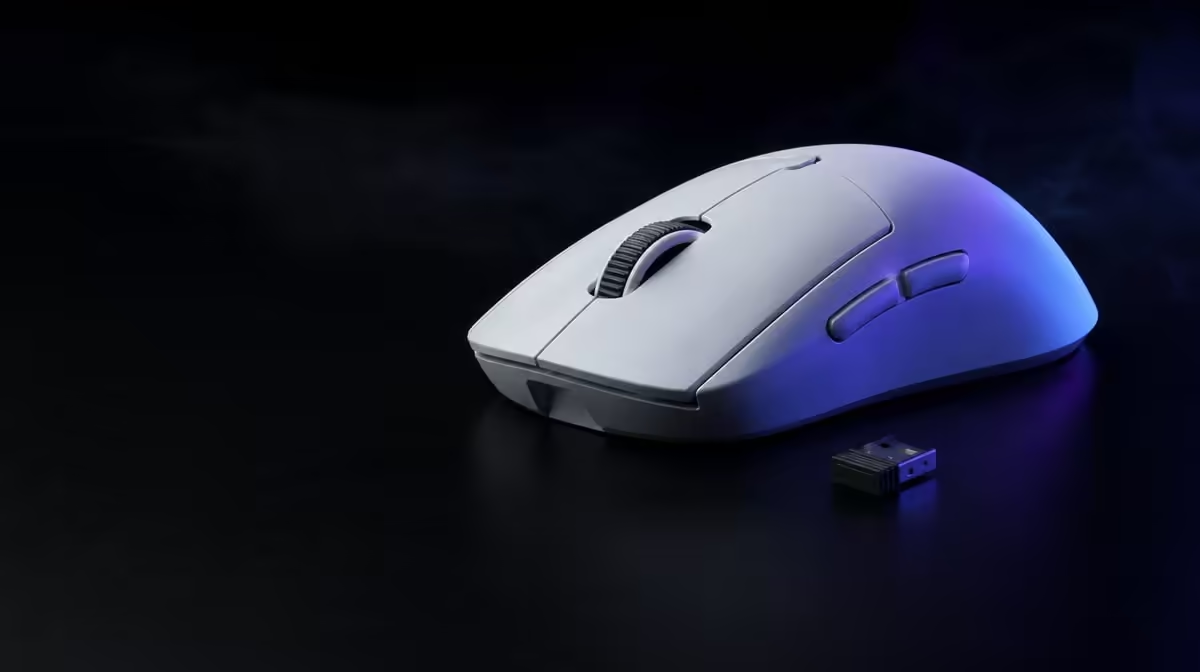
Confirm the intended connection, move the receiver into a clear stable position, restore familiar DPI and use a known report-rate baseline before checking game and display timing. The R1,499 G305 X SUPERLIGHT offers tri-mode connectivity and up to 8kHz reporting, giving several comparison routes without identifying the cause automatically.
🔹 Create a desktop baseline
Test cursor movement and repeated clicks outside the game. Keep the pad clean and the receiver route fixed.
Compare the Logitech family through Evetech's gaming mouse page.
🔹 Inspect the wireless path
Move the receiver away from obvious obstruction and test the normal desk position. Do not change DPI or report rate during this placement test.
Compare the performance-focused wireless mode with a suitable wired baseline. Bluetooth can be checked separately for its intended pairing role.
Record the USB route
Try one other suitable port if the result remains poor, then label the stable choice.
🔹 Test game and frame behaviour
Run the same scene at normal settings and observe frame consistency. A delayed response during frame-time spikes may originate beyond the mouse link.
The broader gaming mouse category helps compare input devices after the PC path is understood.
Restore report rate
Return to a stable rate before trying higher values. Up to 8kHz should be tested only after the delay disappears at baseline.
🔹 Change one setting
Alter receiver position, connection, report rate or game configuration separately. Record whether the same movement test changes.
Use Evetech's popular accessory listing as broader R1,499 context and check availability when ready to purchase.
Keep a recovery profile
Save moderate DPI, stable reports, default buttons and the proven connection. It provides a quick control after updates.
Test click-to-display response indirectly
Use a repeatable action with a clear on-screen response and compare it across the baseline connection and report settings. The goal is not to claim an exact latency number, but to identify whether the delayed feeling follows the mouse route or persists everywhere.
If it appears in both wired and wireless tests at the same game moment, inspect frame timing and display conditions before replacing the mouse.
Remove software complexity
Load a simple profile with moderate DPI, stable reporting and default buttons. Confirm that no unintended game profile or sensitivity switch is active.
After the delay disappears, reintroduce the custom button map and higher report setting separately. A profile mistake can feel like connection lag when it changes sensitivity or input behaviour unexpectedly.
Check the sensor path
Clean the sensor opening and pad, then repeat both slow and fast movement. Inconsistent surface tracking can be described by players as a delayed or floating response.
Keep the same section of the pad during comparison. A worn edge or debris patch should not decide the wireless verdict.
Test after a cold restart
Restart the PC, confirm the active mode and run the baseline before opening background applications. Then repeat under normal gaming load.
This reveals whether the problem appears only after software or system activity accumulates. Save the time and conditions rather than relying on a general memory that the mouse felt slow.
Create an escalation order
Move from physical connection and surface checks to profile, report rate, game timing and display. Stop as soon as a repeatable cause is found.
Avoid buying replacement hardware while a known-good wired or wireless baseline has not been established. Methodical evidence protects the R1,499 investment and the rest of the setup.
After the cause is corrected, restore normal software and household activity gradually. Confirm the delay does not return, then update the recovery profile and desk record with the change that actually mattered.
Frequently Asked Questions
What should be checked first?
Confirm the active connection, receiver placement, clean surface and known sensitivity before changing the game.
Can high report settings feel worse?
They can add system work, so test the complete PC and retain the rate that remains stable.
Why compare wired operation?
It provides another route that can help isolate the wireless segment.
Can frame-time problems feel like mouse delay?
Yes. Input experience includes game processing and display, not the mouse alone.
Should several settings be reset together?
No. One controlled change preserves evidence and a path back to the baseline.
Ready to trace wireless delay methodically?
Compare Evetech's gaming mice and keep connection, receiver, report rate and game timing as separate test steps.