


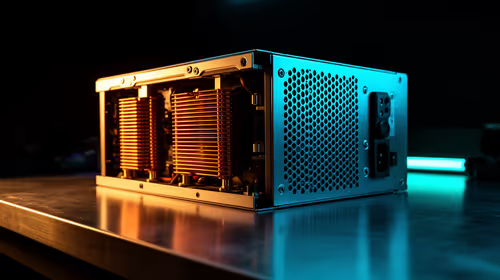
1000W PSU Planning for RTX 5090 Builds in SA
1000W for RTX 5090 needs a full-build check, not a simple yes. Review GPU guidance, CPU draw, transient load, connectors, PSU quality, and upgrade plans before deciding.
Read moreDisplay Running: for 4K 60Hz HDR you want a certified HDMI 2.0 cable rated to 18Gbps, not a generic high-speed lead off a parts bin. Specs sit next to practical SA setup tips, including humid coastal builds. Read the spec-by-spec notes, then the buying picks.
The three most common reasons a 4K display is stuck at 30Hz over HDMI are: (1) the cable is HDMI 1.4 (10.2 Gbps), not HDMI 2.0 (18 Gbps); (2) the display's HDMI input mode has not been switched to Enhanced or HDMI 2.0 in the display's settings menu; (3) the HDMI port on the source device (GPU, console, or media player) is HDMI 1.4, not 2.0.
Start at the display's own settings menu. On Samsung TVs, go to Settings, External Device Manager, HDMI UHD Colour, and enable it for the connected HDMI port. On LG TVs, navigate to Settings, Picture, HDMI ULTRA HD Deep Colour and enable it for the relevant port. On Sony TVs, go to Settings, External Inputs, HDMI Signal Format and switch from Standard to Enhanced Format. If this step alone does not fix the issue, the bottleneck is likely the cable or the source device's HDMI port. Next, confirm the cable: look for a Premium Certified HDMI label on the packaging. If the cable has no certification marking and you have owned it for more than three years, replace it with a certified 18 Gbps cable (R200 to R350 at 1.8 metres from Evetech). Finally, check the source: on an Nvidia RTX GPU, open Nvidia Control Panel, go to Change Resolution, and confirm the GPU is sending 3840 x 2160 at 60Hz.
Many South African users replace a perfectly good HDMI cable before checking the display's input enhancement setting. The reason is that this setting is buried in submenus and is not enabled by default on most Samsung, LG, Sony, and Philips 4K TVs sold in South Africa. The TV ships in Standard HDMI mode, which limits all HDMI inputs to 10.2 Gbps (HDMI 1.4) regardless of what is connected. Enabling Enhanced or HDMI 2.0 mode per port is a one-time change that costs nothing and fixes 4K/30Hz issues in the majority of cases. Check the display's own settings before spending on a new cable.
On an RTX 30, 40, or 50-series GPU, all HDMI ports are HDMI 2.1 (48 Gbps), which is backwards-compatible with HDMI 2.0 displays. On a PS5 or Xbox Series X, the HDMI output is also HDMI 2.1. These sources are not the bottleneck in a 4K/30Hz scenario. On older or budget GPUs (pre-RTX generation), HDMI 1.4 ports are possible. If you suspect a source port limitation, connect via DisplayPort instead, which carries 4K/60Hz easily on any post-2015 GPU with DP 1.2 or later.
After you find the correct Enhanced HDMI input setting on your TV, write down which port number you enabled (usually HDMI 1 or HDMI 2) on a sticky note kept with the TV remote. If you factory-reset the TV or someone else changes the setting, you will know exactly which port and setting to re-enable without digging through all the menus again.
No. 59.94Hz is the standard output rate for NTSC-region video signals and is functionally identical to 60Hz for all practical purposes. Your cable and port are working correctly at full 18 Gbps. This is a display standard setting, not a performance limitation.
Yes. Many passive or low-quality HDMI splitters are rated for HDMI 1.4 (10.2 Gbps). Inserting one into your chain between source and display caps the entire link at 4K/30Hz. Remove the splitter or replace it with a certified HDMI 2.0 splitter rated at 18 Gbps.
Rendering resolution determines GPU load, not the refresh rate of the connection. A game rendered at 4K uses the same GPU resources whether the display is set to 30Hz or 60Hz. The refresh rate only affects smoothness, not rendering workload.
4K display stuck at 30Hz and you've checked the display settings? Browse Evetech's HDMI 2.0 cable range to replace an uncertified cable with a Premium Certified 18 Gbps option. Stocked locally with fast delivery across South Africa.
1000W for RTX 5090 needs a full-build check, not a simple yes. Review GPU guidance, CPU draw, transient load, connectors, PSU quality, and upgrade plans before deciding.
Read more
RTX 5080 Super with a 750W PSU is more comfortable than lower wattage if the unit is quality. SA builders should still confirm GPU guidance, CPU draw, connector type, airflow, and upgrade room.
Read more
How to fix FPS drops after a RX 9070 XT starts with driver cleanup, chipset updates, thermals, and power checks. For SA gaming PCs, confirm PCIe seating, monitor refresh, frame caps, and per-game graphics settings before replacing parts.
Read more
How to fix low FPS Windows 11 Wi-Fi 7 issues starts by checking whether the problem is frame rate or network lag. Test ping, drivers, power settings, Ethernet, and game FPS before adjusting visuals.
Read more
AM5 is smart for SA builders because it supports newer Ryzen CPUs, DDR5 memory, and a longer upgrade path. Compare board cost, cooling, gaming needs, and local part availability before choosing your next PC platform.
Read more
AM5 gives Randburg gaming builders a longer upgrade path. For SA buyers, DDR5 support, newer board features, and future CPU options can justify the platform. Weigh board cost, cooler support, BIOS maturity, and upgrade timing before choosing.
Read more
A fake 113GB GTA VI ISO reportedly used empty padding around a small malware payload. SA gamers should delete unofficial builds, keep Windows security active and wait for official channels.

Wi-Fi 6E vs Wi-Fi 6 matters for 4K video editing when files move across a network. The real-world difference between Wi-Fi 6E and Wi-Fi 6 for video editing in 4K depends on NAS access, cloud uploads, router range, and SA creator workflows.

The difference between PCIe 5.0 and PCIe 4.0 for SA gamers is mostly bandwidth headroom. Compare GPU slot needs, NVMe speed, motherboard support, and upgrade timing before paying extra for a newer platform.

Gaming PC stuck pixel checks in South Africa should confirm the monitor fault first. Use colour tests, screenshot comparison, cable swaps, display menu checks, and clear photos before deciding on support.

Shokz OpenFit Air 2 earbuds weigh 7.2g each and use a redesigned dual-driver open-ear layout. SA buyers should choose them for comfort and awareness, not maximum isolation.

AMD's current driver now lists a Radeon RX 9050 4GB, while product coverage details a narrowed memory system. SA buyers should weigh the low VRAM ceiling against current local Radeon options.

Samsung Display has demonstrated a 16-inch 2.5K OLED laptop panel running at 300Hz. SA buyers should wait for a named notebook, full panel specifications and a local price before planning an upgrade.

Microsoft says some Windows 11 game crashes after recent updates are linked to RGB-related drivers. Affected SA gamers should confirm the update and driver before using the published registry workaround.
Shokz OpenFit Air 2 earbuds weigh 7.2g each and use a redesigned dual-driver open-ear layout. SA buyers should choose them for comfort and awareness, not maximum isolation.
A fake 113GB GTA VI ISO reportedly used empty padding around a small malware payload. SA gamers should delete unofficial builds, keep Windows security active and wait for official channels.
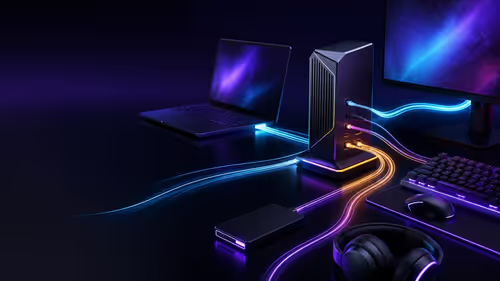
The ROG Flux Charger Dock combines 260W total output, 140W laptop charging and HDMI 2.1. SA buyers should check laptop USB-C limits, display needs and local warranty first.

ASRock's Rock 360 Digital AIO adds a 1.05-inch CPU temperature display, 360mm radiator and simplified wiring. SA builders should check case fit, socket support and local warranty.