



How Evetech Warranty Works: Complete Claims Guide for SA Buyers
How Evetech Warranty Works: Complete Claims Guide. Comprehensive checklist covering every spec and feature you should verify before buying in SA.
Read morewireless USB-C to projector — Learn five fast ways to mirror or extend your USB-C phone or laptop screen to a projector using adapters, Chromecast, Miracast, or apps. Skip cables and get stable casting in minutes 📱📽️
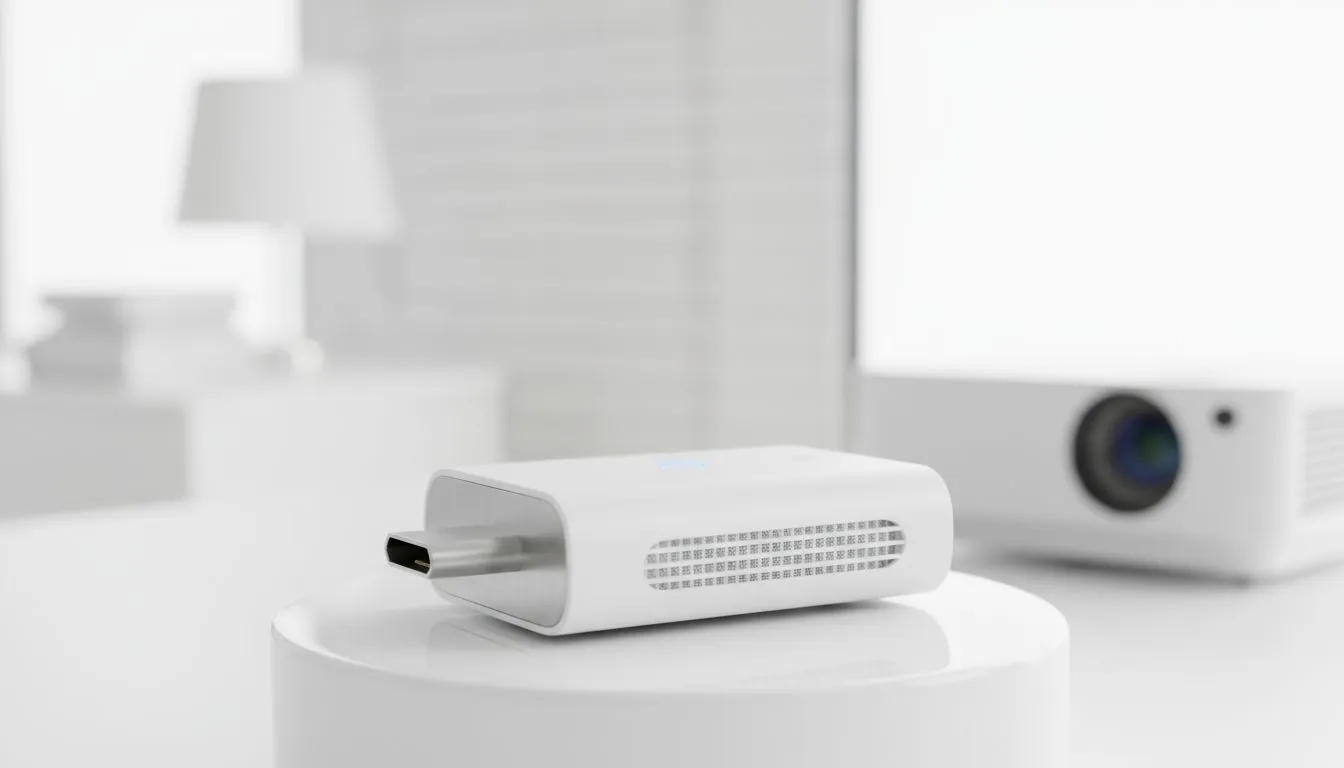
Looking to stream your laptop across the room for a LAN night or a classroom session? wireless USB-C to projector: 5 simple connection methods lays out clear, low‑fuss options so you can ditch cables and get back to the game or presentation in minutes. Read on for tested methods, pro tips, and what to buy in South Africa 🇿🇦🎮.
Each method trades ease for latency and reliability. For gaming, favour low‑latency transmitters or wired HDMI if competitive speed matters.
If you need accessories like hubs, transmitters or adapters, check Evetech’s gaming accessories selection for compatible peripherals and warranties — ideal when you want fast local support and familiar returns (buy gaming accessories).
If your laptop supports USB‑C PD and DisplayPort Alt Mode, use a powered USB‑C hub to keep charging while sending video. That avoids battery drain during long streams or presentations.
For plug‑and‑play, get a compact USB‑C hub with HDMI output and PD passthrough, plus a trusted wireless HDMI transmitter for low latency. Evetech often lists deals on these kinds of kit — see current gaming accessories deals for seasonal discounts. If you prefer browsing by category, the Gaming Accessories category on Evetech groups compatible controllers, adapters and cables for quick matching.
Want budget options or premium kits? Browse Evetech’s buy gaming accessories area for local stock and support — buying locally helps with warranty and quicker returns.
For presenters and casual streaming, Chromecast or Miracast is easiest. For gaming and anything latency‑sensitive, invest in a wireless HDMI transmitter or keep a short HDMI cable handy. Local stock and warranties matter in SA; choose retailers like Evetech for reliable delivery and returns.
Ready to Find Your Perfect Match? The Mac vs Windows debate is complex, but for maximum power, choice, and value in South Africa, Windows is hard to beat. Explore our massive range of laptop specials and find the perfect machine to conquer your world.
Use a wireless display adapter, Chromecast, or Miracast app that supports USB-C devices. Plug the adapter into the projector HDMI and cast from your phone settings.
Usually yes—buy a compatible USB-C wireless display adapter or Chromecast unless the projector has built-in Miracast or Chromecast support.
Yes. Most Android phones and many USB-C laptops can cast to Chromecast-equipped projectors or adapters using Google Cast.
Miracast mirrors via Wi-Fi Direct; Chromecast streams via your network and works app-by-app. Both enable wireless USB-C to projector connections.
Choose a low-latency wireless display adapter with 5GHz support or use a direct HDMI solution. Chromecast often adds more lag for gaming.
Extending depends on projector and adapter support—some Miracast-capable adapters and vendor tools allow extended displays from USB-C laptops.
Yes—Google Home, Miracast utilities, and some manufacturer apps can facilitate USB-C phone wireless casting to projectors.
How Evetech Warranty Works: Complete Claims Guide. Comprehensive checklist covering every spec and feature you should verify before buying in SA.
Read more
Handheld Gaming PCs for entry-level PC should be shortlisted around the job it must do. South African buyers should compare fit, performance, compatibility, and upgrade room, warranty path, and upgrade room before treating any pick as best.
Read more
Handheld Gaming PCs for low-latency online should be shortlisted around the job it must do. South African buyers should compare fit, performance, compatibility, and upgrade room, warranty path, and upgrade room before treating any pick as best.
Read more
Should SA buyers pay more for boom arm support should be shortlisted around the job it must do. South African buyers should compare panel type, resolution, refresh rate, and ports, warranty path, and upgrade room before treating any pick as best.
Read more
Should SA buyers pay more for noise rejection should be shortlisted around the job it must do. South African buyers should compare audio quality, mic clarity, comfort, and connection type, warranty path, and upgrade room before treating any pick as best.
Read more
Should SA buyers pay more for pickup pattern should be shortlisted around the job it must do. South African buyers should compare audio quality, mic clarity, comfort, and connection type, warranty path, and upgrade room before treating any pick as best.
Read more
Best Value Laptops South Africa 2026 — Find top picks, local prices and buy tips to maximise performance per rand. Compare deals for students, creators and gamers. 🔎💸

Struggling with a weak Desktop PC Wi-Fi signal? 📶 Discover expert tips on positioning your tower and external antennas to eliminate lag and maximize your internet speeds for gaming and streaming. 🚀

Tired of loadshedding router restarts killing your Wi-Fi? ⚡ Discover why power cuts disrupt your connection and learn expert tips to get back online faster after the lights return. 🌐

Master using a Nano SIM 4G router as your primary internet solution. Get stable speeds and seamless connectivity for gaming and streaming at home! 🌐🚀

Gauteng r30 000 needs practical checks before you choose. Compare fit, workload, support, setup needs, timing, and delivery expectations without relying on live availability or fixed 2026 claims.

Gauteng r40 000 needs practical checks before you choose. Compare fit, workload, support, setup needs, timing, and delivery expectations without relying on live availability or fixed 2026 claims.

Gauteng r50 000 needs practical checks before you choose. Compare fit, workload, support, setup needs, timing, and delivery expectations without relying on live availability or fixed 2026 claims.

Gauteng r60 000 needs practical checks before you choose. Compare fit, workload, support, setup needs, timing, and delivery expectations without relying on live availability or fixed 2026 claims.

Three-tier smart watch plan for commuting should be shortlisted around the job it must do. South African buyers should compare fit, performance, compatibility, and upgrade room, warranty path, and upgrade room before treating any pick as best.

AR Glasses buying order for commuting students should be shortlisted around the job it must do. South African buyers should compare fit, performance, compatibility, and upgrade room, warranty path, and upgrade room before treating any pick as best.

Smart Watch buying order for commuting should be shortlisted around the job it must do. South African buyers should compare fit, performance, compatibility, and upgrade room, warranty path, and upgrade room before treating any pick as best.

Smart Watch buying order for quiet PC builds needs a balanced parts plan, not a random basket. Map the CPU, GPU, RAM, SSD, cooling, and monitor target to the budget so SA builders know where to spend first.