


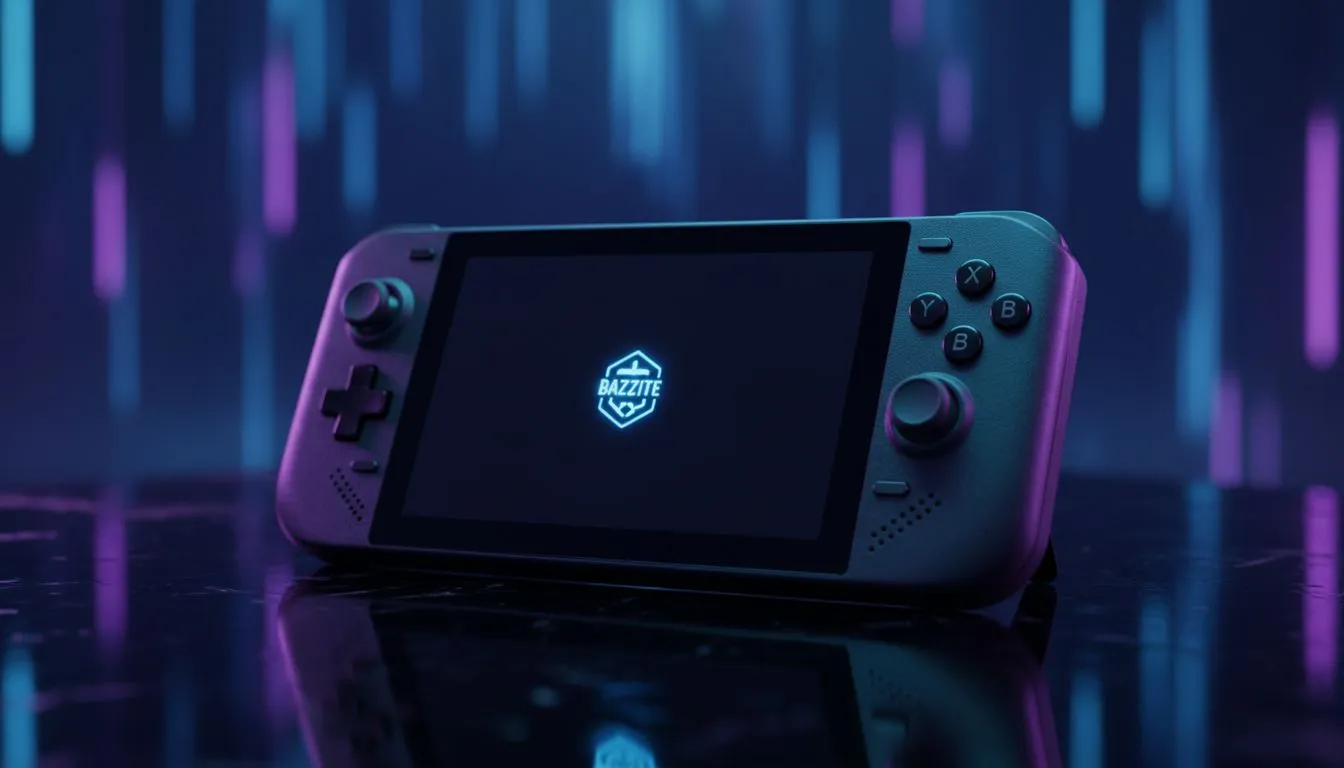
Why Switch to Bazzite? The Console Experience on Windows Hardware
You love your ROG Ally or Legion Go, but let’s be honest... navigating Windows 11 with a touchscreen and thumbsticks can feel like trying to thread a needle while riding a taxi on a potholed road. It’s clunky.
That is where Bazzite comes in. It is a custom version of Linux (Fedora-based) designed to mimic the Steam Deck’s operating system perfectly. It gives you that seamless, "pick up and play" console interface on your powerful hardware. Plus, the "Quick Resume" feature is a lifesaver during an unexpected outage—just tap the power button to suspend your game instantly without draining your battery ⚡.
If you are looking to get the most out of your handheld gaming consoles, this guide is your ticket to a smoother ride.
Preparing Your Handheld for the Upgrade
Before we start flashing drives, you need to ensure your device is supported. Bazzite has done an incredible job optimising their OS for the major players available in South Africa.
Supported Devices
- ASUS: The ASUS ROG Ally (and the X variant) runs Bazzite beautifully, with full support for the RGB thumbsticks and TDP (power) controls directly in the quick-access menu.
- Lenovo: If you prefer the massive screen of the Lenovo Legion Go, Bazzite supports the detachable controllers and the trackpad, making navigation a breeze.
- MSI: The ecosystem is growing fast, and support for the MSI Claw is improving daily, unlocking better frame pacing in many titles compared to stock Windows drivers.
What You Will Need
- A USB Flash Drive: At least 8GB (USB-C is best, or use an adapter).
- A Keyboard: While not strictly necessary, having a USB or Bluetooth keyboard makes the initial setup much faster.
- Secure Boot Disabled: You will need to enter your device's BIOS to turn this off.
Dual Boot Pro Tip 🚀
don't have to delete Windows! Bazzite supports dual-booting. During installation, you can shrink your Windows partition to make space for Bazzite. This gives you the best of both worlds: Bazzite for gaming, and Windows for Game Pass or productivity apps.
Step-by-Step Bazzite Installation Guide
1. Download the Bazzite Image
Head over to the official Bazzite website. Do not just grab the generic version; use their "Hardware Selector." Select your specific handheld (Handheld PC > ASUS/Lenovo/MSI) to ensure you get the version with the correct drivers pre-loaded.
2. Flash the Drive
Download a free tool called BalenaEtcher or Rufus. Plug in your USB drive, select the Bazzite ISO file you just downloaded, and click "Flash." This will wipe the USB drive, so make sure there aren't any important family photos on it!
3. Boot from USB
Shut down your handheld completely.
- For ROG Ally: Hold the Volume Down button and press Power. Keep holding Volume Down until the BIOS menu appears.
- For Legion Go: Hold Volume Up and press Power to access the Novo Button Menu.
Select your USB drive from the boot override options.
4. The Installation Process
Once the Bazzite installer loads, it looks very similar to a standard Fedora Linux install but simplified.
- Select your language (English).
- Select your destination drive (your internal SSD).
- Crucial Step: If you want to keep Windows, choose "Custom" or "Automatic" partitioning that preserves existing data. If you want a dedicated console experience, you can wipe the drive (backup your data first!).
- Click "Begin Installation" and grab a coffee. It usually takes about 10 to 15 minutes.
Post-Install Setup
When the device reboots, you will be greeted by a setup screen that looks identical to a Steam Deck. Log in to your Steam account, and Bazzite will automatically start downloading shaders and optimising your library.
You now have a device that sleeps instantly, wakes up in seconds, and offers a user interface designed for controllers, not mice ✨.
Ready to Upgrade Your Portable Gaming? Whether you need the raw power of the Legion Go or the compact ergonomics of the ROG Ally, we have the hardware to keep you gaming on the go. Check out our full range of handheld consoles and start your next adventure today.










