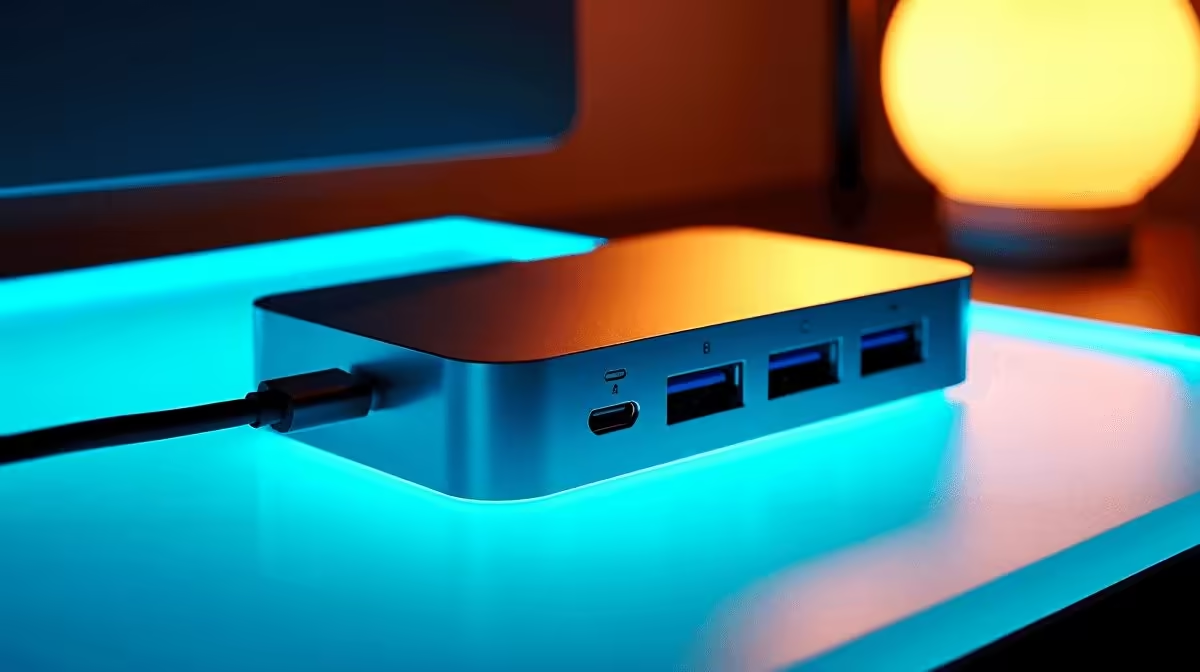
Working from home in South Africa has one structural challenge that no productivity app solves: a reliable connection. Fibre is fast when the wireless path is clean, but in a busy household or apartment block the 5GHz band fills quickly. The best USB-C hub for WFH addresses that with a wired Ethernet port, pairs it with a 4K display output for a proper desk setup, and charges the laptop through the same cable so the adaptor stays in the bag.
Quick Answer
The ideal WFH USB-C hub for South Africans includes Gigabit Ethernet (wired SA fibre delivers consistently over a cabled link), HDMI 2.0 for a 4K external monitor, 65 to 100W Power Delivery pass-through, and at least two USB-A 3.0 ports for a keyboard, mouse, or headset. Hubs meeting this spec run from roughly R700 to R1,400. The Ethernet port alone differentiates a WFH hub from a generic travel hub.
🌐 Ethernet and Why Wireless Is Not the Default for Remote Work
A Wi-Fi connection on a 200 Mbps fibre line is theoretically fast enough for any video call. In practice, wireless signal quality in a home varies by room, by the number of neighbouring networks, and by how many devices share the band at any moment. The consequence for a Johannesburg or Cape Town remote worker is dropped call quality, lag during screen sharing, and inconsistent upload speeds during large file transfers. A Gigabit Ethernet port on a hub bypasses all of that. It connects directly to the router via a cable and provides stable throughput regardless of what the wireless environment is doing. The speed ceiling is 1Gbps on Gigabit Ethernet; most SA residential fibre plans operate between 20 Mbps and 1Gbps, so the wired connection supports the full plan without negotiation. For anyone conducting client calls, submitting large files, or accessing a corporate VPN from home, wired is the lower-risk path.
🖥️ Display and Charging for a Proper Home Desk
A proper WFH desk is not a laptop propped on a pile of books; it is a full external monitor at eye level, a separate keyboard, and a mouse. The HDMI port on a hub makes that transition possible without a second cable run from the wall adapter. HDMI 2.0 outputs 4K at 60Hz, which is the resolution that modern 27-inch and 32-inch monitors use natively. HDMI 1.4 limits output to 4K at 30Hz, producing a slightly stuttery desktop during scrolling; it is not ideal for an all-day working display. The Power Delivery pass-through on a WFH hub should be at least 65W for ultrabooks and thin-and-light notebooks; remote workers on heavier machines should check their original adapter rating and match it where possible. Running charging, display, and Ethernet from a single hub consolidates three separate cable runs into one USB-C plug on the laptop.
📋 Port Count and Peripheral Planning
A WFH hub does not need to be a sprawling docking station, but it should have enough ports for the standard desk peripherals. Two USB-A ports handle a keyboard and mouse. A third accommodates a wired headset, a USB security key, or an occasional flash drive. A 3.5mm audio jack is a practical addition for those using wired headsets for calls rather than Bluetooth. Beyond that, extras like SD card slots add value for users who work with media but add unnecessary cost for those who do not. A focused WFH hub sits at five to eight ports total: Ethernet, HDMI, two or three USB-A, a USB-C data or PD-in port, and optionally audio. For South African remote workers who travel between a home office and occasional in-person meetings, a hub compact enough to fit in a laptop bag without a dedicated case pocket earns its keep on both fronts.
Frequently Asked Questions
Is a wired Ethernet connection noticeably better than Wi-Fi for video calls?
In a stable environment, the difference is minor. In a congested wireless environment (apartment building, busy household, or peak-hour shared ISP node), wired Ethernet eliminates the packet loss and latency spikes that degrade call audio and video quality. For calls that matter, wired is the lower-risk choice.
What HDMI version should a WFH hub have for a 4K monitor?
HDMI 2.0 for smooth 4K at 60Hz. HDMI 1.4 limits output to 4K at 30Hz, which feels sluggish on a primary work display. If the hub listing says "4K HDMI" without specifying the version, check the full spec sheet before purchasing.
How much Power Delivery wattage does a WFH laptop actually use?
Most ultrabooks and thin-and-light machines charge at 45 to 65W. A hub with 65W PD pass-through covers these comfortably. If your laptop's original charger is rated at 90W or higher, choose a hub that matches that wattage to avoid gradual battery drain during heavy use.
Can one hub handle two monitors for a WFH dual-screen setup?
Some can. Look for hubs that explicitly support dual display output and confirm whether the host laptop's USB-C port supports multi-stream video. Single-cable dual 4K output generally requires Thunderbolt 4 or USB4 on the laptop side.
Should a WFH hub be bus-powered or use its own adapter?
For a fixed desk, a hub with its own adapter (or a high-wattage PD hub drawing from a wall adapter) is more reliable. Bus-powered hubs work well for portable use but can struggle to maintain stable performance when multiple high-draw devices are connected simultaneously on a full workday.
Set up a WFH desk that stays connected all day.
Visit Evetech's USB-C hub and docking range to find a model with Gigabit Ethernet, 4K display output, and the charging pass-through your laptop needs.