


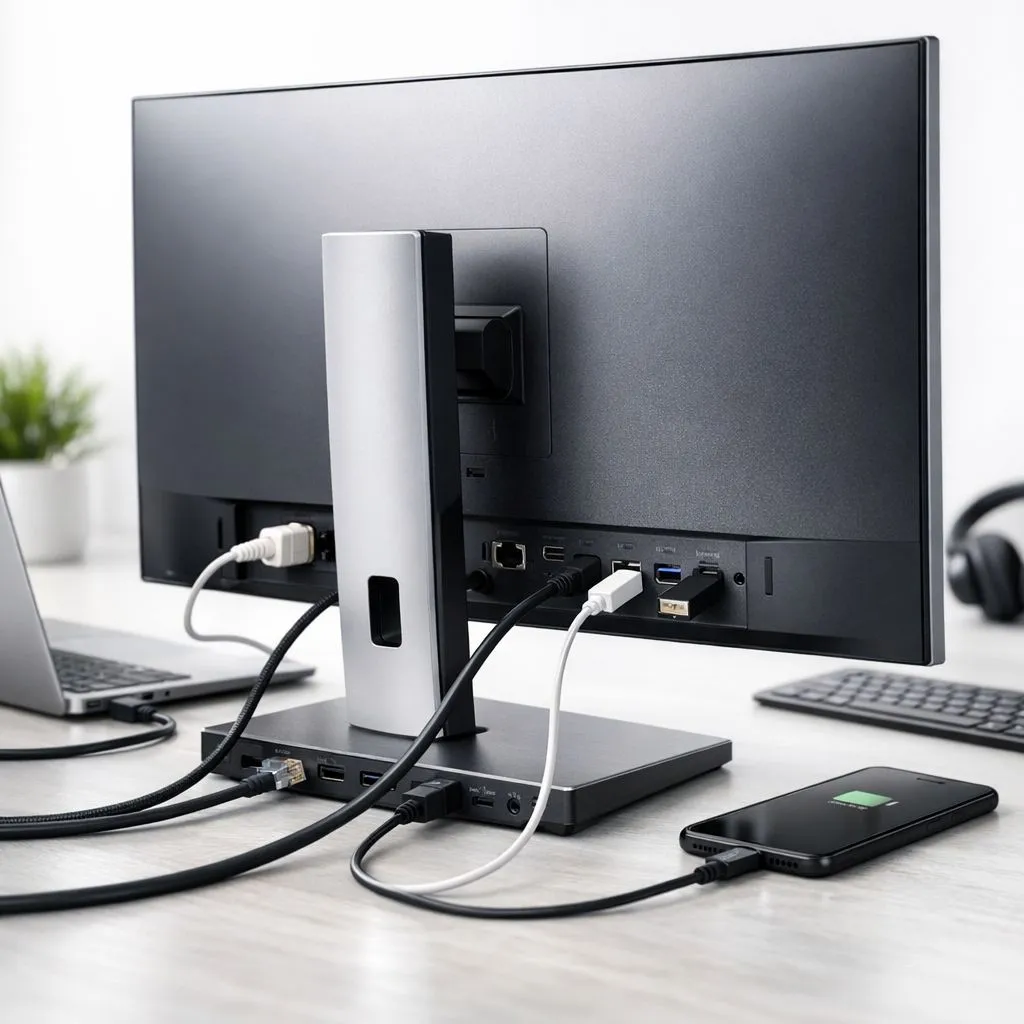
USB-C Monitor Docking Station: A Clutter-Free Desk Starts Here 🇿🇦
If your desk looks like a cable museum, you’re not alone… especially if you game, stream, and work. A USB-C monitor docking station can turn “one laptop, many cables” into “one connection, everything ready”. Imagine plugging in once and instantly getting power, display, and peripherals. 🔧 That’s the kind of setup that makes evening sessions smoother and mornings less stressful. Let’s make it practical, not hype.
What a USB-C Monitor Docking Station Actually Does (And What It Doesn’t) 🔌
A USB-C docking station sits between your laptop and your monitor(s). With the right dock and the right laptop support, you typically get:
- Video output to your monitor via DisplayPort Alt Mode (or similar support)
- Power delivery (charging through USB-C)
- USB connectivity for mouse, keyboard, headset, webcam, and external storage
What it doesn’t do:
- It cannot magically fix a laptop that doesn’t support video over USB-C.
- It won’t provide “4K 144Hz gaming” if your dock or laptop link can’t push that bandwidth.
So the first question is simple: does your laptop output video via USB-C? Most modern devices that support this will advertise it in their ports or specs, but you should confirm before buying.
Choose the Right Monitor For Your Dock Setup: Match Resolution, Ports, and Refresh 💥
Your dock is only as good as the chain. If you’re building a clutter-free desk for gaming and media, consider your monitor first:
- If you want smooth gameplay, choose a gaming monitor suited to your GPU.
- If you want crisp detail for productivity, choose a higher resolution.
- If you want immersion for racing and shooters, curved monitors can help.
Start exploring monitor options here:
- Find the best deals and compatible options: best PC monitor deals at Evetech
- Browse the full range: PC monitors on Evetech
- Want immersive visuals? Check curved monitors
- If you travel or work from home in different rooms, look at portable monitors
- For high-detail work and sharp gaming visuals, explore 5K and 4K monitors
USB-C Docking Station Compatibility Checklist (So You Don’t Waste Money) ✅
Before you buy, do a quick compatibility scan. This avoids the most common “it powers, but no display” frustration.
1) Confirm your laptop’s USB-C supports video output
If your laptop uses USB-C for data only, you may need HDMI/DisplayPort cables instead. If video is supported, the dock will usually handle the rest.
2) Check power delivery (PD) so your laptop charges
Many people like using a single cable, so charging matters. If your laptop needs more wattage than the dock can supply, it may still work, but your battery can drain.
3) Plan your refresh rate expectations
Even with the right dock, high refresh rates at higher resolutions depend on the connection bandwidth. If you’re chasing 4K high refresh, you’ll need to match the monitor and dock carefully.
4) Think about your peripherals
If you want a full desk setup, prioritise a dock with enough USB ports for:
- keyboard and mouse
- headset via USB
- external storage
- webcam and microphone
5) Consider monitor type for gaming
If your primary goal is gaming, pick a dock-friendly monitor setup. Browse all gaming monitors and look for port options that match your expected output.
Set Up a Clutter-Free Desk: Cable Plan That Actually Works ✨
Here’s a setup flow that feels clean and holds up over time:
- Mount or place your monitor first Decide where the monitor sits, then route cables behind the stand.
- Use the dock as the central hub Plug the dock into power, connect to the monitor (via USB-C or DisplayPort/HDMI depending on your dock), then connect your laptop once.
- Move “messy” cables off the front edge Route power bricks and excess lengths behind your desk. Tie them down so they don’t fall into arm and wrist territory.
- Label your inputs (seriously) If you swap consoles, devices, or laptops, a small label makes later changes painless.
Productivity Pro Tip ⚡
On Windows, enable PowerToys FancyZones to create custom snap layouts for your browser, Discord, game launchers, and asset folders. When your dock lets you switch between work and gaming quickly, FancyZones keeps window placement consistent so you spend less time rearranging and more time playing.
Don’t Forget Monitor Accessories and Desk-Friendly Upgrades 🔧
Even the best dock can’t fix poor ergonomics or limited port access. If you’re tightening up your entire desk setup, browse monitor accessories like mounts, stands, and helpful add-ons: buy monitor accessories on Evetech.
You’ll thank yourself when:
- your screen height is right for long sessions,
- your cables route cleanly,
- your desk stays “console-ready” without looking messy.
Build It for South African Load-Shedding Days (Realistic Power Planning) ⚡
If your home has occasional power dips, your dock setup should still behave predictably. Consider using a UPS for your key gear (router, monitor, dock, PC/laptop charger). It’s not about fear… it’s about avoiding the “everything flickered, now what?” moment.
Also, if you’re using a dock with power delivery, it’s smart to ensure your charger wattage matches your laptop needs. That’s the difference between “clean setup” and “it only works when it wants to”.
Quick Buying Guide: What to Prioritise in Your USB-C Dock 🚀
If you want the shortest path to a great purchase, prioritise:
- USB-C video support (for one-cable operation)
- Power delivery big enough for your laptop
- Ports that match your daily peripherals
- A monitor that suits your gaming or productivity goals
Then shop confidently using Evetech’s monitor options to align the whole setup with how you actually use your desk.
Ready to Find Your Perfect Match? The Mac vs Windows debate is complex, but for maximum power, choice, and value in South Africa, Windows is hard to beat. Explore our massive range of laptop specials and find the perfect machine to conquer your world.











