So, you're ready to dive into the world of local AI development with DeepSeek, but your command line hits you with a frustrating error. Lekker. A DeepSeek install error is a common roadblock stopping South African coders and tech enthusiasts in their tracks. Don't stress... we've got your back. This guide will walk you through the most common installation problems and get you coding with one of the most exciting AI models available today.
Common Causes of a DeepSeek Install Error
Before we start digging into fixes, let's understand the usual suspects. When a DeepSeek installation fails, it’s typically not one big problem, but a small, overlooked detail. The most frequent issues include:
- Python Environment Conflicts: Incorrect Python versions or messy package installations are the number one cause.
- Missing System Dependencies: The GPU-accelerated version of DeepSeek requires specific NVIDIA drivers and the CUDA Toolkit.
- Permission Issues: Your system might be blocking the installer from writing files where it needs to.
- Hardware Limitations: Large AI models are hungry for VRAM and processing power. An older PC might struggle.
Step-by-Step Troubleshooting Guide 🔧
Work through these steps methodically. The solution to your specific DeepSeek install error is likely in one of the first few steps.
Step 1: Check Your Python Environment
A clean and correct Python setup is non-negotiable. DeepSeek and its underlying frameworks like PyTorch have specific version requirements.
First, confirm your Python version by opening your terminal or Command Prompt and typing:
python --version
If the version is incompatible, consider using a tool like pyenv to manage multiple Python versions. More importantly, always use a virtual environment to prevent package conflicts.
Create one with:
python -m venv deepseek_env
source deepseek_env/bin/activate (On Windows: deepseek_env\Scripts\activate)
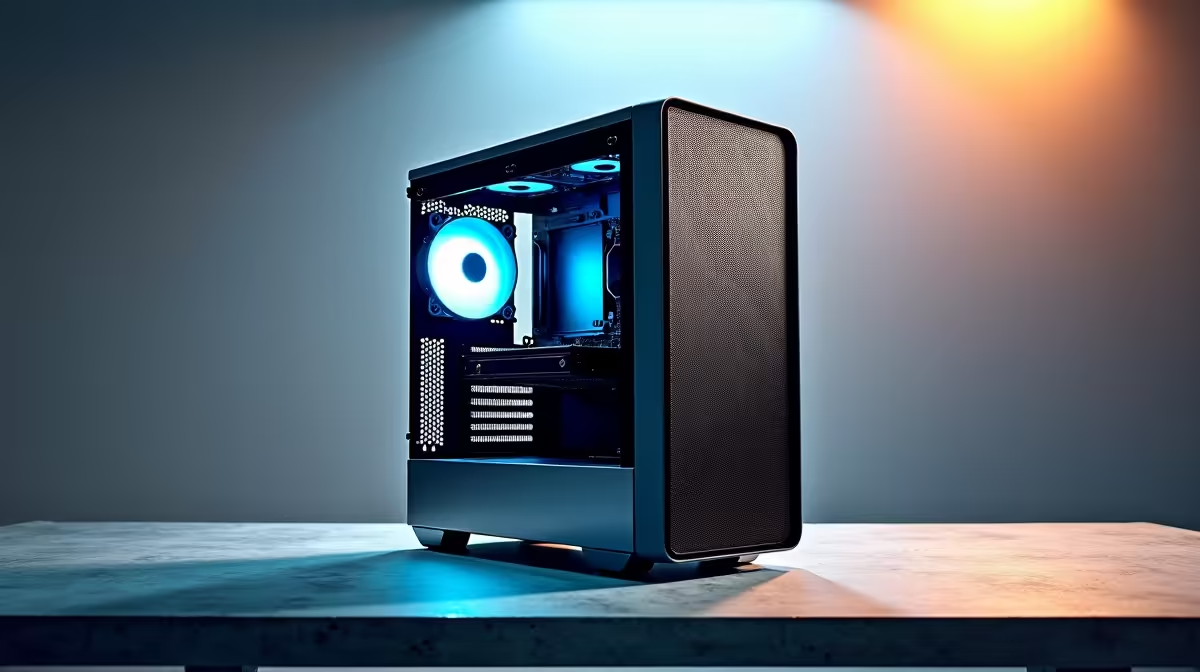
Working with complex AI environments often requires serious processing power, which is where dedicated workstation PCs shine, handling multiple dependencies and processes without breaking a sweat.
Step 2: Verify Core Dependencies (CUDA & PyTorch)
If you're aiming to use your GPU for acceleration (and you should be!), you need NVIDIA's CUDA Toolkit and a compatible version of PyTorch. A mismatch here is a guaranteed recipe for a DeepSeek install error.
- Check NVIDIA Driver & CUDA: Ensure you have the latest NVIDIA drivers. Then, check your CUDA version with
nvcc --version. - Install Correct PyTorch: Visit the official PyTorch website. It has a handy tool that generates the exact
pip command you need based on your system (Windows/Linux), package manager, and CUDA version. Don't just pip install torch!
This step is crucial for anyone with a rig from our NVIDIA GeForce gaming PCs range. While many AI tools are optimised for CUDA, developers using PCs with AMD Radeon graphics can explore alternatives like ROCm. Even the latest Intel Arc gaming PCs are becoming viable for AI workloads with the growth of Intel's software stack.
Step 3: Run Installation with Correct Permissions
Sometimes, the fix is as simple as giving the installer the right permissions. Your operating system might prevent pip from writing to system folders.
- On Windows: Right-click on Command Prompt or PowerShell and select "Run as administrator."
- On Linux/macOS: Use the
sudo prefix on your installation command, but be cautious. A better long-term solution is to fix your user permissions or use a virtual environment.
A correctly configured operating system, like those found on our reliable pre-built PC deals, can often prevent these permission headaches from the start.
Pro Tip: Clear Your Cache ⚡
you're reinstalling after a failed attempt, a stubborn DeepSeek installation failed message could be due to a corrupted package in your cache. Force a clean download by using the --no-cache-dir flag with pip. For example: pip install --no-cache-dir deepseek-coder
When Your Hardware is the Bottleneck
Still stuck? It’s time to look at your machine. AI models are demanding. Running them requires a decent amount of RAM, a powerful CPU, and, most importantly, a modern GPU with plenty of VRAM (Video RAM). If your PC is a few years old, it might not have the resources, causing the installation or the model itself to fail in cryptic ways.
A stable and powerful CPU, whether you choose from a powerful Intel-based PC or the latest modern AMD Ryzen systems, is the foundation for any serious AI work. While even some of our affordable budget gaming PCs can handle smaller models, for cutting-edge projects, you'll want the power found in our best gaming PC deals. ✨
Final Thoughts: Getting Your AI Journey Started 🚀
Fixing a DeepSeek install error is usually a process of elimination. By carefully checking your environment, dependencies, and permissions, you can overcome most issues. Remember that a solid hardware foundation makes the entire process smoother, letting you focus on coding and innovation instead of troubleshooting. Happy coding!
Ready to Power Your AI Ambitions?
A frustrating install error can be a sign that your hardware needs a boost. For a seamless experience with AI, coding, and gaming, a solid PC is non-negotiable. Explore our custom PC builder and design the perfect machine to bring your ideas to life.